Downloaded on a computer? The Quick Install QR code is on page 2 of the PDF guide in your download: open the PDF on the computer and scan it with your iPhone Camera. For the icon files, open your purchase again on the phone.
Your theme
Each theme has its own page with these steps, its file names and its colours.
 Gingerbread ClassicCandy
 Victorian Christmas Guide
 Mushroom WalnutMossDusk
 Gothic VelvetNoirMidnight
 Cottagecore OatSage
 Camo & Tactical Guide
 Dark Academia Guide
 Neon Palms Sunset HazeNeon LightsOcean Drive Morning
 Frutiger Aero SkyLagoonSunset
 Snowy TwilightFrostDawn
 Lit House MidnightPlum
 Christmas Tree & Gifts EmeraldCranberryMidnight
 Orbit Gloss MidnightUltravioletTeal
 Neon Horizon SunsetMiamiVapor
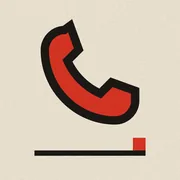 Primary Forms ClassicSwissNoir
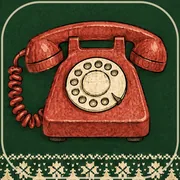 Cozy Christmas PineMidnightCranberryBlush
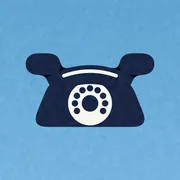 Riviera DayGolden Hour
What’s in the download
- Icons: the app icons as PNG files, for iPhone and Android.
- Wallpapers: matching images for iPhone and Android, one or two designs depending on the theme.
- Quick Install (iPhone only): a profile that adds nine icons at once.
- Install Guide: this guide as a PDF, to read on your phone.
A theme can come as one ZIP or as two (icons and wallpapers). Unzip each one.
Get the files on your phone
- On your phone, open your purchase in a web browser (Safari on iPhone, Chrome on Android) and download the ZIP. Use the browser, not the shop’s app: the app can’t save the file. The ZIP goes to the Downloads folder.
- iPhone: in Files › Downloads, tap the ZIP once. A folder appears.
- Android: in Files › Downloads, tap the ZIP. Touch and hold the folder inside, then tap ⋮ › Extract to… › Extract. With Files by Google, tap the ZIP, then Extract.
Downloaded twice? Your phone may add “(1)” to the folder name. Either folder works.
iPhone: Quick Install
What Quick Install is: a small settings profile, signed by Frenetiq Design, that puts 9 theme icons on your Home Screen in one go (Messages, Photos, Maps, Weather, Music, Mail, Calendar, Notes, Safari). It only adds icons: your apps and settings stay as they are. The button that starts it, and its QR code, are on page 2 of the Install Guide PDF in your download. About two minutes.
- Open the Install Guide PDF from your download. On page 2, tap Get the Quick Install and open it in Safari, not Chrome. On a computer? The Quick Install QR code is on page 2 of the PDF guide in your download: scan it with your iPhone Camera.
- Tap Allow, then Close.
- Open Settings and tap Profile Downloaded.
- Tap Install, enter your passcode, then tap Install again. iOS shows the profile as signed by dl.frenetiq.design.
Do steps 3 and 4 within 8 minutes. Too late? Tap the button again.
Your original apps stay. To hide one, touch and hold it, then Remove App › Remove from Home Screen. The app is not deleted.
iPhone: any other icon
Each other icon is a shortcut that opens its app, set with the Shortcuts app. About a minute per icon: start with the apps on your first Home Screen page.
- Open Shortcuts and tap +.
- Search Open App and pick your app.
- Tap the name at the top, then Add to Home Screen.
- Tap the small icon, then Choose File: in Downloads, open your theme folder, then Icons, and pick one.
- Type a name and tap Add. Repeat for each app.
Icon names missing? Your iPhone uses Large icons (iOS 18): touch and hold the Home Screen, tap Edit › Customize and choose Small.
iPhone: wallpaper
- In Wallpapers, open the iPhone image, then tap Share › Save Image.
- Go to Settings › Wallpaper › Add New Wallpaper › Photos, pick the image and tap Add.
Android: set up Nova Launcher
Most Android home screens can’t use your own pictures as icons. Nova Launcher is a free app that draws your home screen and can. You set it up once.
- Install Nova Launcher from Google Play. It’s free.
- Open Nova, tap Get started, choose Nova Launcher and tap Set as default.
- Nova Prime or Plus appears? Tap ✕. The free version is enough.
- Tap → through the setup, then Go home.
- Not your Home app yet? Settings › Apps › Default apps › Home app › Nova Launcher.
- Once: open Nova Settings › Look & feel › Icon style › Icon shape and pick Rounded square, so each icon shows whole. Scroll the list to find Look & feel.
Nova may ask about your data now. Choose either option: the icons work both ways. Stuck on a Nova screen? Contact Support.
Android: change the icons
About a minute per icon. Start with the apps on your first home screen.
- Touch and hold an app, then tap the pencil ✎ (Edit).
- Tap the icon picture, then Gallery apps › Files.
- In Files tap ☰ › Downloads, open your theme folder, then Icons, and pick one. The files are named after the app, such as
mail.pngorbrowser.png. - Tap Done.
- Leave Reshape ticked, so the icon takes the rounded square shape. Tap Done again. Repeat for each app.
Android: wallpaper
- Touch and hold an empty spot on the home screen, then tap Wallpapers › Pick image.
- Tap ⋮ › Browse…. If it opens in another folder, tap Downloads in the path at the top. Open your theme folder (with two ZIPs, the one named “… Wallpapers”) and pick the Android image.
- Tap ✓ Set wallpaper. With one wallpaper, choose Home and lock screen.
- With two wallpapers, pick Lock Screen - Android and choose Lock screen. Then repeat with Home Screen - Android and choose Home screen.
Day & night
Some themes, such as Gingerbread, come with a day and a night wallpaper. Your iPhone can switch to the night one at sunset and back at sunrise.
- Repeat the iPhone wallpaper steps with the night picture. Both are now in your wallpaper list.
- Open Shortcuts › Automation, tap + (or New Automation), then Time of Day.
- Pick Sunset, choose Run Immediately, tap Next.
- Tap New Blank Automation, search Switch Between Wallpapers and tap it.
- Tap Wallpaper in the action and pick the night picture by its preview, then tap Done.
- Repeat steps 2 to 5 with Sunrise and the day picture.
Android doesn’t switch on its own: in the evening repeat the Android wallpaper steps with the night picture, in the morning with the day picture.
Samsung, Xiaomi and other phones
Samsung: Galaxy Themes can’t use these pictures, so use Nova. Home app: Settings › Apps › Choose default apps › Home app › Nova Launcher.
Xiaomi: the Themes app can’t use these pictures, so use Nova. Home app: Settings › Apps › Default apps › Home app › Nova Launcher. Swipe gestures not working? Switch to buttons in System navigation.
Want your old home screen back? Pick it again in Home app. Nothing is deleted.
Questions
I installed the profile too late
iOS gives you 8 minutes between downloading the profile and installing it. Tap Get the Quick Install again and repeat steps 3 and 4.
Do I need Quick Install on Android?
No. Quick Install is for iPhone only. On Android you set the icons with Nova Launcher.
Still need help?
Open Contact Support and tell us your phone model, the theme and the step you are on.