what you need.
- Stream Deck +For the dials, the touch strip and the Levels pages. The keys also work on the other Stream Deck models.
- The Stream Deck app, version 7.1 or laterFree, from Elgato’s website.
- A Windows 10 or 11 PCLevels doesn’t run on macOS.
- OptionalSteelSeries Sonar (Levels drives its faders) and the Levels Soundboard expansion, sold separately. No account, no internet connection.
install in 5 steps.
Double-click the plugin file
Installing from the Elgato Marketplace? Stream Deck adds Levels by itself: go to step 2. Got the file? Double-click
design.frenetiq.levels.streamDeckPlugin. The Stream Deck app opens and adds Levels.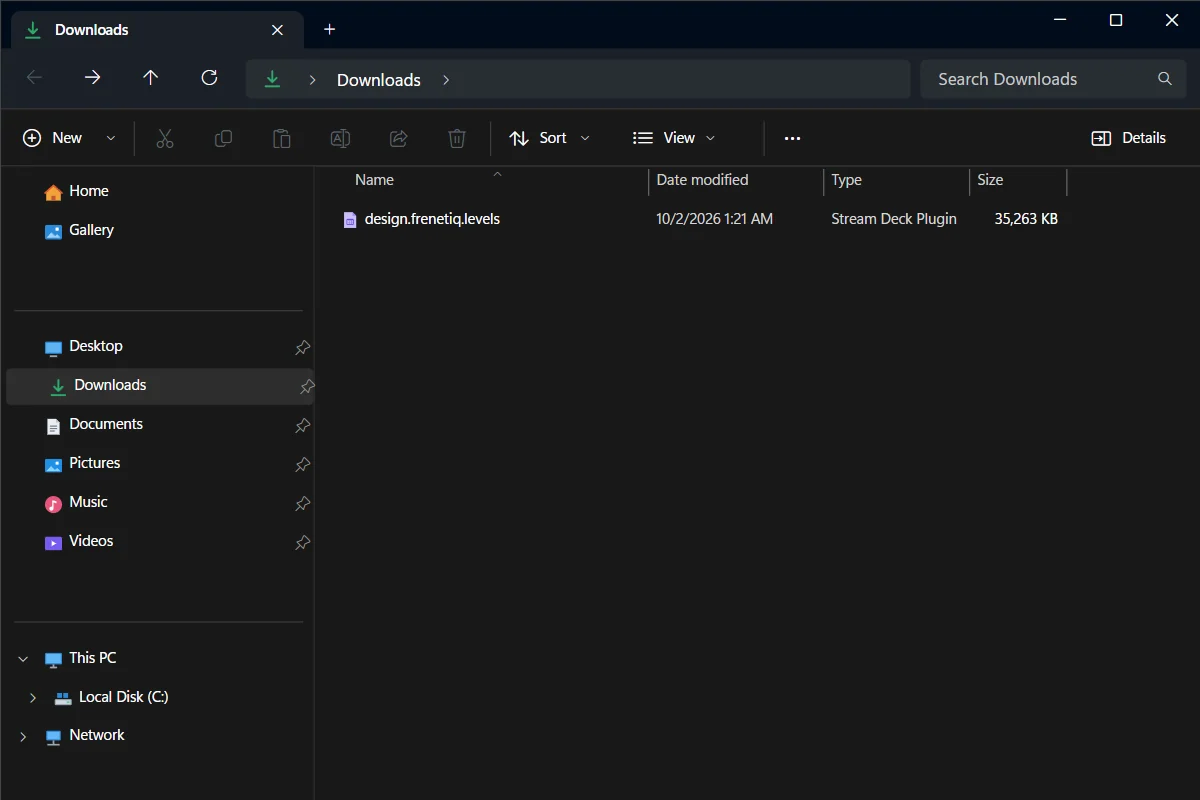
The Levels plugin file in Downloads: double-click it. - 1The Levels plugin file
Put Channel on the four dials
In the Stream Deck app, open the Dials tab of the action list on the right and find the Levels category. Drag Channel onto each of the four dials. Each dial picks its channel from its place: Game, Chat, Media, Master. Nothing to set up.
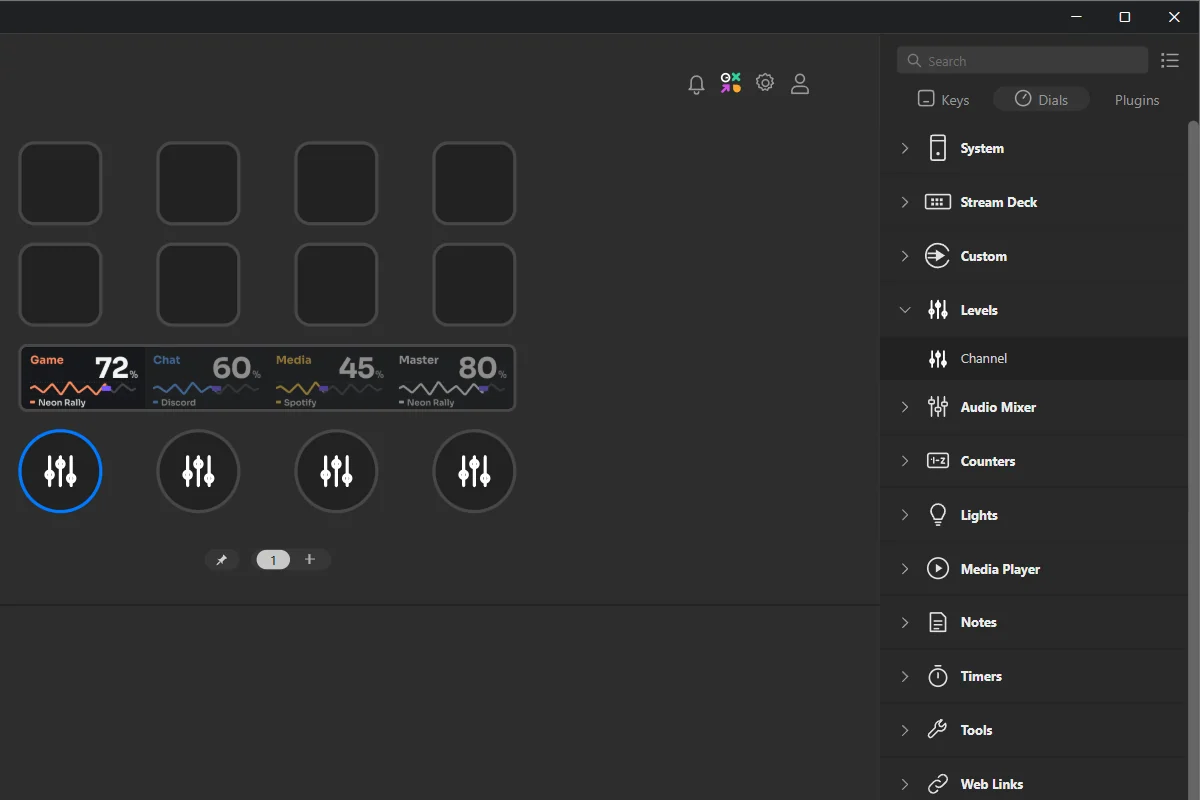
The Dials tab of the action list, with the Levels category open: Channel goes on each dial. - 1The Levels category
- 2Channel: drag it onto each dial
- 3A Levels dial on your Stream Deck
Add the keys you want
In the Keys tab, the same Levels category has Mic, Mute all, Mix, Priority, Output, Levels and Back. Drag the ones you like onto your pages. They are all optional: Levels works with the dials alone.
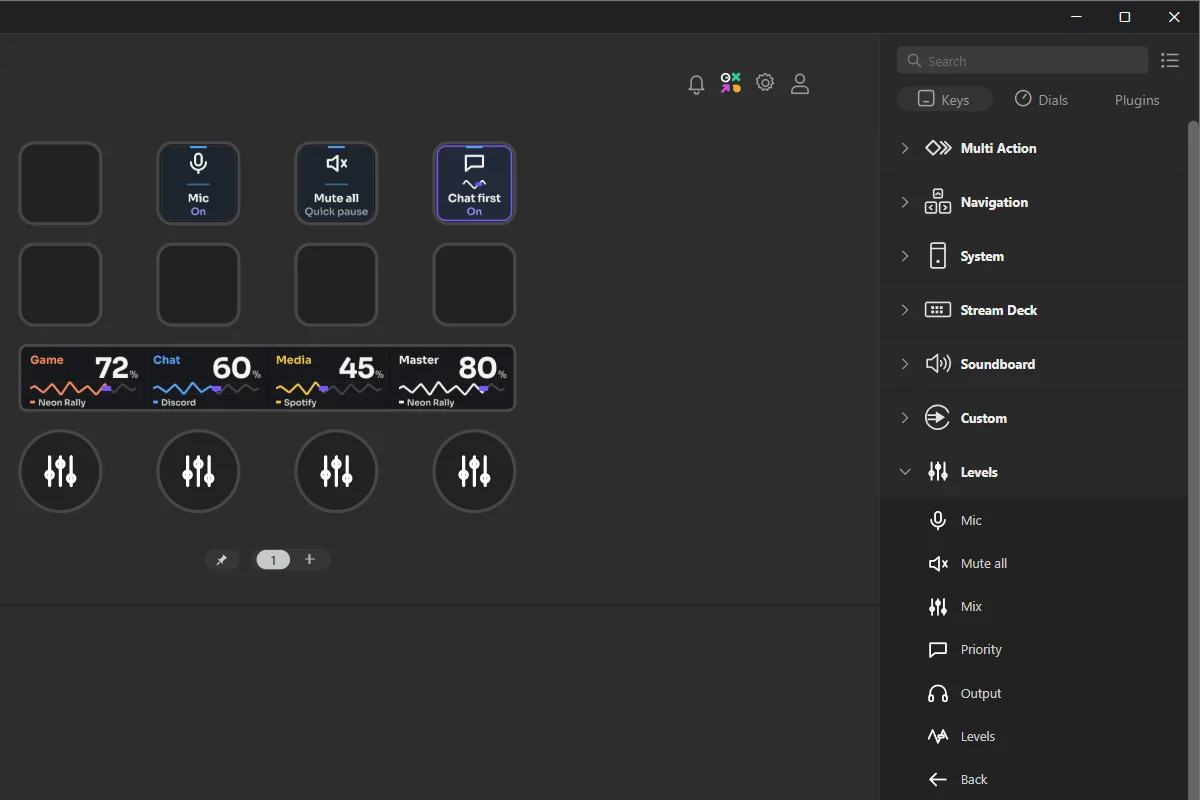
The Keys tab of the action list, with the Levels keys. - 1The Levels category
- 2Its keys: drag the ones you want onto your page
Open the Levels pages
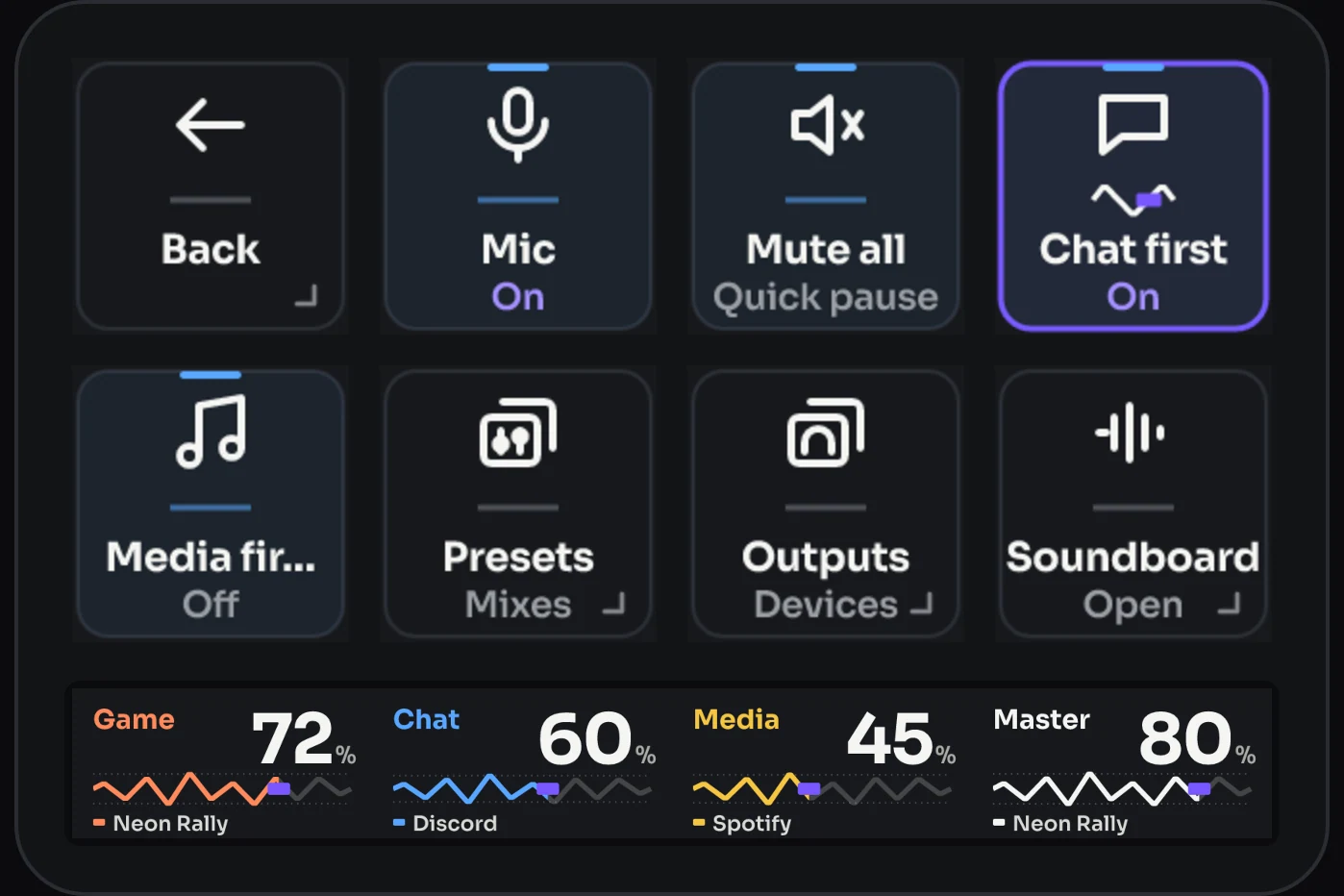
Drag the Levels key onto one of your pages and press it. The first time, Stream Deck asks to add the Levels profile: accept. Its three pages (Levels, Presets, Outputs) open. Back, top left, takes you to your page again.
If your antivirus asks, allow it
Levels includes a small program,
Levels.AudioHelper.exe, that talks to Windows audio. Stream Deck starts and stops it with the plugin. If your antivirus or Windows SmartScreen asks about it, allow it: without it Levels can’t change any volume.
Done. Turn a dial: the strip shows the level and what is playing.
the levels pages.
Levels comes with a profile of three ready-made pages for Stream Deck +. Keys on top, the four channels on the dials. The pages wear the skin you picked on your own pages.
- 1Back: returns to the page you came from.
- 2Mic and Mute all: your voice, and everything at once.
- 3Chat first and Media first: the two Priority keys.
- 4Presets, Outputs and Soundboard open the other pages.
- 5Touch strip: each channel’s level and what is playing.
- 6Dials: Game, Chat, Media, Master. Turn for the volume, press to mute.
Page 1 of 3
Levels
The mixer: open it with a Levels key from any page of yours.
 BackTop row, 1st key
Goes back to your own page, however many Levels pages you visited.
ActionBack MicTop row, 2nd key
Mutes and unmutes your voice in every app. Red Muted while you can’t be heard.
ActionMic Mute allTop row, 3rd key
A quick pause: silences everything at once. Press again to resume.
ActionMute all Chat firstTop row, 4th key
Voices first: while someone talks in Chat, Game and Media step back. Press to turn it on or off.
ActionPriority Media firstBottom row, 1st key
Videos and music first: while Media plays, Game steps back. Press to turn it on or off.
ActionPriority PresetsBottom row, 2nd key
Opens the Presets page.
ActionLevels OutputsBottom row, 3rd key
Opens the Outputs page.
ActionLevels SoundboardBottom row, 4th key
Opens the soundboard of Levels Soundboard. Without the expansion it reads Get it and opens its page on the Marketplace.
ActionLevels
Dials1Game2Chat3Media4Master
Page 2 of 3
Presets
Your mixes. Press one to use it, hold it for a second to save your current levels into it.
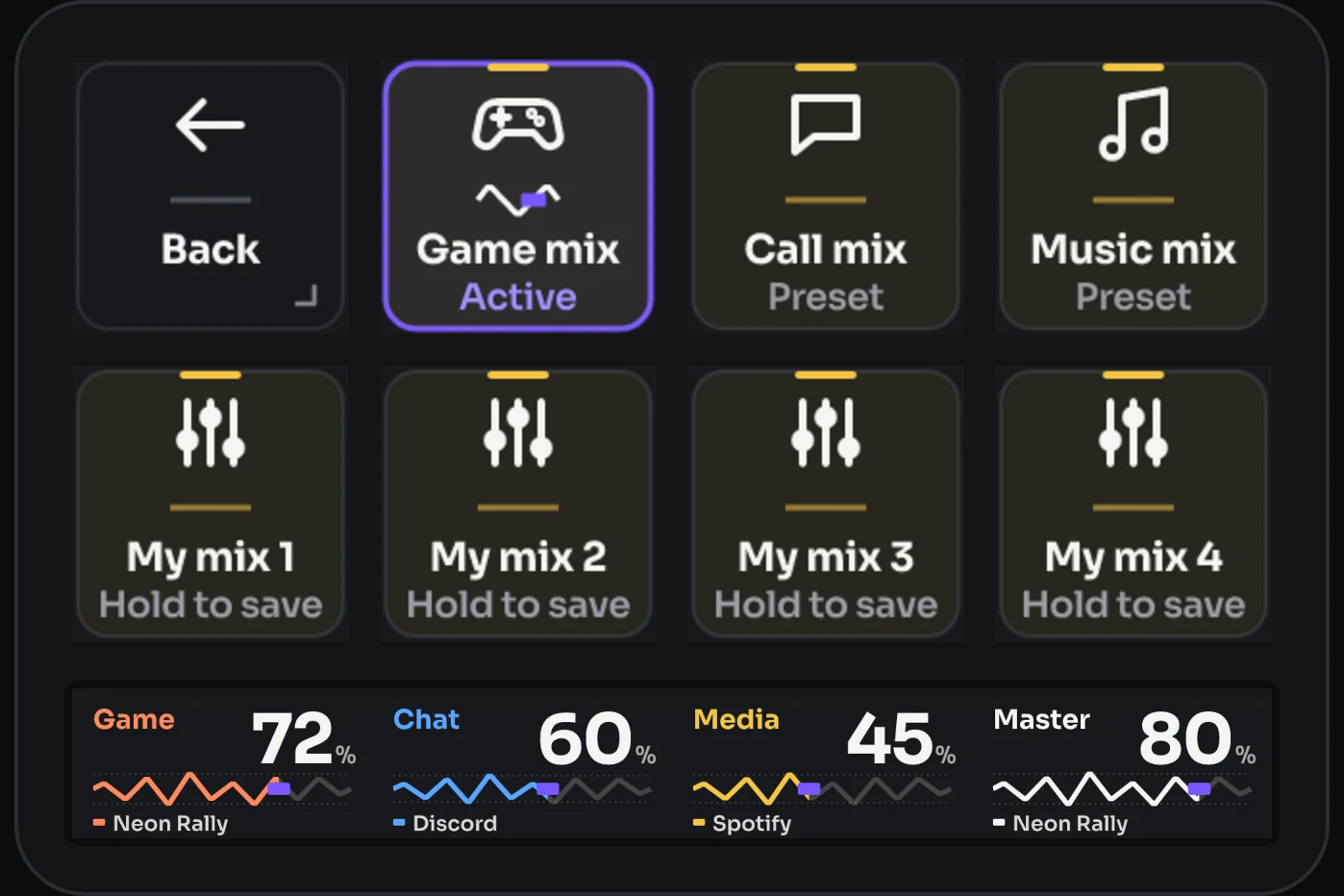
 BackTop row, 1st key
Back to the Levels page when you came from there, otherwise to your own page.
ActionBack Game mixTop row, 2nd key
Game 80, Chat 50, Media 25. Press again to go back to the levels you had.
ActionMix Call mixTop row, 3rd key
Game 35, Chat 90, Media 20. Press again to go back to the levels you had.
ActionMix Music mixTop row, 4th key
Game 30, Chat 50, Media 80. Press again to go back to the levels you had.
ActionMix Mix4 keys
Empty until you save one: hold it for a second to save your current levels.
ActionMix
Dials1Game2Chat3Media4Master
Page 3 of 3
Outputs
Your devices, one per key. Select each key in the Stream Deck app and tick one device in its settings.
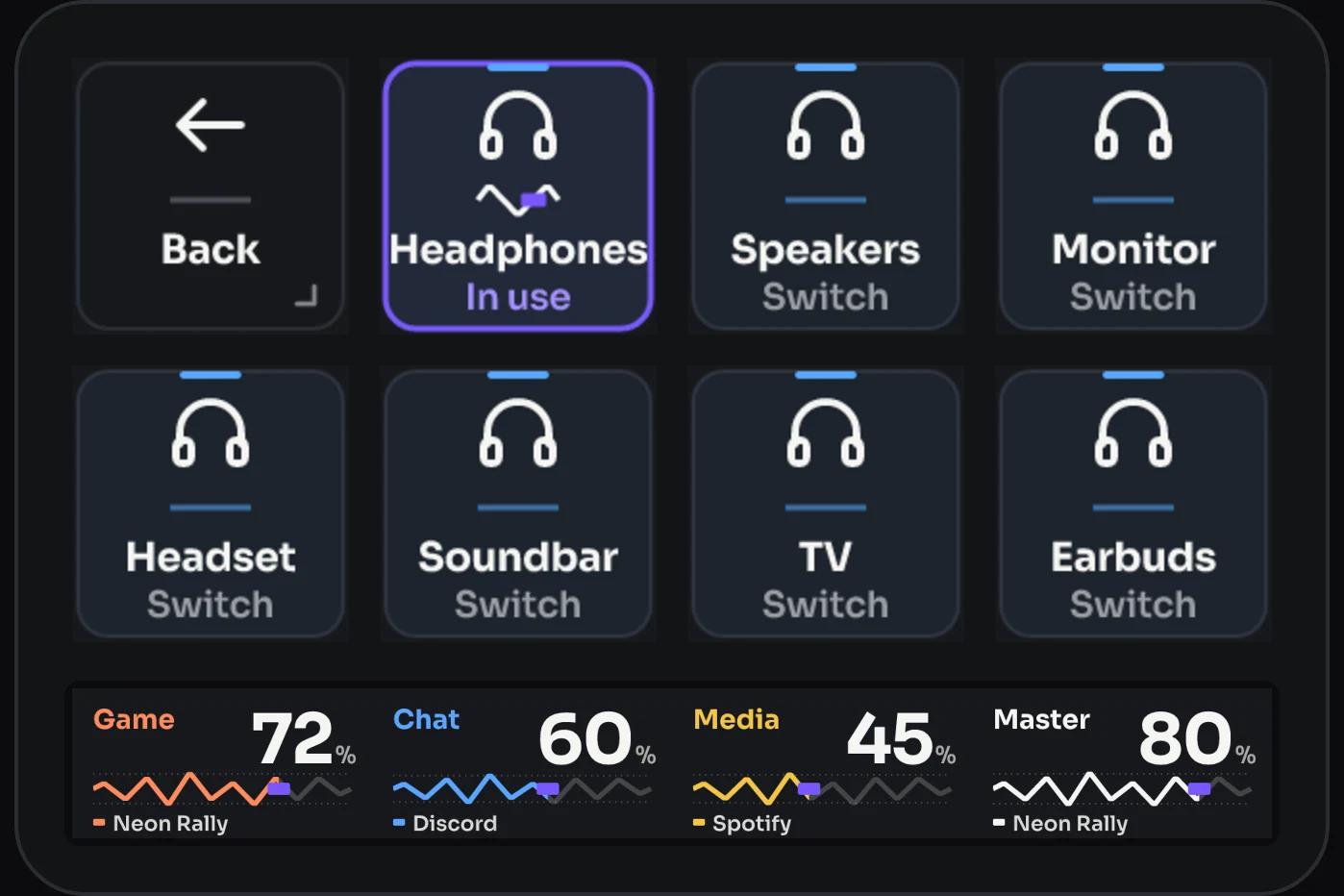
 BackTop row, 1st key
Back to the Levels page when you came from there, otherwise to your own page.
ActionBack Output7 keys
Shows a device’s name and lights up with In use while it plays. Press to switch there.
ActionOutput
Dials1Game2Chat3Media4Master
dials and touch strip.
Every Levels dial works the same way, whatever its channel.
| Gesture | What it does |
|---|---|
| Turn | Changes the volume by 2% per click. Spin fast and it moves in bigger steps, from 0 to 100 in a flick. |
| Press and turn | Fine adjustment, 1% per click. The strip shows Fine adjust while you hold the dial. |
| Press | Mutes the channel. Press again: everything comes back at the level it had. |
| Touch the strip | On Game, Chat and Media: controls the channel’s apps one at a time. |
Reading the touch strip
Each cell shows the channel’s name in its colour (grey when muted), the level from 0 to 100%, and what is playing right now: the game’s name, Spotify, Discord… If nothing is, it reads a note such as No game running or Nothing playing. Skins with meters add a live level bar or a VU needle. The look depends on the skin; the information is always the same.
One app at a time
- Touch the strip of Game, Chat or Media. The strip shows one app’s name and its place in the channel, for example Chat · 1/3.
- Now the dial works on that app only: turn, press to mute, press and turn for fine steps.
- Touch again for the next app. After the last one, the dial controls the whole channel again.
- A long touch, or 8 seconds without touching, also brings it back.
The app’s level is its share of the channel, so turning the whole channel afterwards still moves it with the others. Master, Mic and Sounds have no apps to step through: touching their strip shows Stream Deck’s warning sign.
The six channels
To change what a dial controls, select it in the Stream Deck app and pick a Channel.
| Channel | Controls |
|---|---|
| Game | The game you are playing, found automatically in your Steam, Epic Games, GOG, Xbox / PC Game Pass, EA app and Ubisoft Connect libraries, and among the games Windows recognizes. Each game comes back at the Game level you last set while playing it. |
| Chat | Discord, TeamSpeak and Microsoft Teams. |
| Media | Spotify, Chrome, Edge, Firefox and VLC. |
| Master | Your output device, like the Windows volume. |
| Mic | Your default microphone: its level, mute, and a live meter of your voice. |
| Sounds | How loud Levels Soundboard plays. With SteelSeries Sonar it also drives Sonar’s Aux fader. Without either, this channel has nothing to control. |
A channel moves all of its apps together and keeps the balance between them. To change that balance, set the app in the Windows volume mixer: Levels notices and remembers it. Levels remembers the Game, Chat, Media and Sounds levels after a restart; Master and Mic are kept by Windows.
Max volume
Pick a Max volume in a dial’s settings, from No limit down to 50%. The dial never turns the channel above it; when you try, the strip says so for a moment, for example Max 70%. Master stays under it also with the Windows volume keys, and with SteelSeries Sonar every channel does.
every action and its settings.
Select a Levels key or dial in the Stream Deck app: its settings open under the picture of your Stream Deck. These are all the actions of the Levels category, with every setting.

Channel
DialOne channel on a dial: turn for the volume, press to mute, touch the strip to control one app at a time (see Dials and touch strip).
- Turn
- Volume
- Press
- Mute
- Touch
- Apps one by one
Settings
- Skin
- Every skin you have installed. Levels comes with the plugin.
- Channel
- Game Chat Media Master Mic Sounds · soundboards (Sonar Aux)What the dial controls: see the six channels.
- Background
- Solid Transparent · Light Transparent · Dark Transparent · Channel colorsHow the touch strip is painted: see Skins. Choose it on one dial and the others follow.
- Animations
- On · live meters Off · for slower PCsLive meters redraw the strips many times a second. Turn them off if Stream Deck feels slow; it applies to every dial of this Stream Deck.
- Max volume
- No limit 90% 80% 70% 60% 50%Protects your ears: the dial never turns the channel above it. Set it on any dial of a channel and all its dials follow.
- Press
- Mute Open LevelsOpen Levels: pressing the dial opens the Levels page (Stream Deck + only). Press and turn still fine-tunes.
- Apps
- The apps with sound right now, each with a channel to pick: Auto, Game, Chat, Media or No channel.
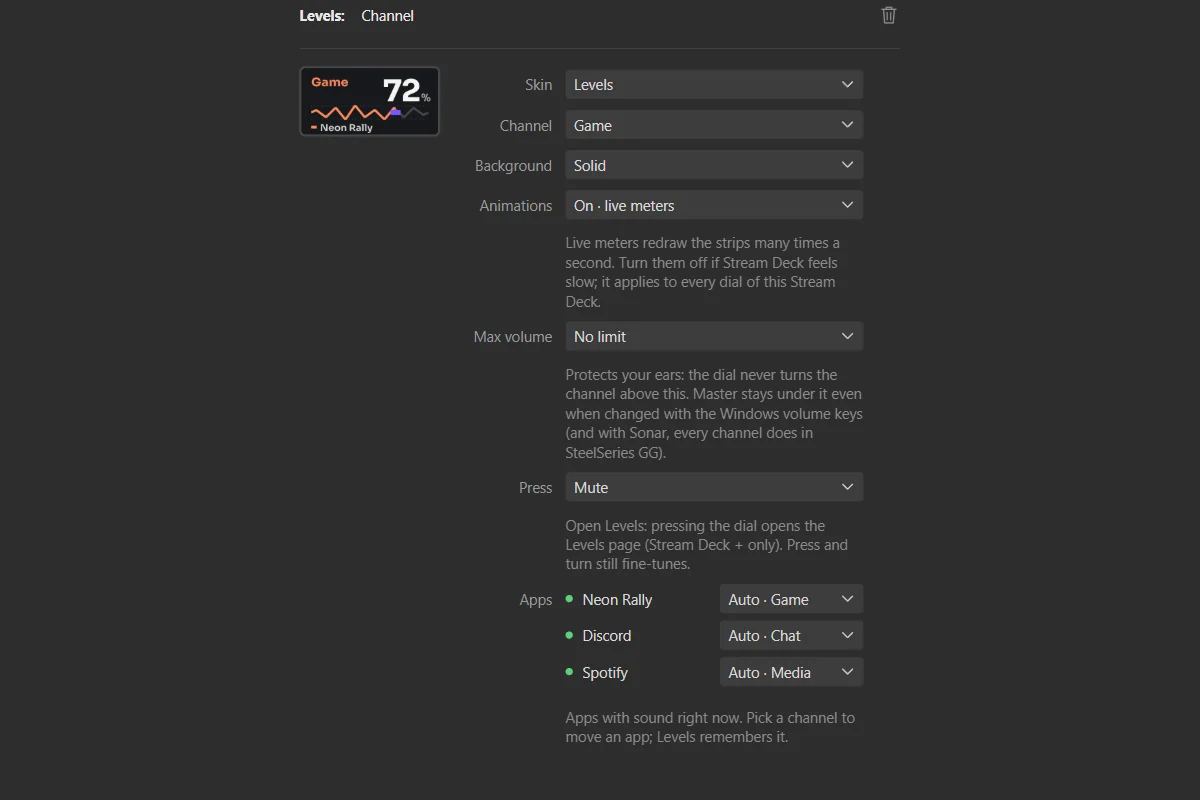
- 1The selected dial
- 2Channel
- 3Max volume
- 4Press: Mute or Open Levels
- 5Apps: move an app to another channel
Mic
KeyMutes and unmutes your voice in every app, whatever microphone the app records from: your default microphone and the real microphone your voice starts from. It reads Muted in red while you can’t be heard.
Settings
- Skin
- Every skin you have installed. Levels comes with the plugin.
Mute all
KeyA quick pause: silences everything at once. Press again to resume, at the levels you had.
Settings
- Skin
- Every skin you have installed. Levels comes with the plugin.
Mix
KeySets Game, Chat and Media to a saved mix. Press it again to go back to the levels you had before. Hold it for about a second to save your current levels into it: a check mark confirms. It reads Active while your channels match the mix.
Settings
- Skin
- Every skin you have installed. Levels comes with the plugin.
- Preset
- Game mix Call mix Music mix My mixEach preset starts from its own levels (Game mix 80 · 50 · 25, Call mix 35 · 90 · 20, Music mix 30 · 50 · 80); My mix is empty until you save one.
- Name
- Up to 12 characters.The name on the key.
- Game
- From 0 to 100
- Chat
- From 0 to 100
- Media
- From 0 to 100Choosing a preset sets its starting levels; adjust them with the sliders. Press the key to use the mix, or hold it for a second to save your current levels into it.
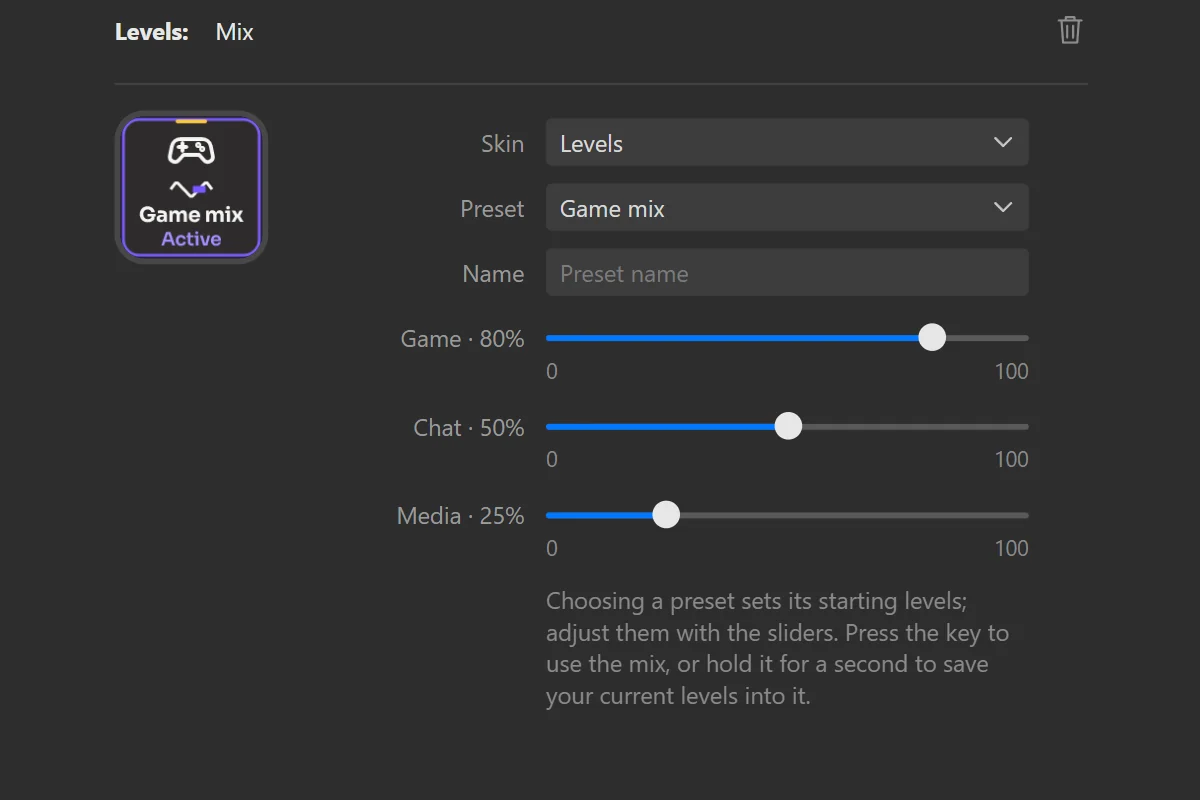
- 1The selected Mix key
- 2Preset
- 3Name on the key
- 4The levels of the mix
Priority
KeyLets voices, or videos and music, come first: the other channels step back while they play, and come back up gently afterwards. The key reads Off or On, and Talking or Playing while it lowers the others. Your dials keep their levels: only what you hear changes, and the strip of a lowered channel reads Lowered for Chat or Lowered for Media.
Media first waits a couple of seconds before bringing Game back, so the gap between two songs doesn’t bring it up. Chat first and Media first can be on together, on two keys. With SteelSeries Sonar, Sonar’s faders move.
Settings
- Skin
- Every skin you have installed. Levels comes with the plugin.
- Priority
- Chat first · voices over everything Media first · videos and music over the game
- Lower by
- From 10% to 90% (50% to start)How much quieter the others sound: 50% is about half as loud.
- Lower Chat too
- Lower Chat too
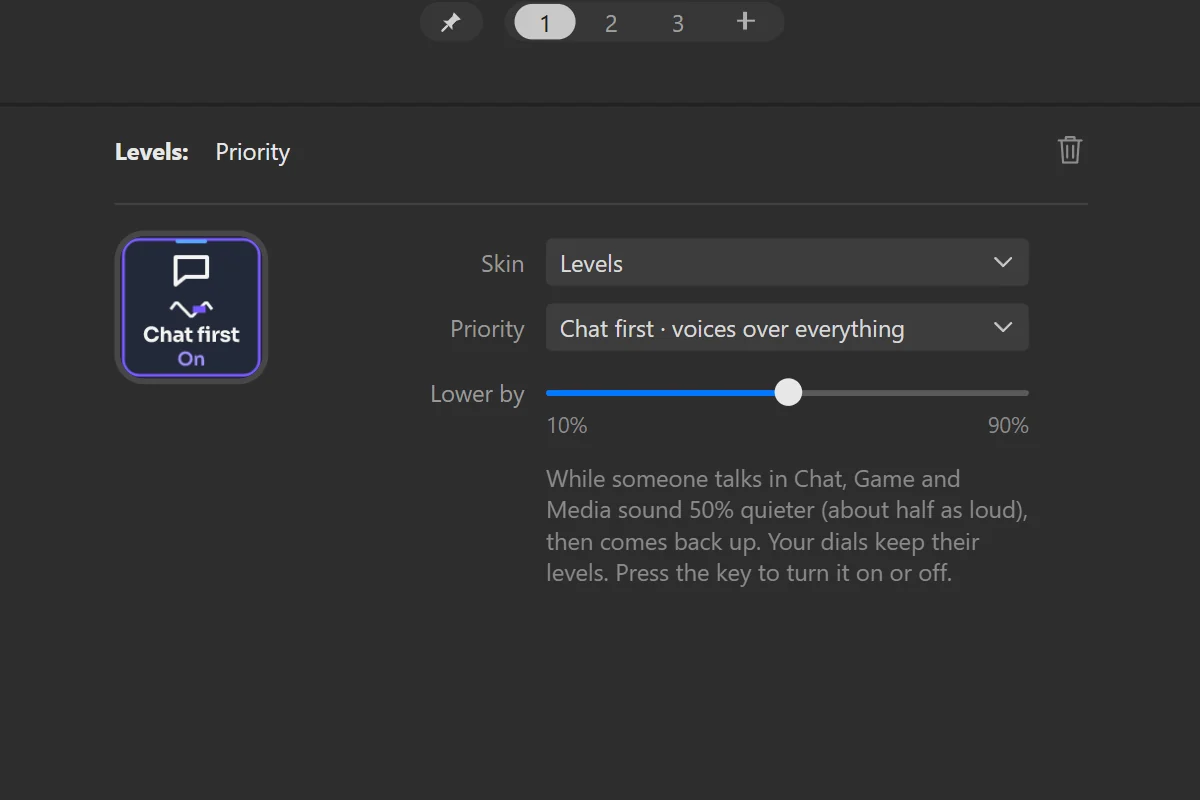
- 1The selected Priority key
- 2Chat first or Media first
- 3Lower by
Output
KeySwitches your output device, for example headphones and speakers. The key shows the device in use. With nothing ticked it switches between your real devices and skips virtual ones (Sonar’s, Voicemod’s). Tick devices to choose exactly which ones it steps through; tick just one and the key always switches to that device.
Your headset comes back. When your headset disconnects, Windows moves the sound elsewhere; when it reconnects, Levels makes it the default output again. This works with or without an Output key.
Settings
- Skin
- Every skin you have installed. Levels comes with the plugin.
- Switch between
- Your output devices, ticked one by one.Leave all unchecked to switch between your real devices and the current one.
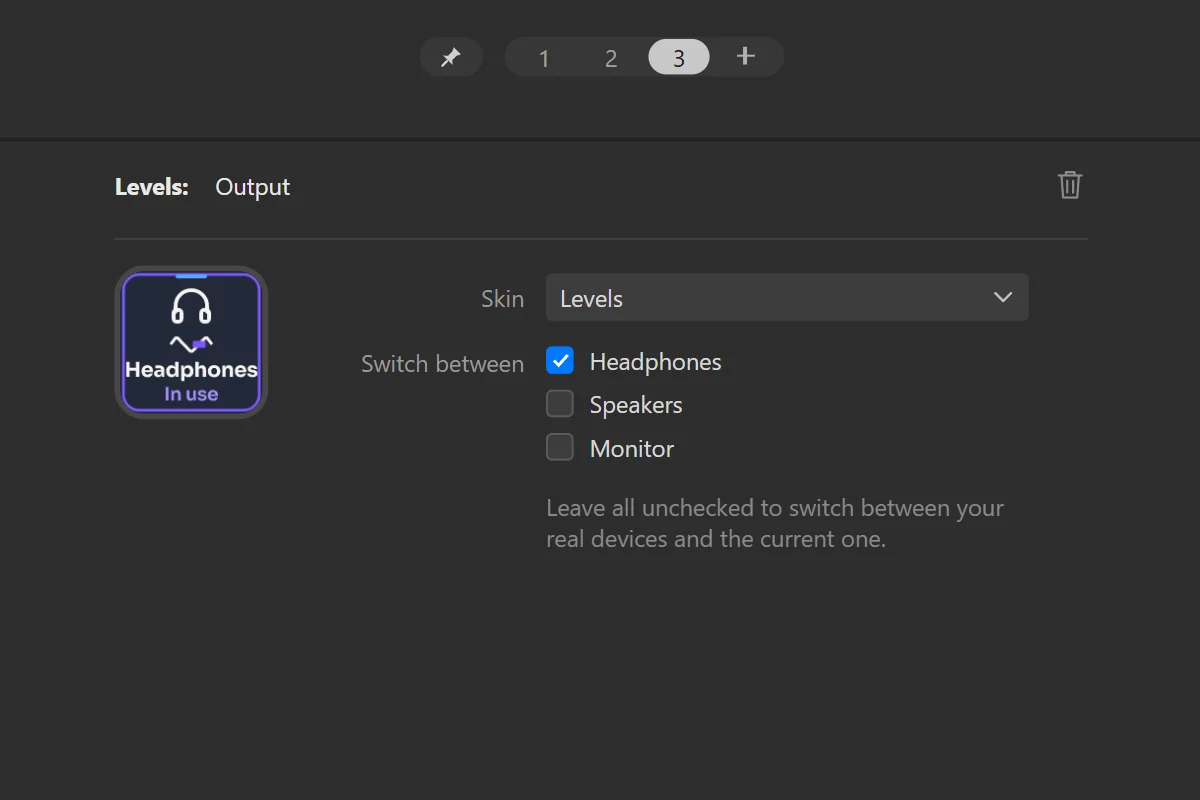
- 1The selected Output key
- 2Switch between: tick the devices
Levels
KeyOpens a page of the Levels profile: the mixer, your presets, your outputs, or the soundboard of Levels Soundboard. Stream Deck + only: on other models it shows a warning sign and opens nothing.
Settings
- Skin
- Every skin you have installed. Levels comes with the plugin.
- Opens
- Levels · the mixer page Presets · your mixes Outputs · your devices Soundboard · with Levels Soundboard
- Animation
- On · moves with your sound Off · for slower PCsThe Levels key moves with your sound. Off for slower PCs.
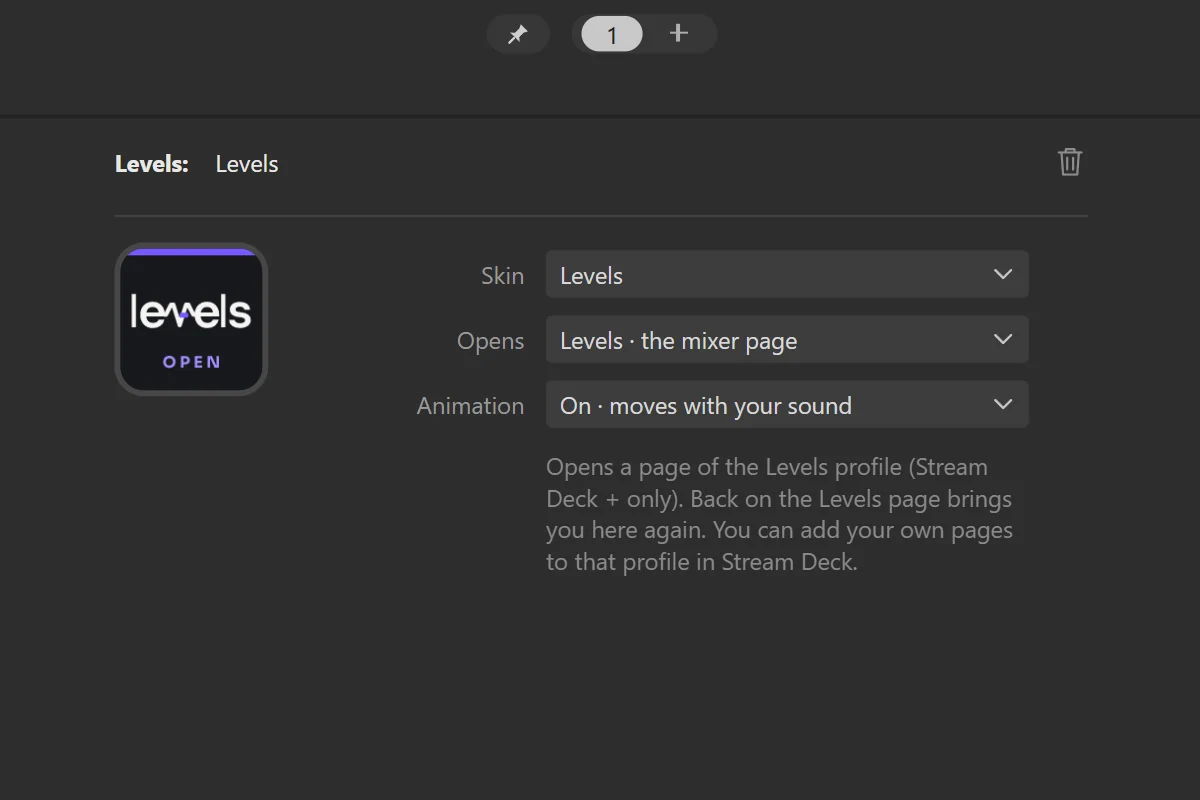
- 1The Levels key on your page
- 2Opens: the page it opens
Back
KeyOn the Levels pages: goes back to where you were. If Stream Deck can’t go back, the key shows a yellow warning sign: see Open Levels from your profiles.
Settings
- Skin
- Every skin you have installed. Levels comes with the plugin.
skins.
Pick a skin
- Select any Levels key or dial in the Stream Deck app.
- Open Skin and pick one.
- Every Levels key and dial of that Stream Deck switches to it, so a page always looks like one design. The Levels pages follow it too, unless you picked a skin inside one of them.
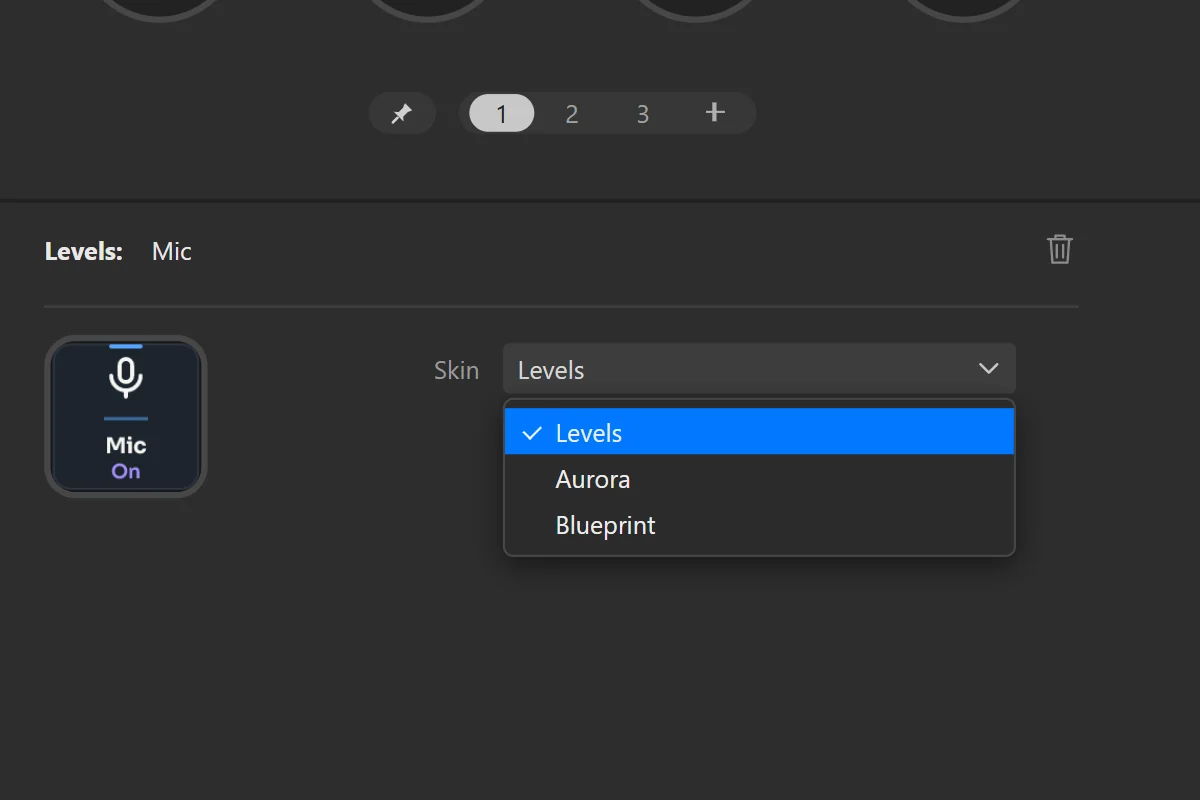
- 1Skin
- 2Pick one: every Levels key and dial follows
Levels comes with the Levels skin. Skins sold as Stream Deck profiles install themselves: import the profile and its skin shows up in the Skin menu everywhere. Installed skins are kept in %APPDATA%\design.frenetiq.levels\skins and survive Levels updates. To try them all first, use the skin simulator.
Background of the touch strip
| Background | When to use it |
|---|---|
| Solid | The skin’s own background. |
| Transparent · Light | Your own touch strip image shows through; light text for dark images. |
| Transparent · Dark | Dark text for light images. |
| Transparent · Channel colors | Text in each channel’s colour. |
Animations
Live meters redraw the strips many times a second. If Stream Deck feels slow, set Animations to Off · for slower PCs in a dial’s settings: the meters stand still and everything else works. It applies to every dial of that Stream Deck.
Icon packs
An image you set on a key yourself always wins over Levels’ drawing. Keys that switch on and off (Mic, Mute all, Mix, Priority) use an icon pack’s two images and change with the state.
open levels from your profiles.
Keep your own profile on screen and jump to Levels when you need it. Back brings you home.
From a key
- Drag the Levels key onto a page of your profile.
- In its settings, Opens picks the page: the mixer, Presets, Outputs or the Soundboard.
- Press it. Back on the Levels page returns to that page of yours.
- 1The Levels key on your page
- 2Opens: the page it opens
From a dial
- Select a Levels Channel dial on your page.
- Set Press to Open Levels.
- Turning still changes the volume; pressing the dial opens the Levels page. Press and turn still fine-tunes.
- 1The selected dial
- 2Channel
- 3Max volume
- 4Press: Mute or Open Levels
- 5Apps: move an app to another channel
From an Action Wheel
In an Action Wheel, add the Levels action, not Switch Profile. With Stream Deck’s own Switch Profile, Back can’t find the way home.
How Back works
- On the Levels page, Back always takes you to your own page, however many Levels pages you visited.
- On Presets and Outputs, Back returns to the Levels page when you came from there, otherwise to your own page.
- If Stream Deck can’t go back, for example right after the Stream Deck app restarted, Back shows a yellow warning sign. Pick your profile once in the Stream Deck app, then open Levels again.
You can add pages of your own to the Levels profile in the Stream Deck app. The pages are made for Stream Deck +.
levels soundboard.
Levels has no soundboard of its own: the soundboard is Levels Soundboard, an expansion sold separately. Seven categories of your own sounds, browsed with the dials, played through Levels and its Sounds channel.
The Soundboard key on the Levels page reads Open when the expansion is installed, and opens it. Without it, the key reads Get it. Everything about it: Levels Soundboard help.
your apps, sonar and voicemod.
Choose which apps go where
- Start the app so it plays some sound.
- In the Stream Deck app, select any Levels dial. Its settings show Apps: every app with sound right now, with a green dot on the ones playing.
- Next to the app, pick Game, Chat, Media or No channel. It moves right away; Levels remembers it, also after updates. Pick Auto to give it back to Levels.
Putting an app on Game makes it the game: useful for a game Levels doesn’t find by itself.
SteelSeries Sonar
When Sonar runs in Classic mode, the dials drive Sonar’s own faders: Game, Chat and Media move Sonar’s Game, Chat and Media; Master moves Sonar’s master; Mic controls Sonar’s microphone when it is your Windows default. Moving a fader in SteelSeries GG moves the dial too. Apps follow the routing you set in SteelSeries GG. If Sonar moves its channels to another device at startup, Levels puts each channel back on the device you chose, as soon as it is available. In Streamer mode Levels ignores Sonar and controls apps directly.
Voicemod, Discord and other virtual microphones
The Mic key mutes your default microphone and the real microphone your voice starts from, so every path goes silent, whichever microphone Discord or any other app records from. Unmuting turns back on exactly what Levels turned off. Discord is on the Chat channel.
if something doesn’t work.
Back doesn’t go back and shows a yellow warning sign
- Stream Deck doesn’t know which page you came from. It happens after the Stream Deck app restarts, before you pick a profile.
- Pick your profile once in the Stream Deck app, then open Levels again: Back works.
- Opening Levels from an Action Wheel? Use the Levels action in the wheel, not Switch Profile.
The Levels key shows a warning sign and opens nothing
- The Levels pages are made for Stream Deck +. On other models the key can’t open them; the other Levels keys work as usual.
Nothing changes when I turn a dial
- Check that your antivirus didn’t block
Levels.AudioHelper.exe, and allow it. - Quit the Stream Deck app (right-click its icon next to the clock) and open it again.
The Game dial says “No game running” while I play
- The game may not have started its sound yet: it appears as soon as it plays audio.
- Still nothing? Select a Levels dial and set the game to Game in the Apps list (see Apps, Sonar, Voicemod).
An app doesn’t follow the Chat or Media dial
- Select a Levels dial and move the app in the Apps list.
- With SteelSeries Sonar, check in SteelSeries GG which Sonar channel the app is routed to: the dial follows Sonar.
The meters don’t move
- Not every skin has meters: try another skin.
- Check that Animations is On · live meters in the dial’s settings.
- The Mic meter appears on a dial set to the Mic channel, not on the Mic key.
Game or music gets quieter by itself
- A Priority key is on: the strip reads Lowered for Chat or Lowered for Media while it works.
- Press the key to turn it off, or set a smaller Lower by in its settings.
A dial stops before 100%
- Its channel has a Max volume: the strip says so for a moment, for example Max 70%.
- Choose No limit in the dial’s settings.
Touching the strip shows a warning sign
- Only Game, Chat and Media have apps to show one at a time, and only while one of their apps is open.
My mic is muted but I still hear myself
- That is your headset’s sidetone (mic monitoring), set in the headset’s own software. The people in your call don’t hear you: the Mic key reads Muted in red.
Stream Deck feels slow
- Set Animations to Off · for slower PCs in any dial’s settings: every dial of that Stream Deck stops redrawing its meters.
The Soundboard key says “Get it”
- The soundboard is the Levels Soundboard expansion, sold separately. Once it is installed, the key reads Open.
How do I send you the details of a problem?
- The log files are in
%APPDATA%\Elgato\StreamDeck\Plugins\design.frenetiq.levels.sdPlugin\logs(paste the path in File Explorer’s address bar). - Send us the newest one with your Stream Deck model, what you did and what happened.
Still stuck? Contact support with your Stream Deck model and what happens.
privacy and uninstall.
Levels works entirely on your PC. It collects no data, sends nothing over the internet and needs no account. It talks only to Windows audio and, if you have them, to SteelSeries Sonar and Levels Soundboard on your own computer.
- To uninstall: in the Stream Deck app open Preferences › Plugins, select Levels and remove it.
- To remove your installed skins, app choices and game levels too, delete the folder
%APPDATA%\design.frenetiq.levels. - Windows keeps each app at the last volume Levels set. To reset one, use the Windows volume mixer.
version notes.
- Version 1.0.2this version
- First version on the Elgato Marketplace.
- A Channel dial can open the Levels pages: set Press to Open Levels.
- Back shows a warning sign when Stream Deck can’t go back, instead of doing nothing.
- Back from the soundboard returns to your page when you opened it from your page.
Levels is an independent product by Frenetiq Design, not affiliated with or endorsed by Elgato or by the makers of the apps it works with.