what you need.
- Levels, installed and runningSold separately. Sounds play through Levels: see Levels help.
- Stream Deck +The soundboard is browsed with its dials.
- The Stream Deck app, version 7.1 or laterFree, from Elgato’s website.
- A Windows 10 or 11 PCLevels doesn’t run on macOS.
- Your own sound filesMP3, WAV, M4A, AAC, WMA or FLAC. No sound library is included: the slots start empty.
install in 5 steps.
Install Levels first
Levels Soundboard plays its sounds through Levels. No Levels yet? Install it first: Levels help.
Double-click the plugin file
Installing from the Elgato Marketplace? Stream Deck adds it by itself: go to step 3. Got the file? Double-click
design.frenetiq.levels-soundboard.streamDeckPlugin. A Levels Soundboard category appears in the actions list.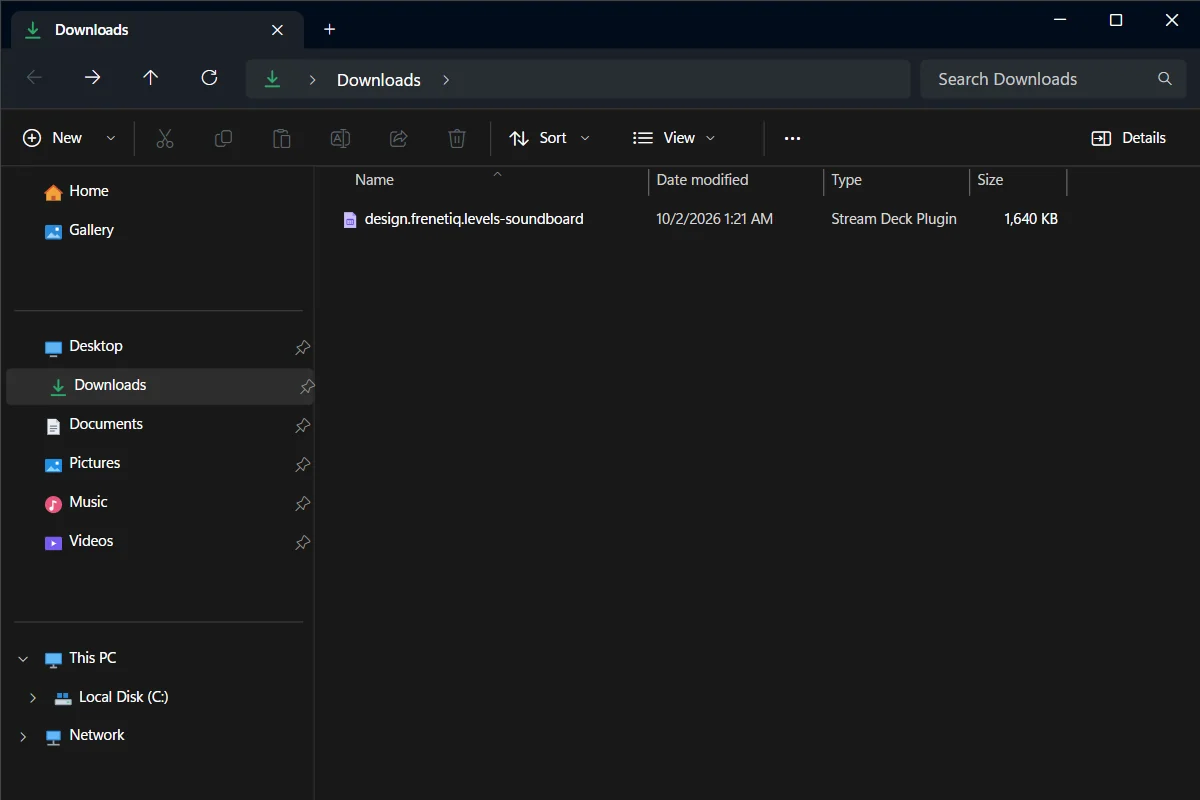
The Levels Soundboard plugin file in Downloads: double-click it. - 1The Levels Soundboard plugin file
Open the soundboard
Drag the Soundboard key of the Levels Soundboard category onto one of your pages and press it. Or press Soundboard on the Levels page. The first time, Stream Deck asks to add the Levels Soundboard profile: accept.
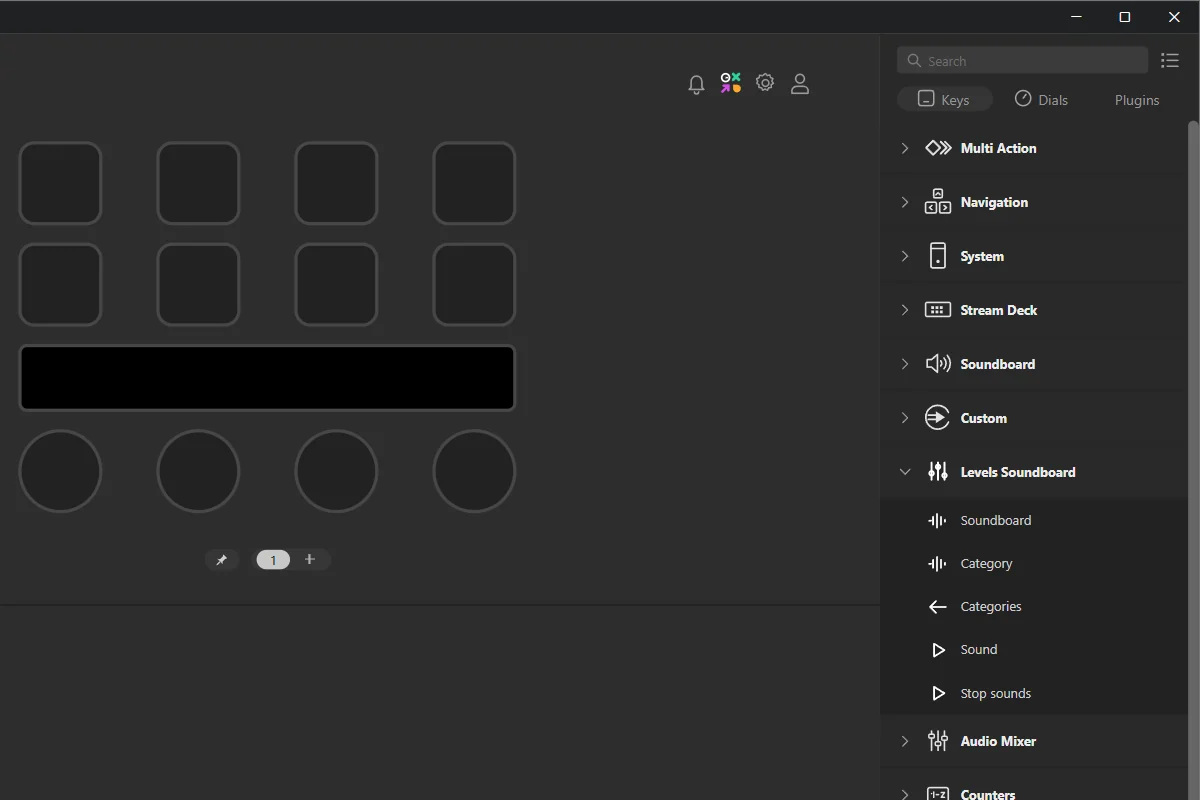
The Keys tab of the action list, with the Levels Soundboard category open. - 1The Levels Soundboard category
- 2Soundboard: drag it onto your page
Load your sounds
Open a category. In the Stream Deck app, select a Sound key and choose a file in Sound file. The key takes the file’s name; type another in Name if you like.
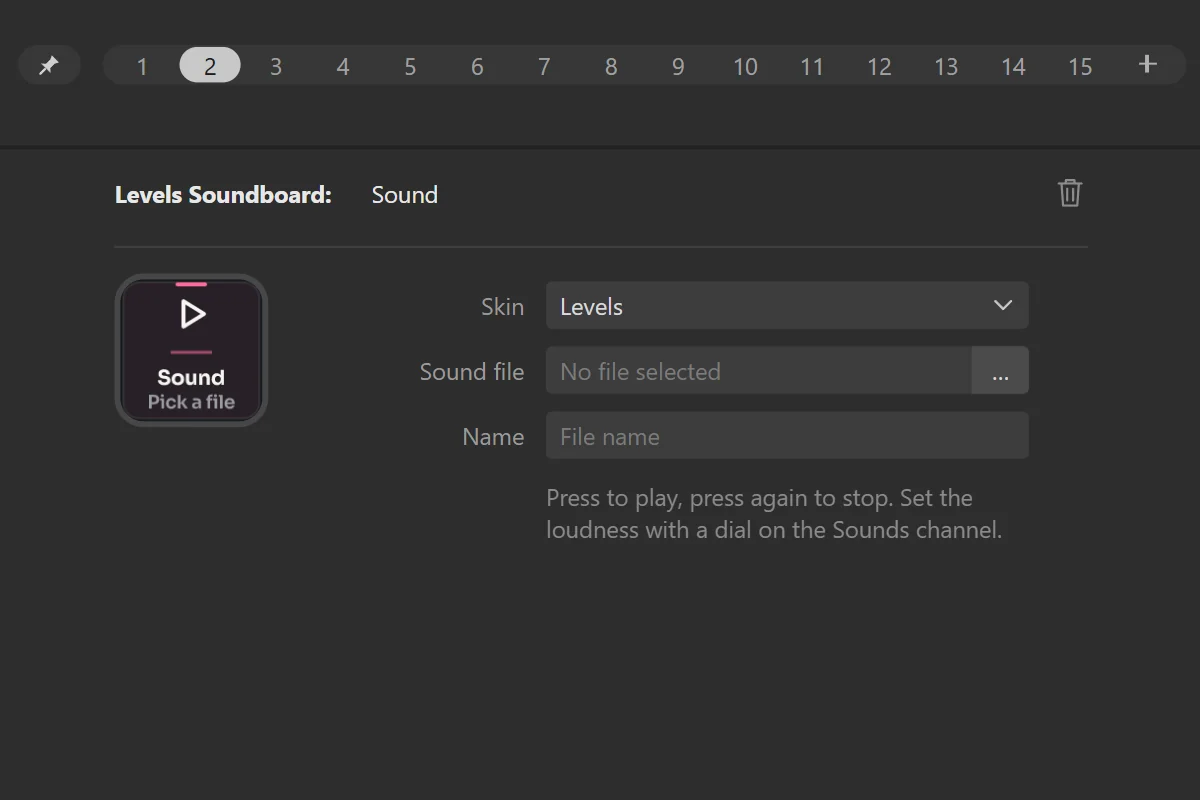
A Sound key selected: its sound file and the name on the key. - 1The selected Sound key
- 2Sound file
- 3Name on the key
Set how loud they play
Every sound follows Levels’ Sounds channel. Put a Levels Channel dial set to Sounds on your mixer page to set their volume together.
Done. Press a sound: it plays. Press again to stop it.
the soundboard pages.
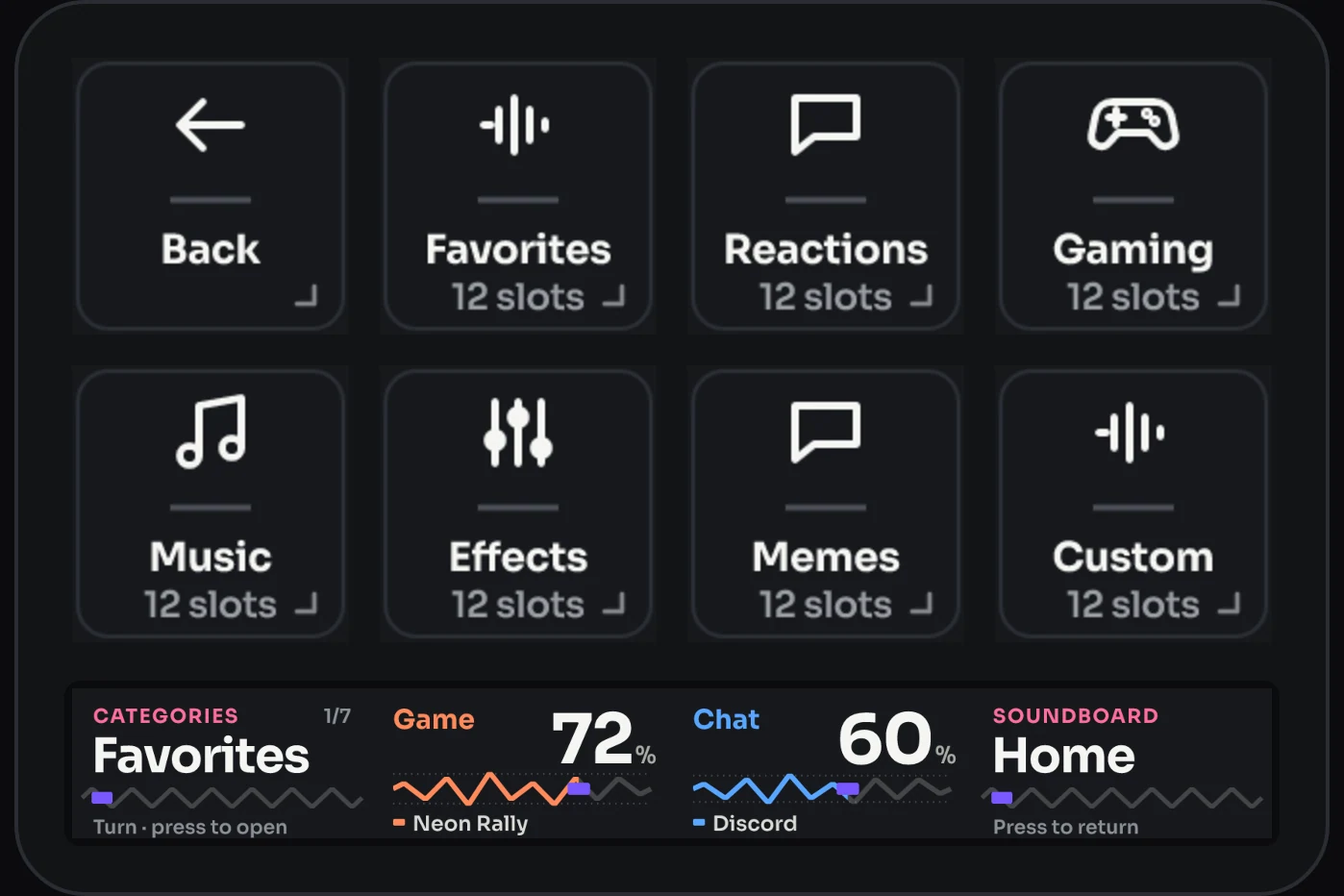
The soundboard is a profile of its own: a home page with the seven categories, then two pages of six sounds for each category. Every category page works the same way.
- 1Back: returns to the page you came from.
- 2Categories: Favorites, Reactions, Gaming, Music, Effects, Memes, Custom.
- 3Touch strip: the category you are on, Game and Chat, the page.
- 4Categories dial: turn to pick a category, press to open it.
- 5Game and Chat: your Levels channels, as usual.
- 6Pages dial: turn to change page, press for the first page.
Page 1 of 2
Home
The seven categories. Back returns to the page you came from.
 BackTop row, 1st key
Returns to the page you came from: your own page, or the Levels page if you opened the soundboard there.
Actiondesign.frenetiq.levels.back Category7 keys
Opens this category: two pages of six sounds.
ActionCategory
Dials1Categories dial2Game3Chat4Pages dial
Page 2 of 2
A category: Favorites, page 1 of 2
Six sound slots, Categories to go home and Stop. Page 2 and the other six categories are the same.
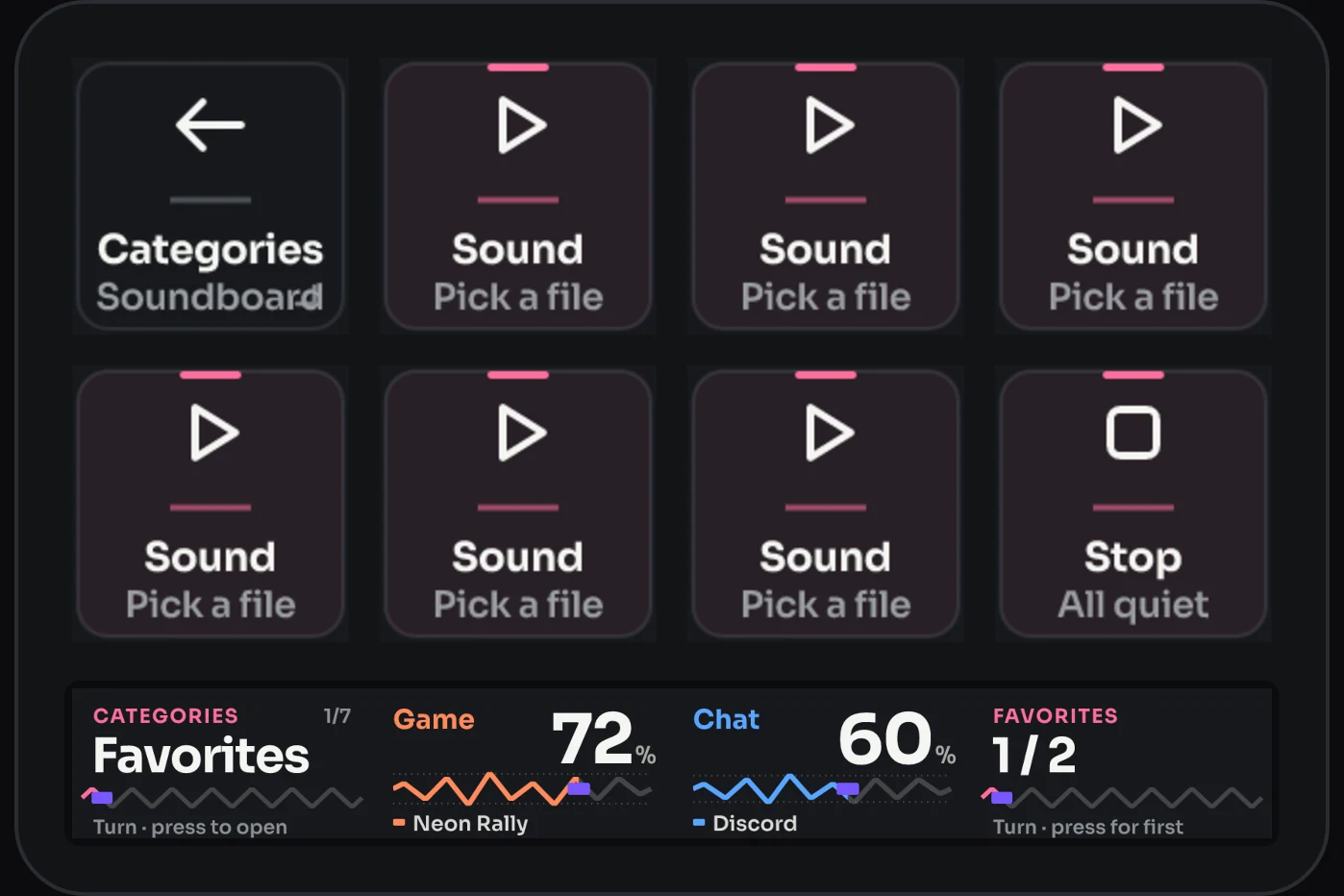
 CategoriesTop row, 1st key
Back to the soundboard’s home page.
ActionCategories Sound6 keys
Plays its sound; press again to stop. Pick its file in the Stream Deck app.
ActionSound StopBottom row, 4th key
Stops every sound Levels is playing, also those started on another page.
ActionStop sounds
Dials1Categories dial2Game3Chat4Pages dial
dials.
| Dial | Turn | Press or tap |
|---|---|---|
| 1 · Categories | Picks a category, shown on the strip | Opens it |
| 2 · Game, 3 · Chat | Your Levels channels, as usual | Mute, as usual |
| 4 · Pages | Flips between page 1 and 2 of the category | Back to page 1; on the home page, back to where you came from |
Swiping the touch strip moves between pages too. The keys and dials of the soundboard follow your Levels skin.
every action and its settings.
Select a key or dial in the Stream Deck app: its settings open under the picture of your Stream Deck. Every action of the Levels Soundboard category:
Sound
KeyPlays a sound through Levels; press again to stop it. The key reads Pick a file while it is empty, Ready when it has a sound, Playing while it plays, and File missing if its file was moved or deleted.
Settings
- Skin
- Every skin you have installed. Levels comes with the plugin.
- Sound file
- A sound file on your PC: MP3, WAV, M4A, AAC, WMA, FLAC.
- Name
- Up to 20 characters.The name on the key. Empty: the file’s name.
- 1The selected Sound key
- 2Sound file
- 3Name on the key
Stop sounds
KeyStops every sound Levels is playing, also those started on another page. It doesn’t stop sounds played by other apps.
Settings
- Skin
- Every skin you have installed. Levels comes with the plugin.

Soundboard
KeyOpens the soundboard’s home page from any page of yours. Back on the soundboard returns there.
Settings
- Skin
- Every skin you have installed. Levels comes with the plugin.
Category
KeyOpens one category of the soundboard. They are already on the home page; use this to jump straight to a category from a page of yours.
Settings
- Category
- Favorites Reactions Gaming Music Effects Memes Custom
- Skin
- Every skin you have installed. Levels comes with the plugin.
Categories
KeyOn a category page: back to the soundboard’s home page.
Settings
- Skin
- Every skin you have installed. Levels comes with the plugin.

Categories dial
DialThe first dial of the soundboard. The strip shows the category you are on.
- Turn
- Select category
- Press
- Open category
- Touch
- Open category
Settings
- Skin
- Every skin you have installed. Levels comes with the plugin.

Pages dial
DialThe last dial of the soundboard. On a category it flips between page 1 and 2; on the home page, pressing it returns to where you came from.
- Turn
- Change page
- Press
- First page / return
- Touch
- First page / return
Settings
- Skin
- Every skin you have installed. Levels comes with the plugin.
who hears your sounds, and limits.
Sounds play on your own headphones or speakers, so you hear them. People in your call don’t: the soundboard doesn’t send sounds into voice chat.
Use Voicemod? Put Voicemod’s own Play Sound action on a soundboard page in place of a Sound key: Voicemod plays that sound into your microphone, so your friends in the call hear it too. The Stop key doesn’t stop Voicemod’s sounds.
Good to know
- Seven categories with two pages of six sounds each: 84 slots, all empty at the start.
- Sound files: MP3, WAV, M4A, AAC, WMA or FLAC, from your PC. If you move or delete a file, its key reads File missing: pick it again.
- Made for Stream Deck +, on Windows 10 or 11.
- You can replace any Sound key with another action, for example Voicemod’s Play Sound.
if something doesn’t work.
A key shows “Needs Levels”
- The soundboard plays through Levels. Install Levels, or quit the Stream Deck app (right-click its icon next to the clock) and open it again.
A sound key shows “File missing”
- Its sound file was moved, renamed or deleted. Select the key and choose the file again in Sound file.
I can’t hear a sound
- Check the Sounds channel: put a Levels Channel dial on Sounds and turn it up, or unmute it.
- Check that the key reads Ready, not Pick a file.
My friends in the call don’t hear the sounds
- That is by design: the soundboard plays to you only. To send a sound into the call, use Voicemod’s Play Sound action (see Who hears it).
Back doesn’t go back and shows a yellow warning sign
- Stream Deck doesn’t know which page you came from, for example right after the Stream Deck app restarted.
- Pick your profile once in the Stream Deck app, then open the soundboard again.
The Soundboard key on the Levels page says “Get it”
- Levels Soundboard isn’t installed, or isn’t running. Install it (step 2), or quit the Stream Deck app and open it again.
Still stuck? Contact support with your Stream Deck model and what happens.
version notes.
- Version 1.0.1this version
- First version on the Elgato Marketplace.
- Back returns to your page when you opened the soundboard from your page.
Levels Soundboard is an independent product by Frenetiq Design, not affiliated with or endorsed by Elgato or by the makers of the apps it works with.