what you need.
- Stream Deck +
- The Stream Deck app, version 7.5 or laterFree, from Elgato’s website.
- A Windows 10 or 11 PCWith Gray Zone Warfare installed.
- Nothing elseNo plugins, no extra software.
install in 5 steps.
Unzip the download
Right-click the zip file you downloaded (
profile-for-gzw-v1.0.0.zip). Choose Extract All, then Extract. A folder opens with the files.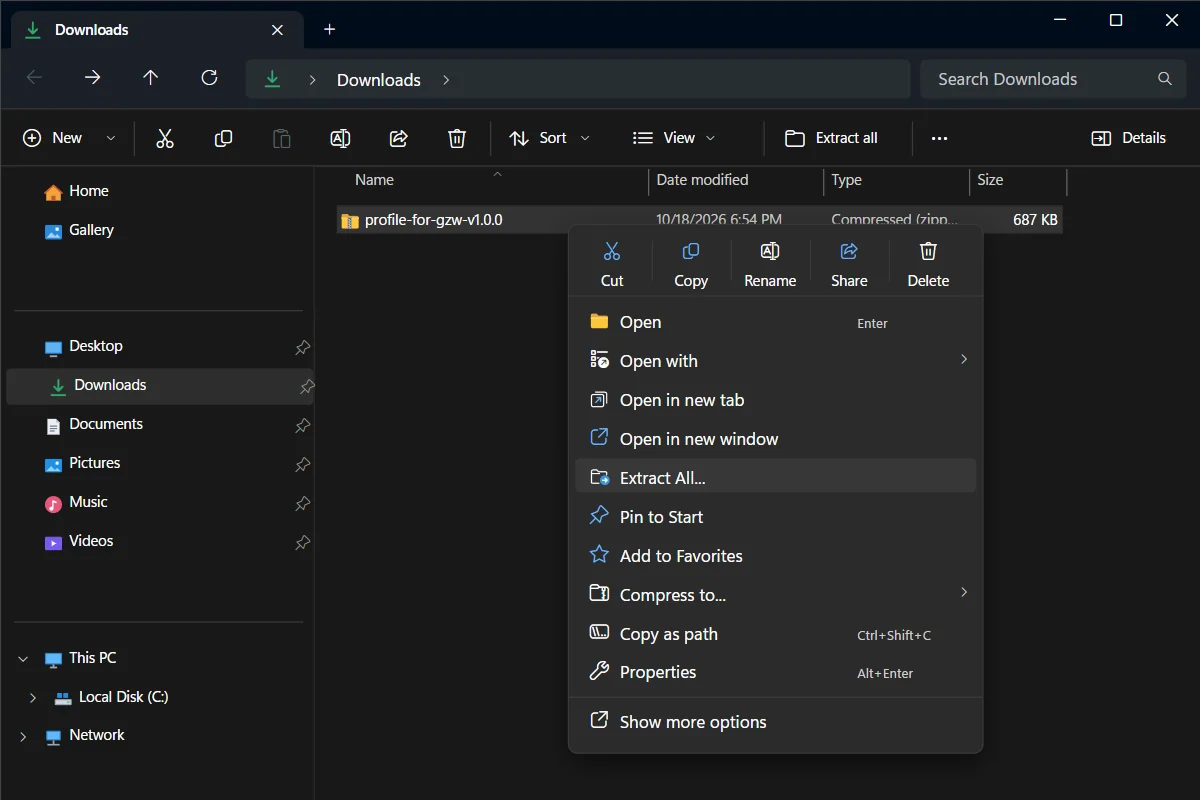
Right-click the zip file and choose Extract All. - 1The zip file you downloaded
- 2Extract All
Have an older version? Delete it first
New here? Skip this step. Otherwise, in the Stream Deck app open the profile menu above the keys and choose Edit Profiles. Select the old profile and click − at the bottom left. Stream Deck never updates a profile: it would add a second one.
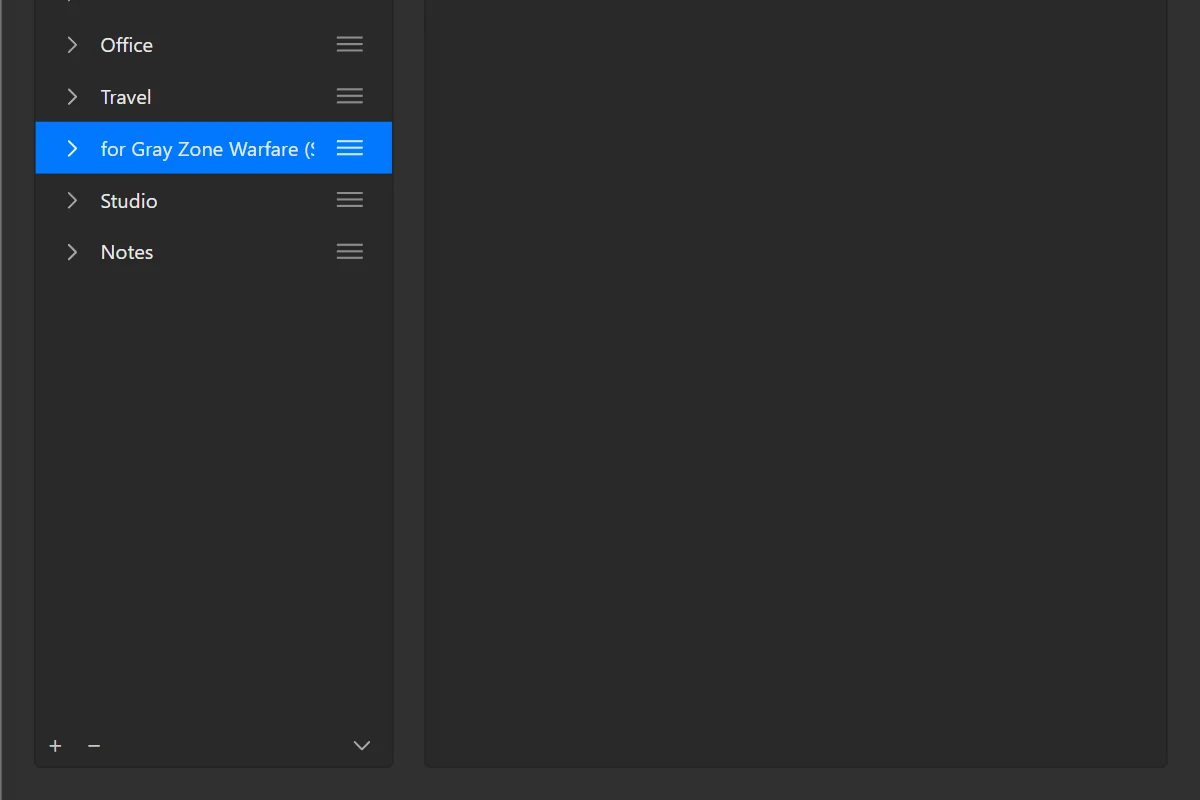
Edit Profiles: select the old profile, then click the minus button at the bottom left. - 1The old profile
- 2The minus button: deletes it
Double-click the file for your Stream Deck
Each file ends with a Stream Deck model. Double-click “for Gray Zone Warfare (Stream Deck +)”. The Stream Deck app opens and adds the profile.
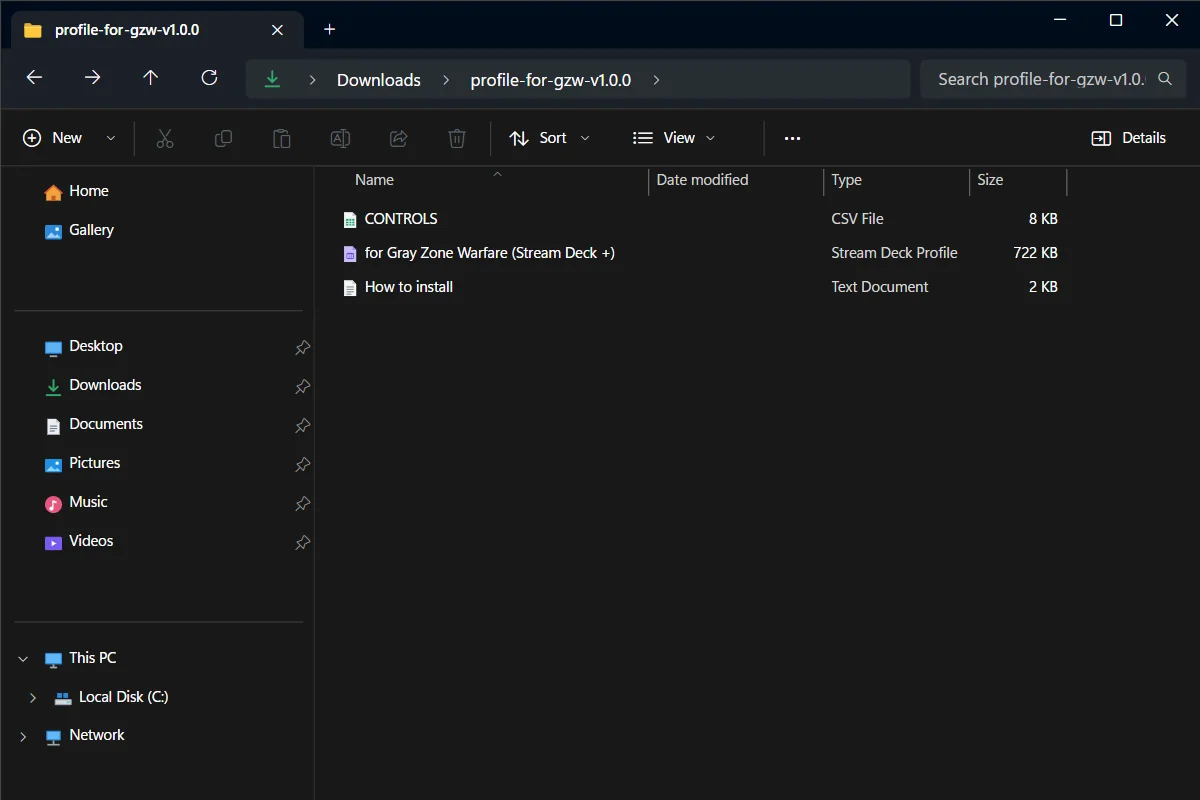
The unzipped folder: the profile file for each Stream Deck model. - 1The file for Stream Deck +
Pick the profile
In the Stream Deck app, click the profile menu above the keys. Choose “for Gray Zone Warfare (Stream Deck +)”. The keys appear on your Stream Deck.
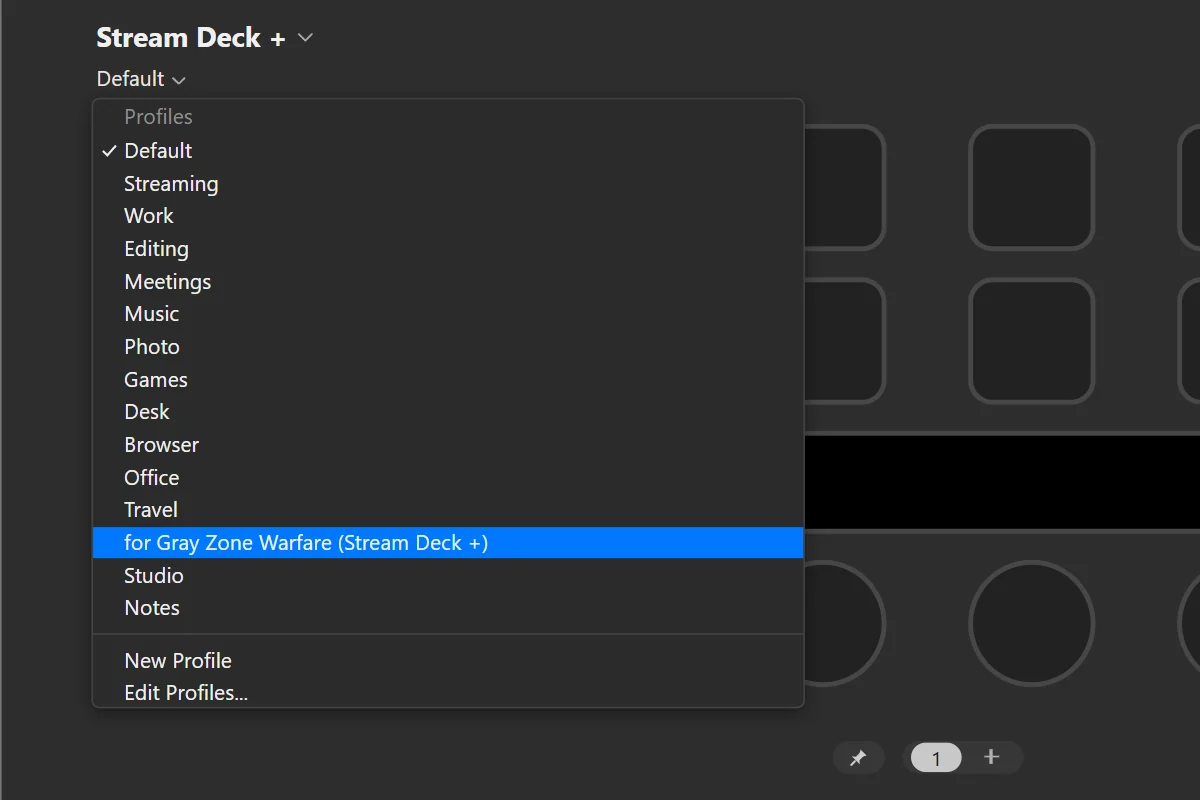
In the Stream Deck app, open the profile menu above the keys and pick the profile. - 1The profile menu, above the keys
- 2The new profile
Optional: let it switch by itself
In the Stream Deck app, open the profile menu above the keys and choose Edit Profiles. Select the profile. Under Application, pick Gray Zone Warfare: Stream Deck switches to the profile when the game is in front.
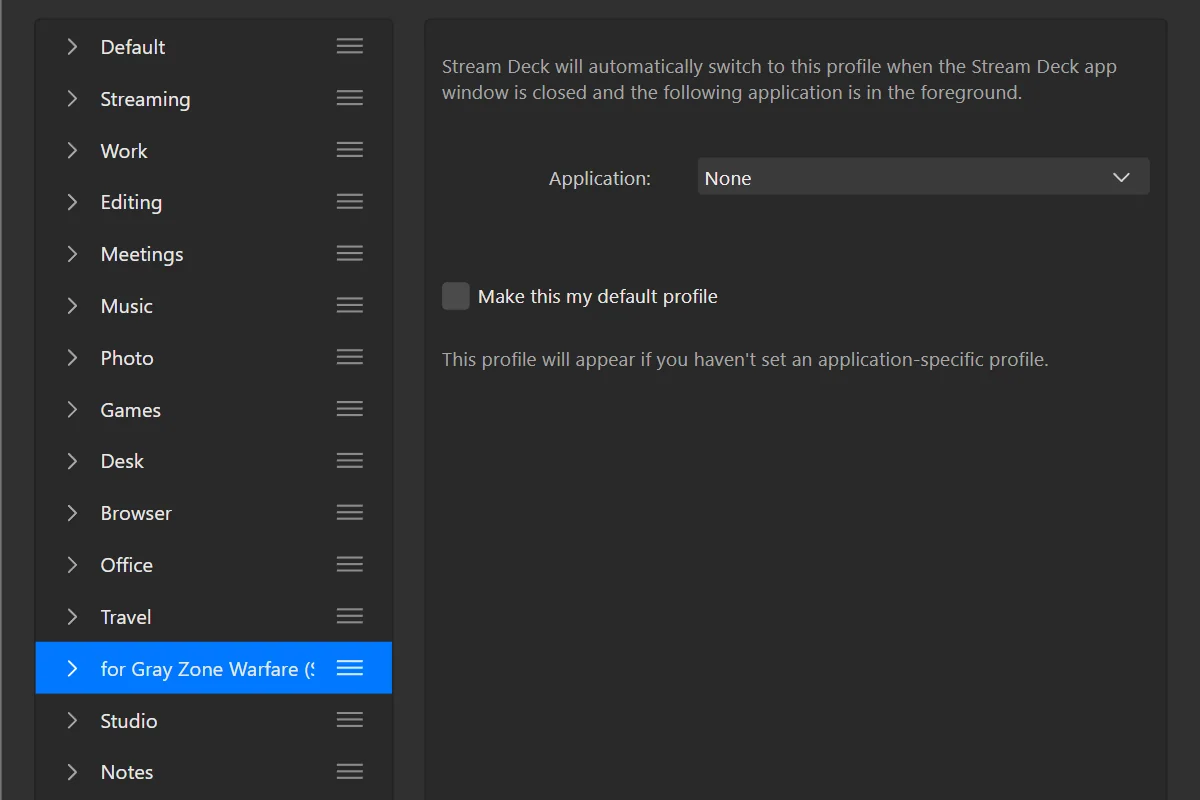
Edit Profiles: select the profile and choose the game under Application. - 1Your profile
- 2Application: pick the game
Done. Start Gray Zone Warfare and play.
your keys.
6 pages. The first dial and the BACK key take you around.
- 1BACK, top left on every page: goes back to the Menu page.
- 2First dial: turn to change page, press for the Menu page.
- 3Second dial: Zeroing on every page; press to check your weapon.
- 4Third dial: changes with the page (Map Zoom; Reticle on Optics).
- 5Last dial: Windows volume. Press to mute.
- 6Touch strip: shows what each dial does on this page.
Explained once
Keys on several pages
Explained once here; each page below names them in one line.
 Map5 of 6 pages
Tap to open the map panel. Hold to open the quick map: it stays open when you let go, exactly as with the keyboard. Close it as you normally do in the game.
SendsMTap or hold Quick Heal5 of 6 pages
Uses a treatment from your quick slots.
SendsH Provisions4 of 6 pages
Eats or drinks a provision from your quick slots.
SendsP BackTop row, 1st key · 5 of 6 pages
Goes back to the Menu page.
SendsOpens a page Binoculars3 of 6 pages
Equips your binoculars.
Sends9
Page 1 of 6
Menu
The start page: the other pages, plus map, quick heal and provisions.
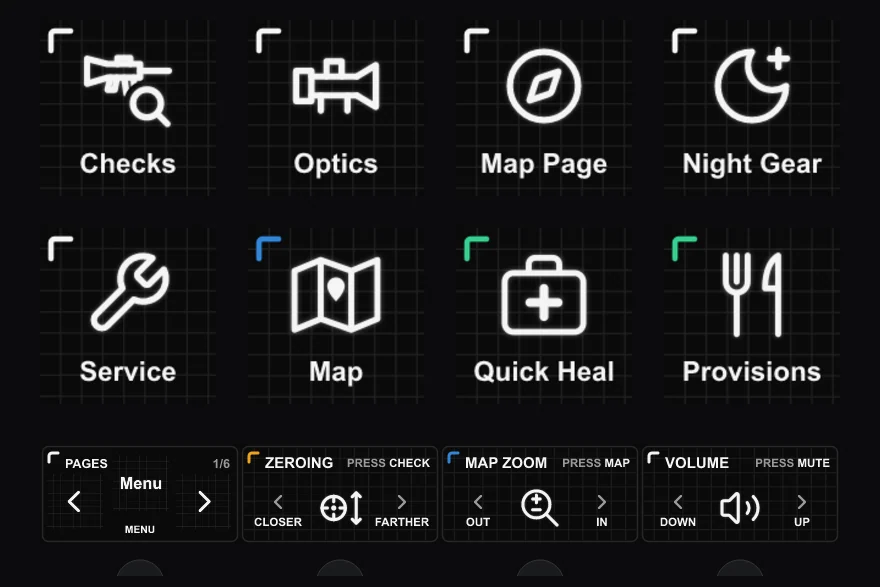
 ChecksTop row, 1st key
Opens the Checks page.
SendsOpens a page OpticsTop row, 2nd key
Opens the Optics page.
SendsOpens a page Map PageTop row, 3rd key
Opens the Map page.
SendsOpens a page Night GearTop row, 4th key
Opens the Night Gear page.
SendsOpens a page ServiceBottom row, 1st key
Opens the Service page.
SendsOpens a page
Also on this page: Map, Quick Heal, Provisions (see Keys on several pages).
Page 2 of 6
Checks
Weapon checks: ammo, chamber, weapon and fire mode.
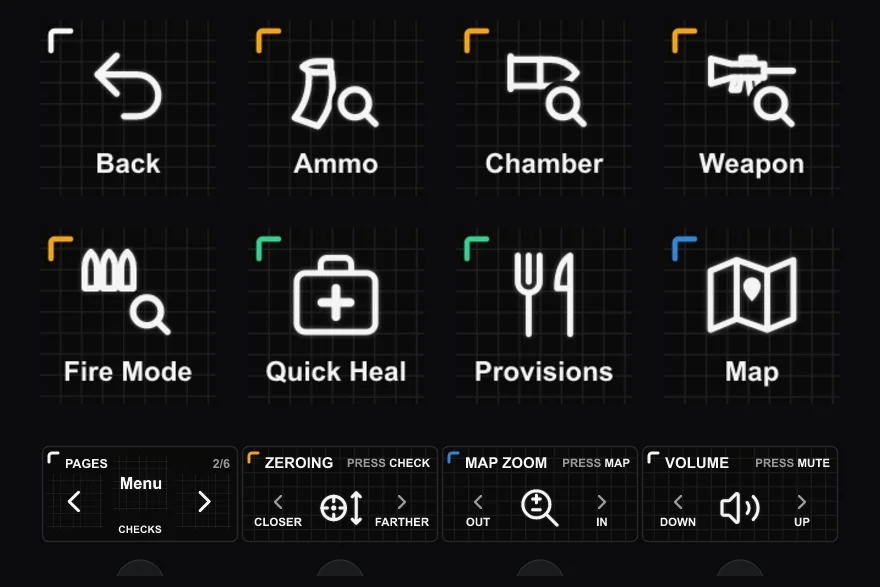
 AmmoTop row, 2nd key
Checks how much ammo is left in the magazine.
SendsV ChamberTop row, 3rd key
Checks whether a round is in the chamber.
SendsShift+V WeaponTop row, 4th key
Checks your weapon.
SendsAlt+V Fire ModeBottom row, 1st key
Shows the current fire mode. Switching it stays on your keyboard (B).
SendsAlt+B
Also on this page: Back, Quick Heal, Provisions, Map (see Keys on several pages).
Page 3 of 6
Optics
Aiming: checks, binoculars and night vision. Dial 3 changes the reticle here.
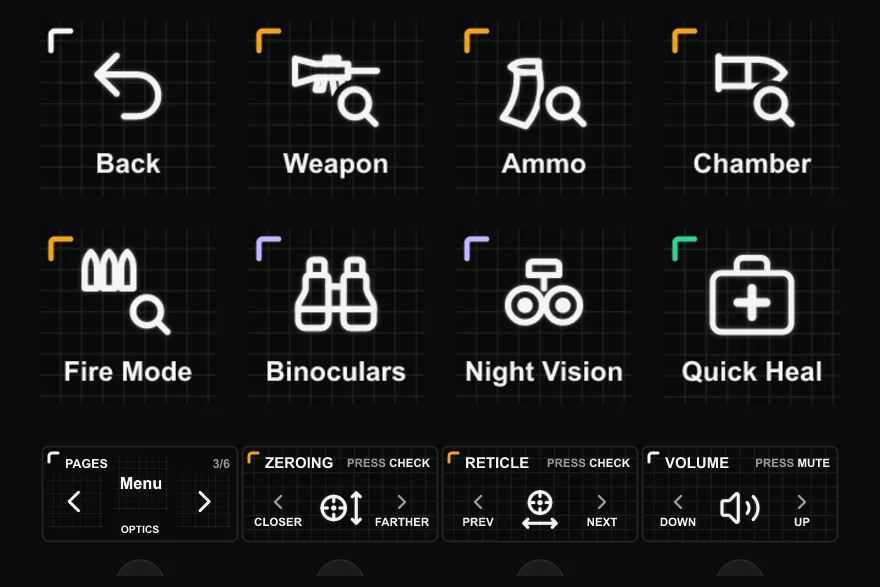
 WeaponTop row, 2nd key
Checks your weapon.
SendsAlt+V AmmoTop row, 3rd key
Checks how much ammo is left in the magazine.
SendsV ChamberTop row, 4th key
Checks whether a round is in the chamber.
SendsShift+V Fire ModeBottom row, 1st key
Shows the current fire mode. Switching it stays on your keyboard (B).
SendsAlt+B Night VisionBottom row, 3rd key
Turns the device on your helmet on or off.
SendsN
Also on this page: Back, Binoculars, Quick Heal (see Keys on several pages).
Page 4 of 6
Map
Panels: map, tasks, health and gear.
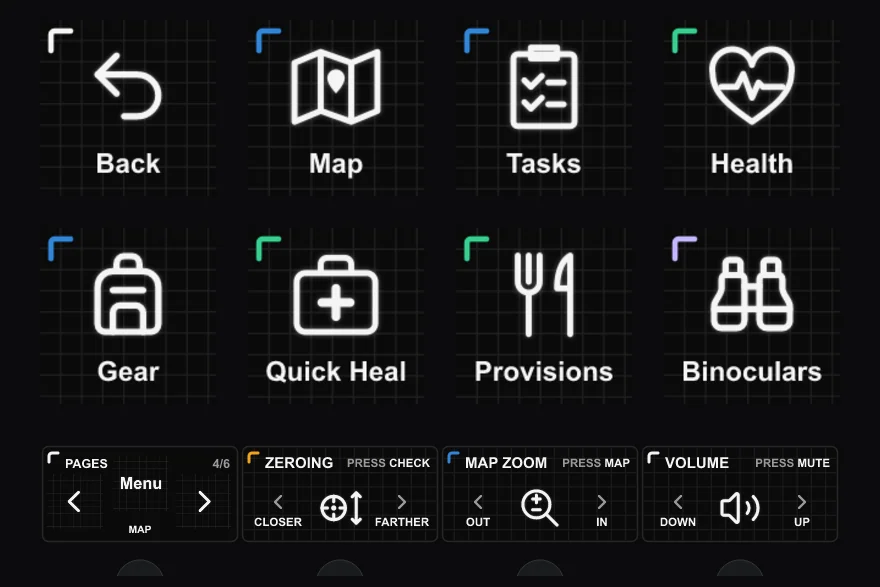
 TasksTop row, 3rd key
Opens the tasks panel.
SendsJ HealthTop row, 4th key
Opens the health panel.
SendsU GearBottom row, 1st key
Opens the gear panel (Tab, the game’s default).
SendsTab
Also on this page: Back, Map, Quick Heal, Provisions, Binoculars (see Keys on several pages).
Page 5 of 6
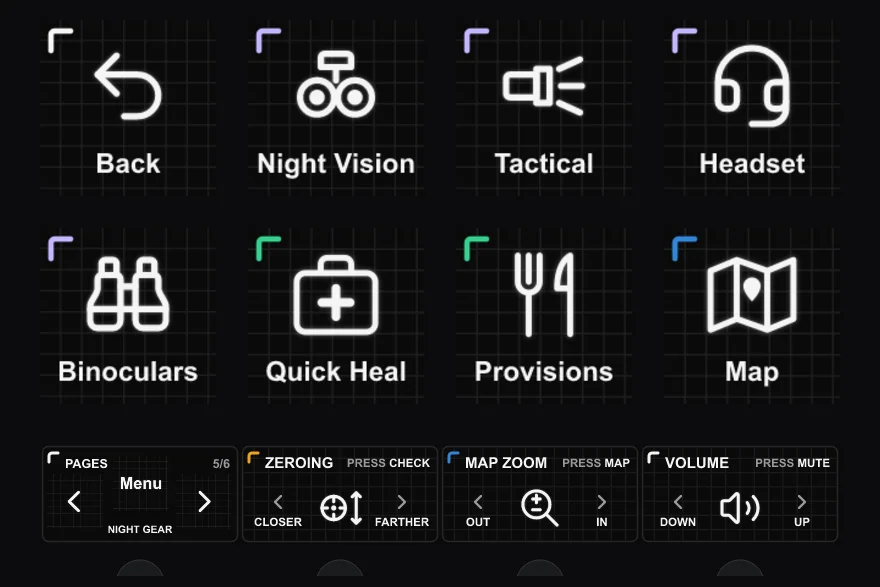
Night Gear
Night vision, tactical devices, headset and binoculars.
 Night VisionTop row, 2nd key
Turns the device on your helmet on or off.
SendsN TacticalTop row, 3rd key
Turns your tactical devices (lights, lasers) on or off.
SendsT HeadsetTop row, 4th key
Turns your active headset on or off.
Sends0
Also on this page: Back, Binoculars, Quick Heal, Provisions, Map (see Keys on several pages).
Page 6 of 6
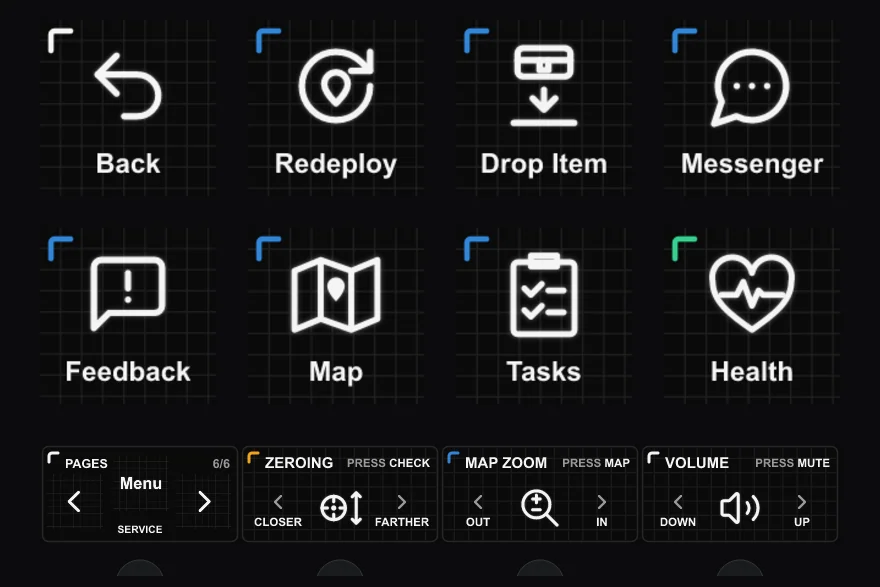
Service
Redeploy, drop item, messenger and feedback.
 RedeployTop row, 2nd key
Redeploys you (Ctrl+F11 in the game). Only press it when you mean it.
SendsCtrl+F11 Drop ItemTop row, 3rd key
Drops the item in your hands. Hold the key, as the game asks.
SendsCtrl+DHold MessengerTop row, 4th key
Opens the messenger.
SendsO FeedbackBottom row, 1st key
Opens the game’s feedback window.
SendsShift+F12 TasksBottom row, 3rd key
Opens the tasks panel.
SendsJ HealthBottom row, 4th key
Opens the health panel.
SendsU
dials.
Dials are numbered 1 to 4 from the left. Each one says its name on the touch strip above it.
- 1PagesEvery page
Turn to go to the previous or next page. Press to go back to the Menu.
- Turn
- Previous / next page
- Press
- Menu
- 2ZeroingEvery page
Changes the zeroing distance of your sight, one step per click: right for farther, left for closer. Press to check your weapon.
- Turn
- Page Down left · Page Up right
- Press
- Alt+V
- 3Map ZoomMenu, Checks, Map, Night Gear, Service
Zooms the quick map in (right) and out (left), with the keypad + and − keys. Hold Map to open the quick map first. Press to open the map panel.
- Turn
- NumSubtract left · NumAdd right
- Press
- M
- 3ReticleOptics
On the Optics page: changes the reticle of your optic, next (right) or previous (left). Press to check your weapon.
- Turn
- Alt+Page Down left · Alt+Page Up right
- Press
- Alt+V
- 4VolumeEvery page
Turn to change the Windows volume. Press to mute; press again to unmute.
- Turn
- Volume down left · Volume up right
- Press
- Mute
customize your profile.
Everything happens in the Stream Deck app on your PC. Click a key or a dial on the picture of your Stream Deck, and its settings open at the bottom.
First, save a copy
- In the Stream Deck app, open the profile menu above the keys and choose Edit Profiles.
- Click the three lines next to the profile and choose Export.
- Save the file somewhere safe. Double-click it any time to get your version back.
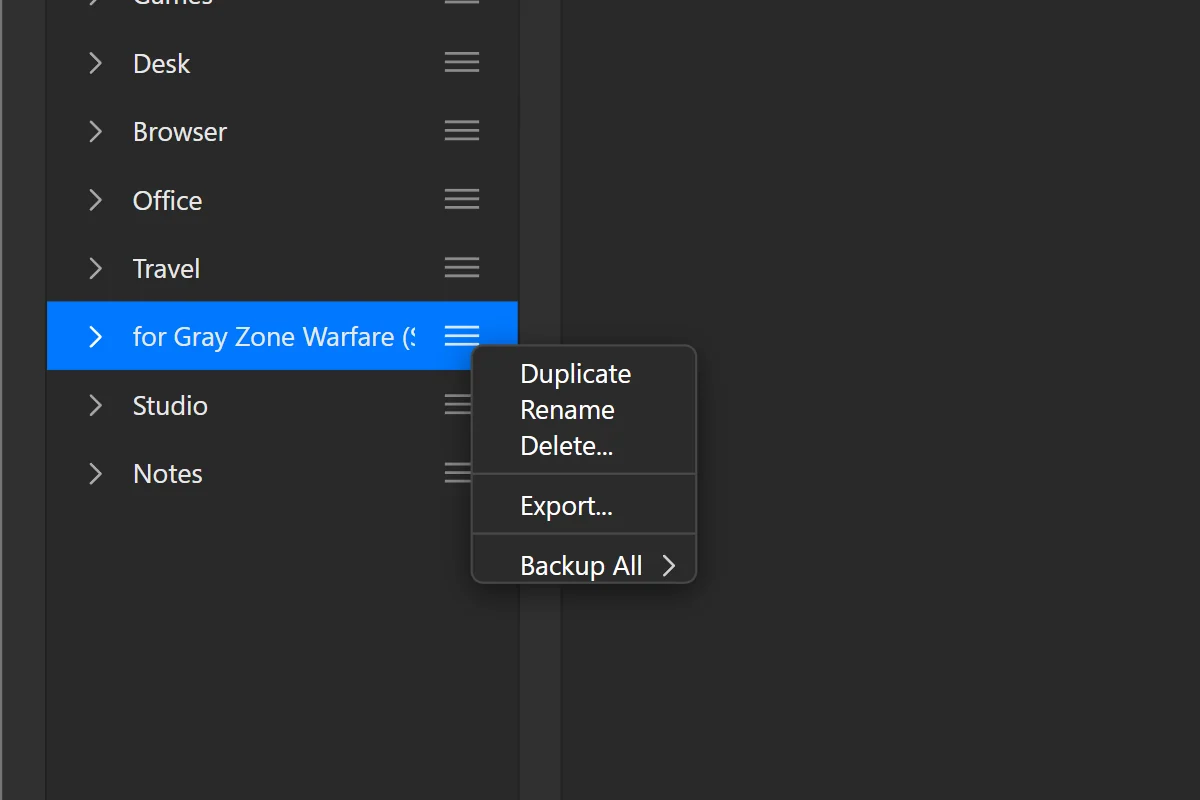
- 1The profile’s menu (three lines)
- 2Export…
Change the key a button sends
- Did you change a key in Gray Zone Warfare’s settings? Do the same here.
- In the Stream Deck app, click the button on the picture of your Stream Deck.
- At the bottom, click the Hotkey field.
- Press the new key on your keyboard. That’s it: it saves by itself.
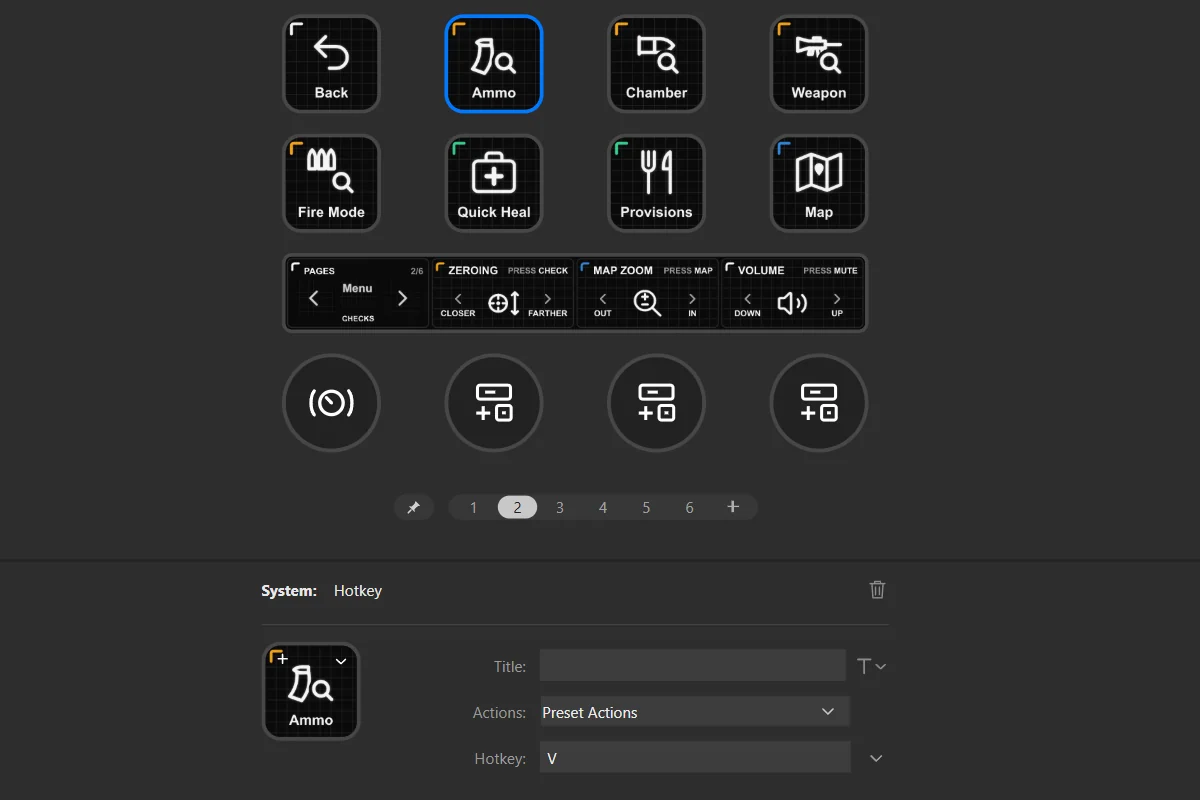
- 1The key you clicked
- 2Hotkey: the key it sends
Move a button, or swap two
- In the Stream Deck app, drag a button to an empty place.
- Drop it on another button and the two swap places.
- To put it on another page: right-click it and choose Copy, go to the other page, right-click an empty place and choose Paste.
Change the name or the icon
- Click the button in the Stream Deck app.
- Type a new name in Title. Our names are drawn in the picture, so you may want a new picture too.
- To change the picture, open the menu next to the button’s image and choose Set from File.
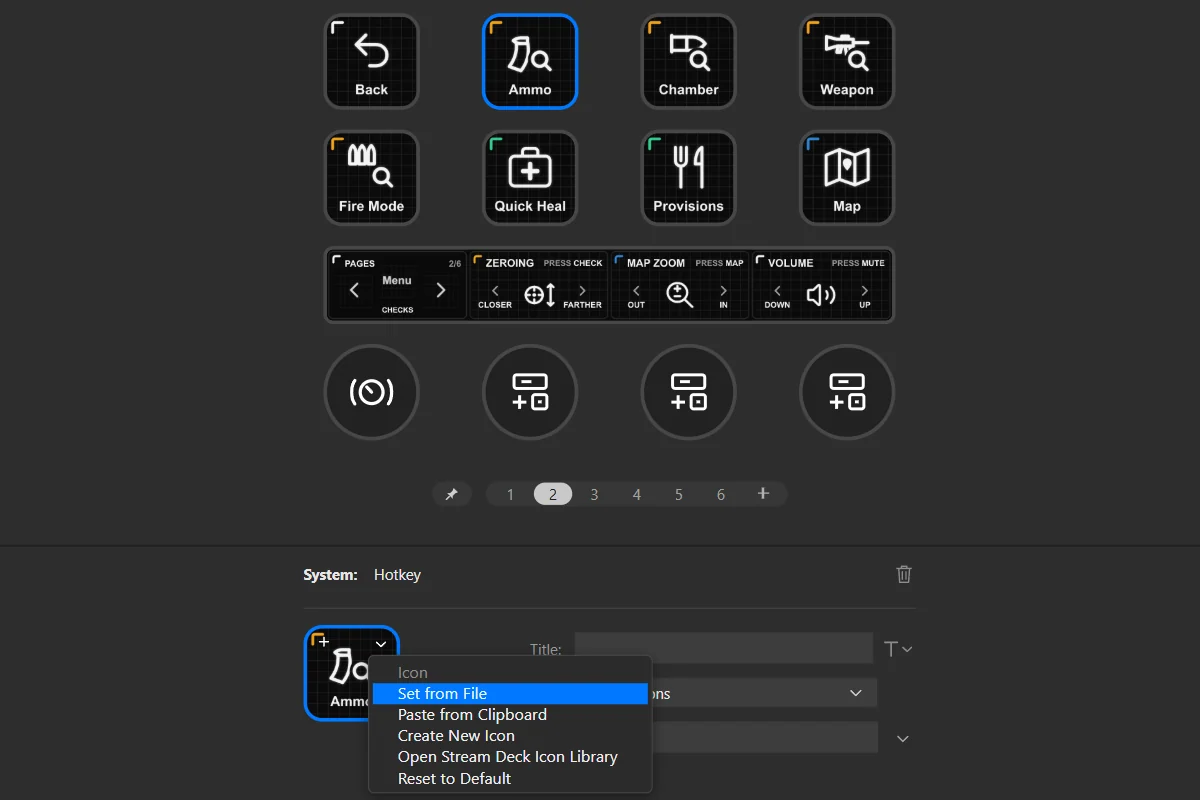
- 1Title
- 2Set from File: a new picture
Add a key
- Every place is taken: pick a key you don’t use, right-click it and choose Delete.
- On the right of the Stream Deck app, open System and find Hotkey.
- Drag Hotkey onto the empty place.
- Click its Hotkey field and press the key the game uses.
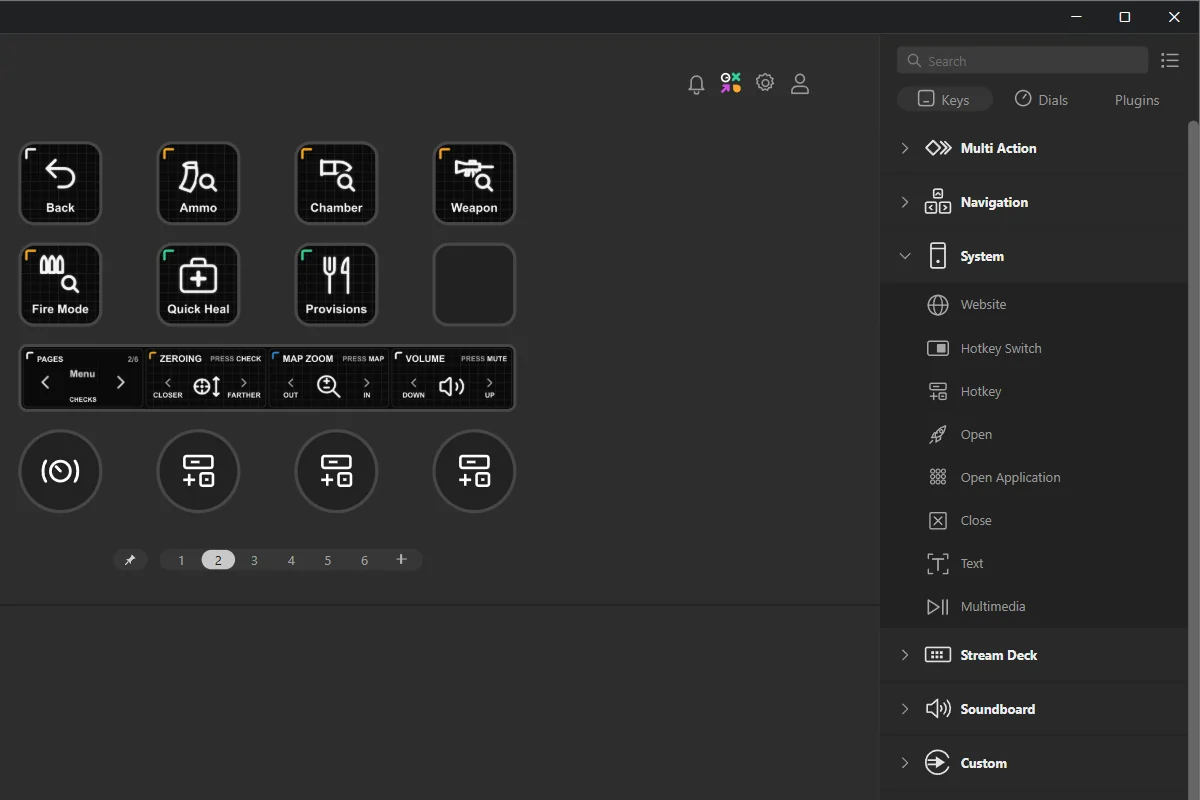
- 1Hotkey, under System
- 2An empty place: drop it here
Keys you hold down
- Nothing to set: a Stream Deck key stays pressed as long as your finger is on it, like a keyboard key.
- Keys marked Hold in the tables need it: keep your finger on them until the game reacts.
Change what a dial does
- Click the dial under the keys in the Stream Deck app.
- At the bottom you see three fields: Rotate CCW (turning left), Rotate CW (turning right) and Press / Tap.
- Click a field and press the new key on your keyboard.
- Want something else on the dial? Drag another action onto it from the list on the right.
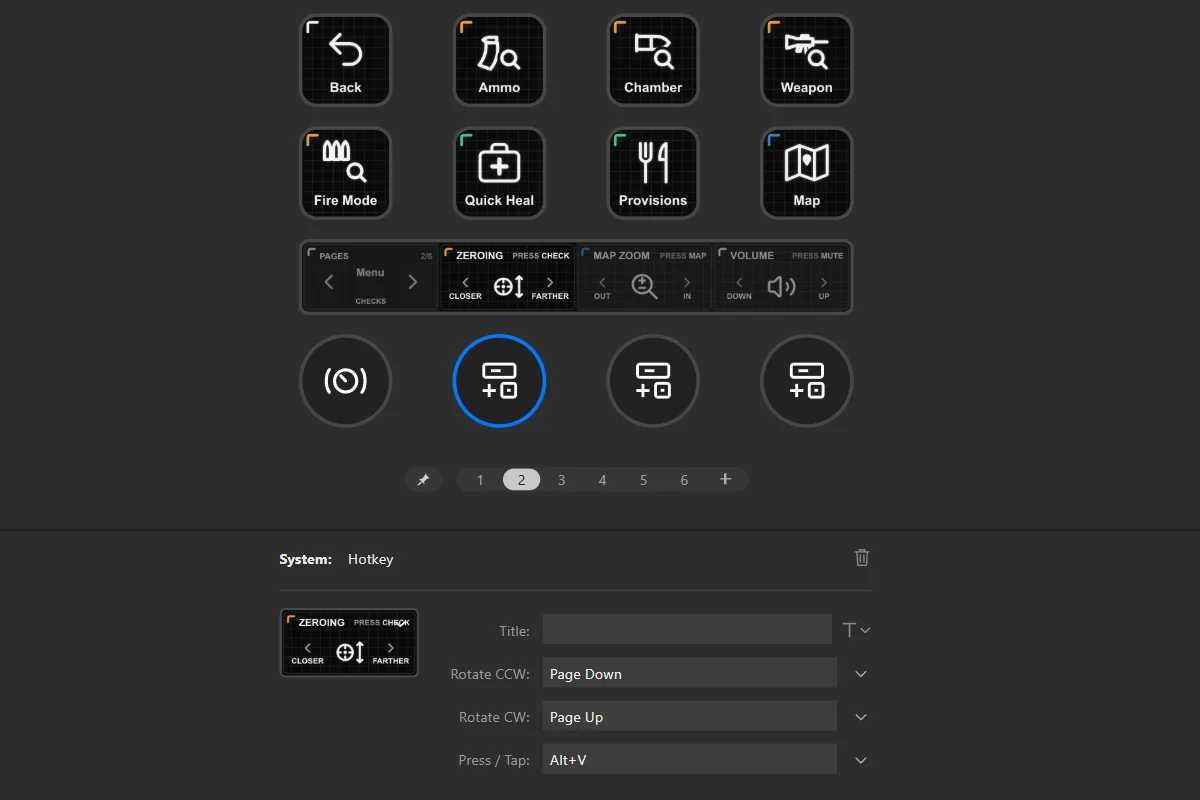
- 1The dial you clicked
- 2Rotate CCW: turning left
- 3Rotate CW: turning right
- 4Press / Tap: pressing it
Go back to the original
- Delete the profile: open the profile menu above the keys and choose Edit Profiles, select it, click −.
- Double-click the original file from the download again.
- Your changes are gone. Saved a copy first? Double-click that file instead.
- 1The old profile
- 2The minus button: deletes it
if something doesn’t work.
A key does nothing in the game
- Click once inside the game window. Stream Deck types into the window in front, like a keyboard.
- Check the key in the game: Settings › Controls. The profile uses the game’s default keys. If you changed one, change it back, or change the Stream Deck key (see “Customize your profile”).
The map stays open after I hold Map
- That is the game: holding M on the keyboard does the same. Close the map as you normally do.
Gear does nothing
- The Gear key sends Tab, the game’s default. If you moved the gear panel to another key, set it back to Tab or change the Stream Deck key.
Does it work with the anti-cheat?
- Every key sends one key press, like your keyboard: no macros, no timed sequences, no plugins.
How do I get back to the start?
- Press BACK, top left of every page. Or press the first dial: it always goes to the Menu.
I have the profile twice, or a profile called “copy”
- You imported the file twice. Stream Deck never replaces a profile: it adds a new one.
- Delete the extra one (see “Have an older version? Delete it first” in Install) and keep one.
Still stuck? Contact support and tell us your Stream Deck model and what happens.
version notes.
- Version 1.0.0this version
- First release. Six pages for Stream Deck +: Menu, Checks, Optics, Map, Night Gear, Service.
- Dials for pages, zeroing, map zoom (reticle on Optics) and the Windows volume.
- Only what is awkward to reach while playing: reload, use, grenade, weapons, switching fire mode and movement stay on your keyboard.
The profile sets up your Stream Deck; it doesn’t include the game. Independent product by Frenetiq Design, not affiliated with or endorsed by the makers of Gray Zone Warfare or by Elgato.