what you need.
- Stream Deck +
- The Stream Deck app, version 7.1 or laterFree, from Elgato’s website.
- A Windows 10 or 11 PCWith Figma installed.
- Figma Desktop with the English interfaceThe desktop app for Windows (no Mac edition yet). The keys send Figma’s own shortcuts; EN-US follows Figma’s standard US shortcuts.
- For the EN-IT files: Figma’s Italian layoutIn Figma, open Keyboard shortcuts › Layout and choose Italian. With EN-US, keep U.S. QWERTY.
install in 5 steps.
Unzip the download
Right-click the zip file you downloaded (
Figma-Minimal-Advanced-v1.0.0.zip). Choose Extract All, then Extract. A folder opens with the files.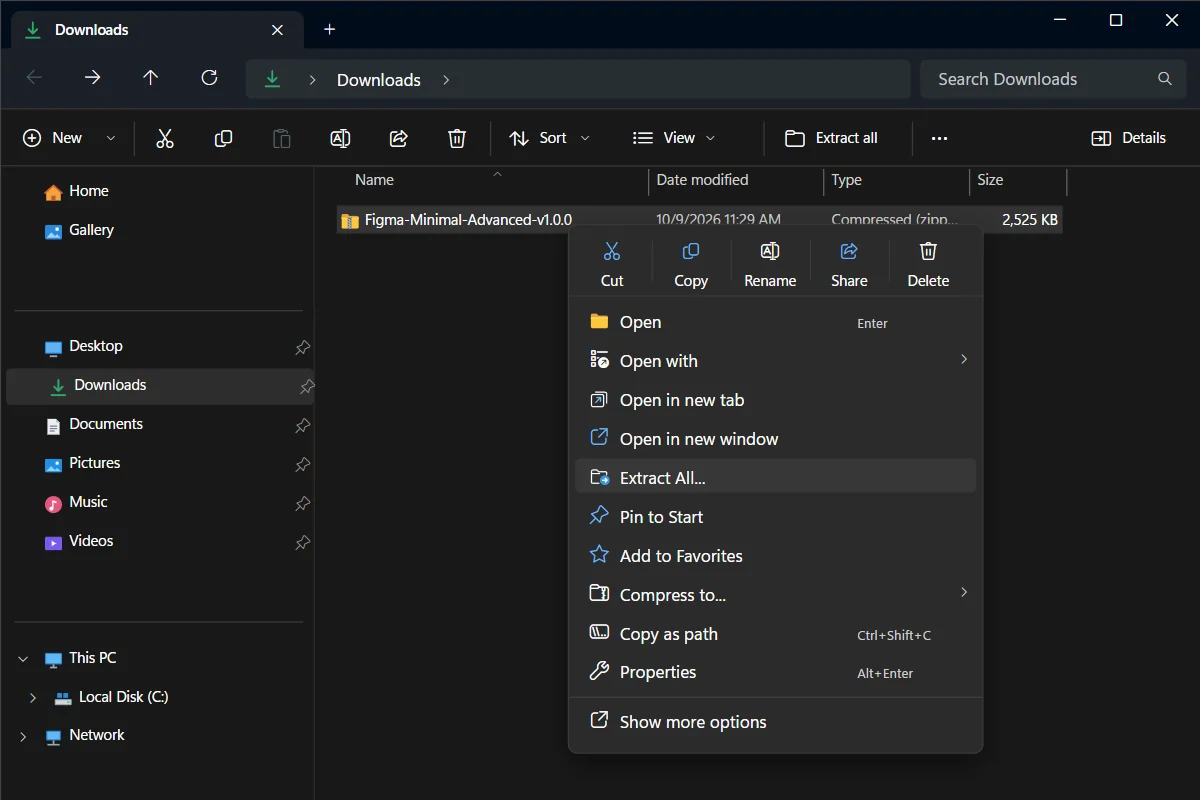
Right-click the zip file and choose Extract All. - 1The zip file you downloaded
- 2Extract All
Have an older version? Delete it first
New here? Skip this step. Otherwise, in the Stream Deck app open the profile menu above the keys and choose Edit Profiles. Select the old profile and click − at the bottom left. Stream Deck never updates a profile: it would add a second one.
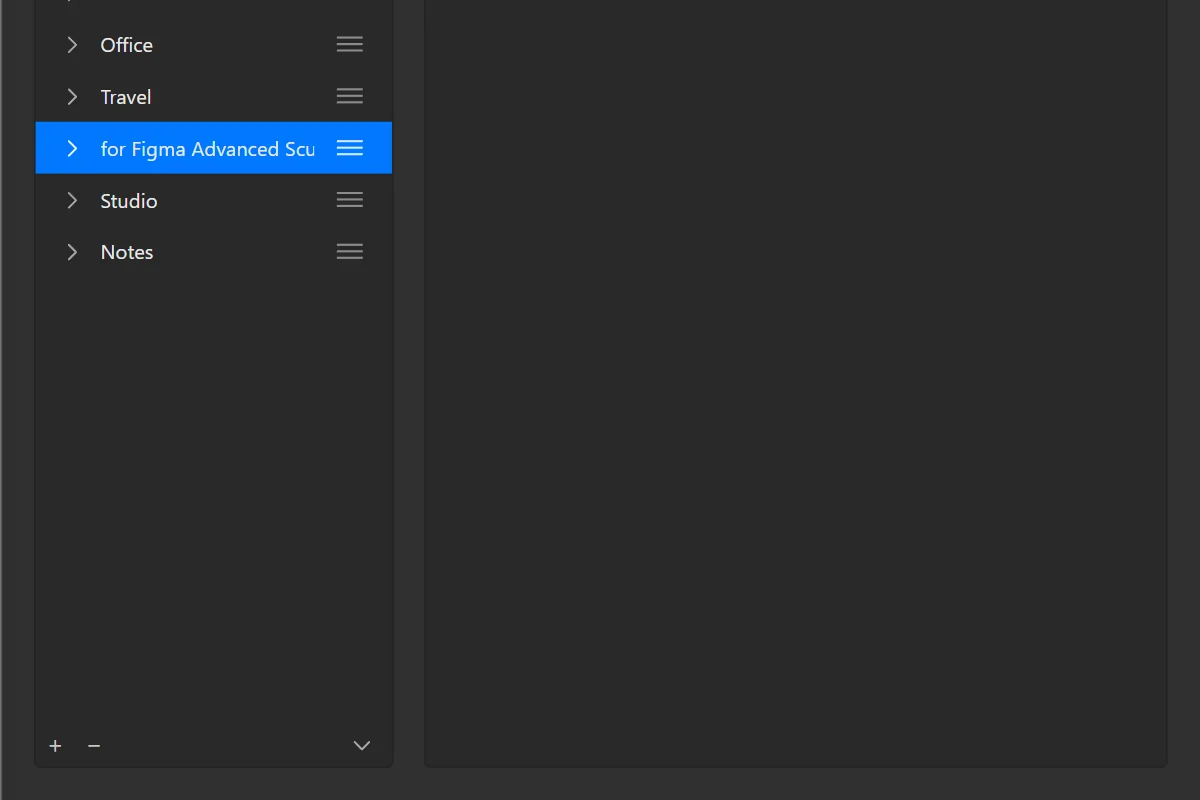
Edit Profiles: select the old profile, then click the minus button at the bottom left. - 1The old profile
- 2The minus button: deletes it
Double-click the file for your Stream Deck
Each file ends with a Stream Deck model. Double-click “for Figma Advanced Sculpt v1.0.0 (EN-US) (Stream Deck +)”. The Stream Deck app opens and adds the profile.
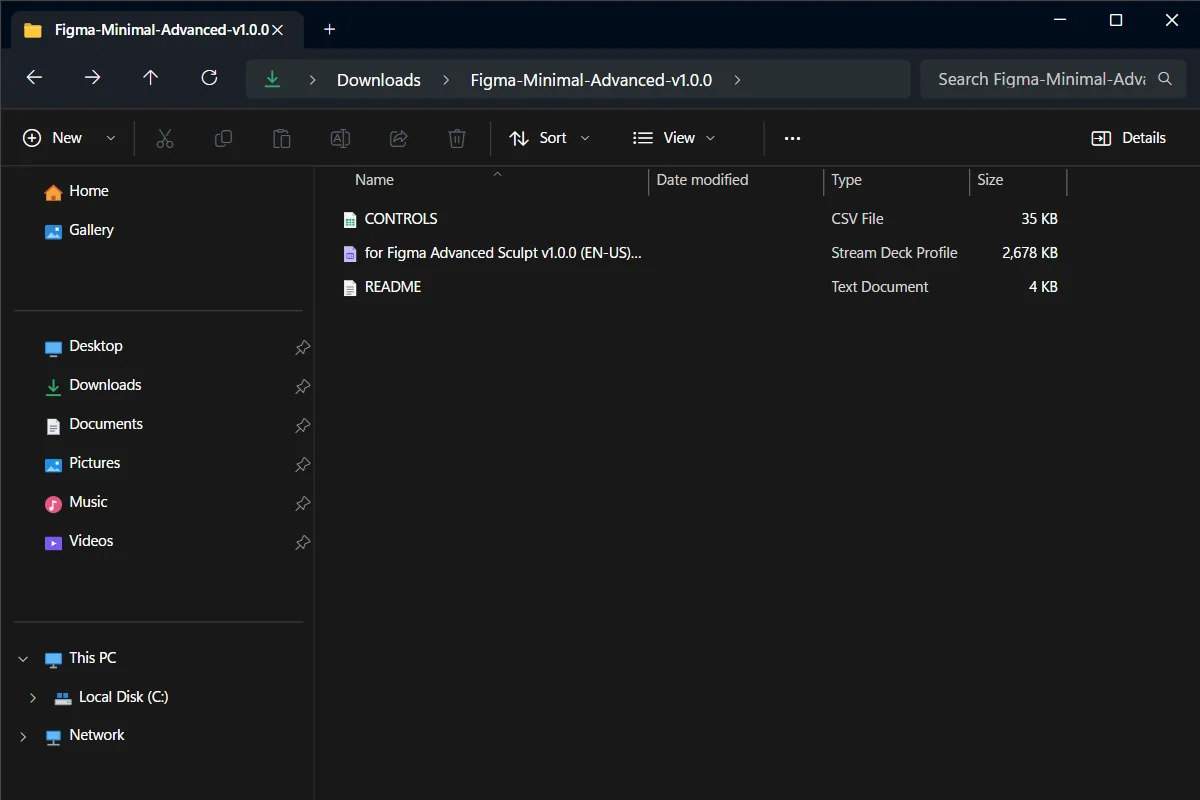
The unzipped folder: the profile file for each Stream Deck model. - 1The file for Stream Deck +
Pick the profile
In the Stream Deck app, click the profile menu above the keys. Choose “for Figma Advanced Sculpt v1.0.0 (EN-US) (Stream Deck +)”. The keys appear on your Stream Deck.
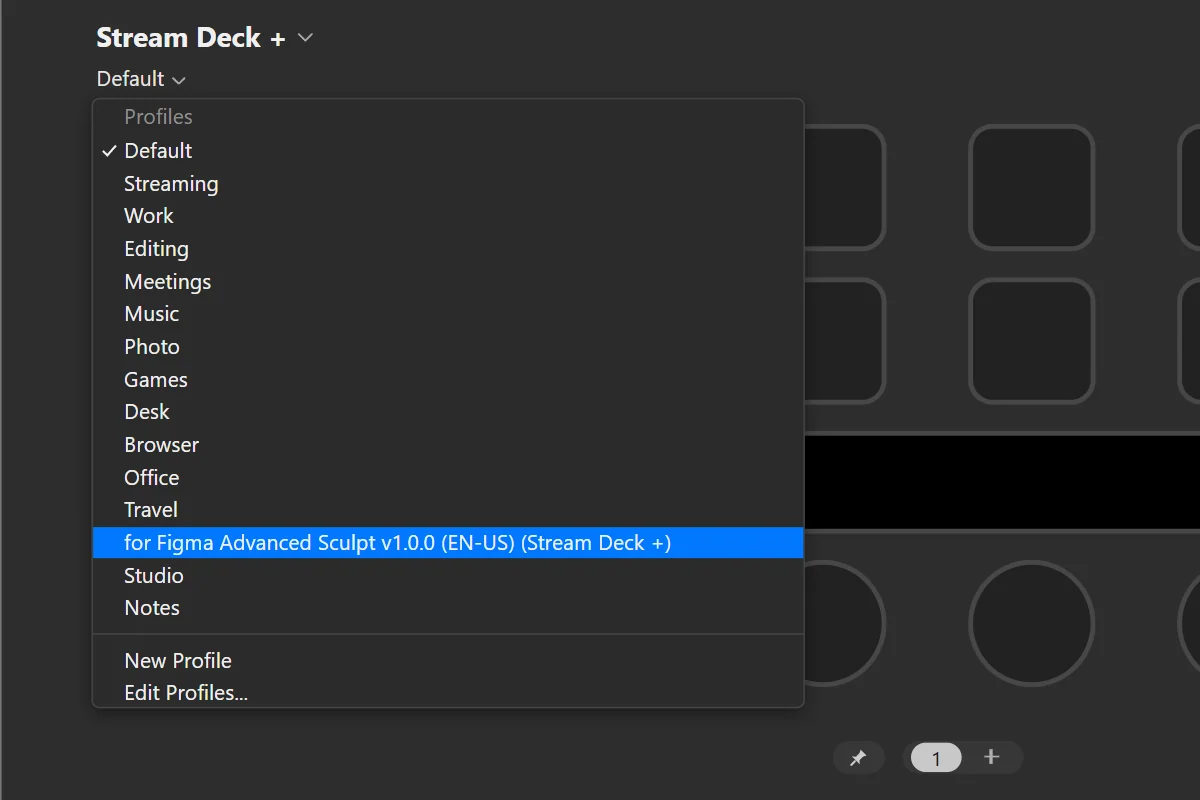
In the Stream Deck app, open the profile menu above the keys and pick the profile. - 1The profile menu, above the keys
- 2The new profile
Optional: let it switch by itself
In the Stream Deck app, open the profile menu above the keys and choose Edit Profiles. Select the profile. Under Application, pick Figma: Stream Deck switches to the profile when the app is in front.
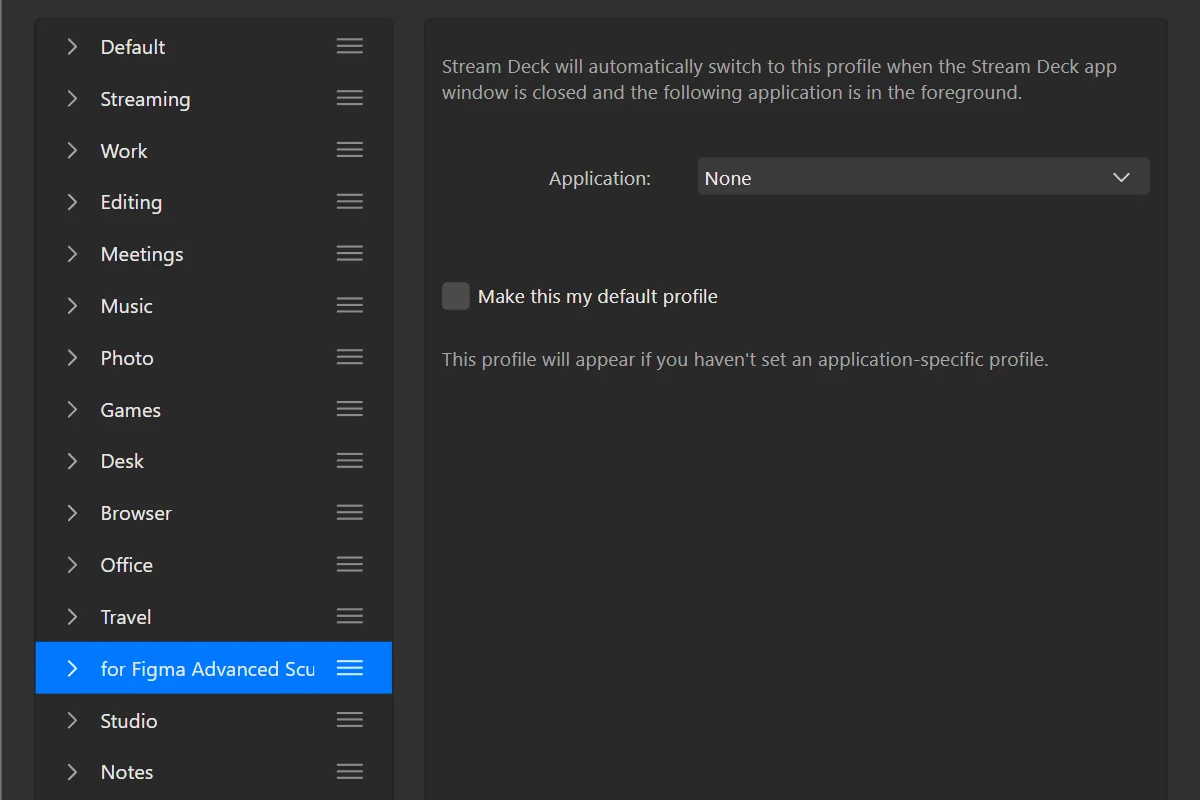
Edit Profiles: select the profile and choose the game under Application. - 1Your profile
- 2Application: pick the game
Done. Open Figma and get to work.
your keys.
21 pages. The first dial and the BACK key take you around.
- 1BACK, top left on every page: goes back to the Menu page.
- 2First dial: turn to change page, press for the Menu page.
- 3Middle dials: change with the page (Zoom, Distribute, Select, Convert, Font Size, Zoom To, Auto Layout, Field, Doc Pages, Panels, Order, Flip, Line Height, UI Scale, Coarse).
- 4Last dial: Windows volume; on some pages Front/Back, Tracking, Coarse, History.
- 5Touch strip: shows what each dial does on this page.
Explained once
Keys on several pages
Explained once here; each page below names them in one line.
 BackTop row, 1st key · 20 of 21 pages
Goes back to the Menu page.
SendsOpens a page Copy Props4 of 21 pages
Copies the look of a layer: fill, stroke, effects.
SendsCtrl+Alt+C Paste Props3 of 21 pages
Gives the selected layers the look you copied.
SendsCtrl+Alt+V Undo3 of 21 pages
Undoes the last change.
SendsCtrl+Z Redo3 of 21 pages
Redoes what you just undid.
SendsCtrl+Shift+Z Duplicate3 of 21 pages
Duplicates the selection.
SendsCtrl+D Pen3 of 21 pages
Picks the Pen tool.
SendsP Pencil3 of 21 pages
Picks the Pencil tool.
SendsShift+P Design4 of 21 pages
Opens the Design panel.
SendsAlt+8
Page 1 of 21
Menu
The start page: it takes you to every other page.
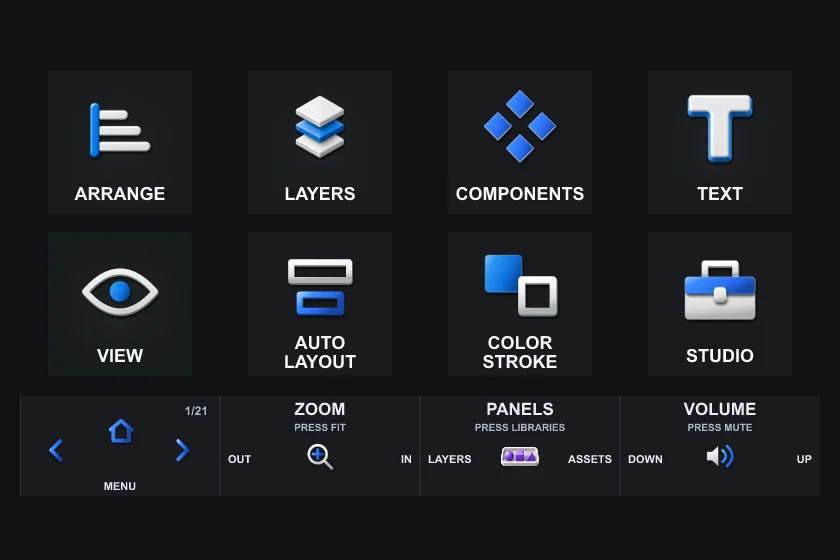
 ArrangeTop row, 1st key
Opens the Arrange page.
SendsOpens a page LayersTop row, 2nd key
Opens the Layers page.
SendsOpens a page ComponentsTop row, 3rd key
Opens the Components page.
SendsOpens a page TextTop row, 4th key
Opens the Text page.
SendsOpens a page ViewBottom row, 1st key
Opens the View page.
SendsOpens a page Auto LayoutBottom row, 2nd key
Opens the Auto Layout page.
SendsOpens a page Color StrokeBottom row, 3rd key
Opens the Color & Stroke page.
SendsOpens a page StudioBottom row, 4th key
Opens the Studio page.
SendsOpens a page
Dials on this page
- 1PagesPrevious / next page · press Menu
- 2ZoomCtrl+- left · Ctrl+= right · press Shift+1
- 3PanelsAlt+1 left · Alt+2 right · press Alt+3
- 4VolumeVolume down left · Volume up right · press Mute
Page 2 of 21
Arrange
Align, distribute and stack what you selected.
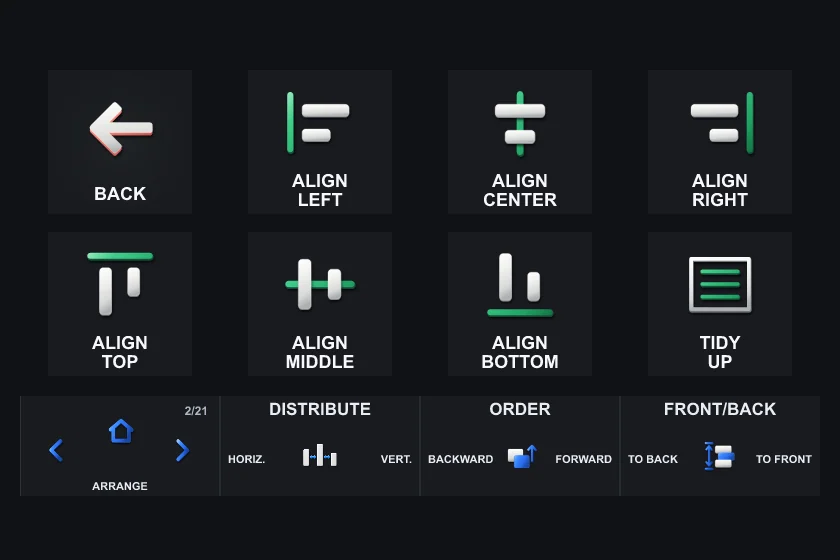
 Align LeftTop row, 2nd key
Lines up the selected layers on their left edge.
SendsAlt+A Align CenterTop row, 3rd key
Lines up the selected layers on their horizontal centre.
SendsAlt+H Align RightTop row, 4th key
Lines up the selected layers on their right edge.
SendsAlt+D Align TopBottom row, 1st key
Lines up the selected layers on their top edge.
SendsAlt+W Align MiddleBottom row, 2nd key
Lines up the selected layers on their vertical centre.
SendsAlt+V Align BottomBottom row, 3rd key
Lines up the selected layers on their bottom edge.
SendsAlt+S Tidy UpBottom row, 4th key
Spaces the selected layers evenly in a tidy grid.
SendsCtrl+Alt+Shift+T
Also on this page: Back (see Keys on several pages).
Dials on this page
- 1PagesPrevious / next page · press Menu
- 2DistributeAlt+Shift+H left · Alt+Shift+V right · press Nothing
- 3OrderCtrl+[ left · Ctrl+] right · press Nothing
- 4Front/Back[ left · ] right · press Nothing
Page 3 of 21
Layers
Frames, groups, selection, lock and visibility.
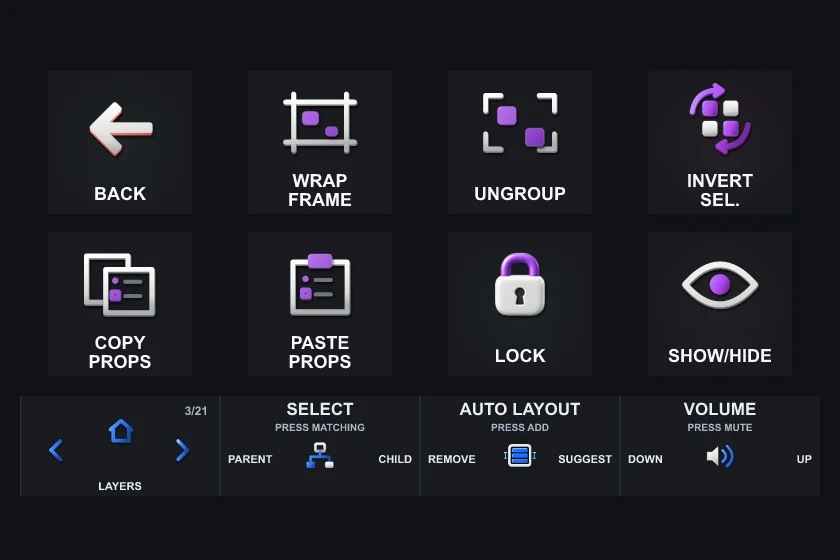
 Wrap FrameTop row, 2nd key
Puts the selected layers inside a new frame.
SendsCtrl+Alt+G UngroupTop row, 3rd key
Takes the selected group or frame apart.
SendsCtrl+Shift+G Invert Sel.Top row, 4th key
Selects everything you hadn’t selected, and deselects the rest.
SendsCtrl+Shift+A LockBottom row, 3rd key
Locks or unlocks the selected layers.
SendsCtrl+Shift+L Show/HideBottom row, 4th key
Hides or shows the selected layers.
SendsCtrl+Shift+H
Also on this page: Back, Copy Props, Paste Props (see Keys on several pages).
Dials on this page
- 1PagesPrevious / next page · press Menu
- 2Select\ left · Enter right · press Ctrl+Alt+A
- 3Auto LayoutAlt+Shift+A left · Ctrl+Alt+Shift+A right · press Shift+A
- 4VolumeVolume down left · Volume up right · press Mute
Page 4 of 21
Components
Components and boolean shapes.
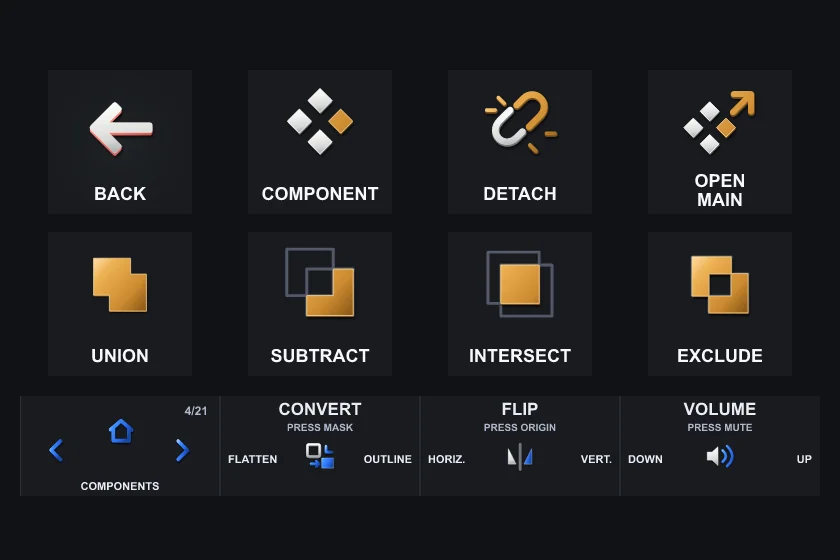
 ComponentTop row, 2nd key
Turns the selection into a component.
SendsCtrl+Alt+K DetachTop row, 3rd key
Detaches the selected instance from its component.
SendsCtrl+Alt+B Open MainTop row, 4th key
Jumps to the main component of the selected instance.
SendsCtrl+Alt+Shift+K UnionBottom row, 1st key
Joins the selected shapes into one.
SendsAlt+Shift+U SubtractBottom row, 2nd key
Cuts the top shapes out of the bottom one.
SendsAlt+Shift+S IntersectBottom row, 3rd key
Keeps only where the selected shapes overlap.
SendsAlt+Shift+I ExcludeBottom row, 4th key
Keeps everything except where the shapes overlap.
SendsAlt+Shift+E
Also on this page: Back (see Keys on several pages).
Dials on this page
- 1PagesPrevious / next page · press Menu
- 2ConvertAlt+Shift+F left · Ctrl+Alt+O right · press Ctrl+Alt+M
- 3FlipShift+H left · Shift+V right · press Alt+R
- 4VolumeVolume down left · Volume up right · press Mute
Page 5 of 21
Text
Alignment, lists, links and type size.
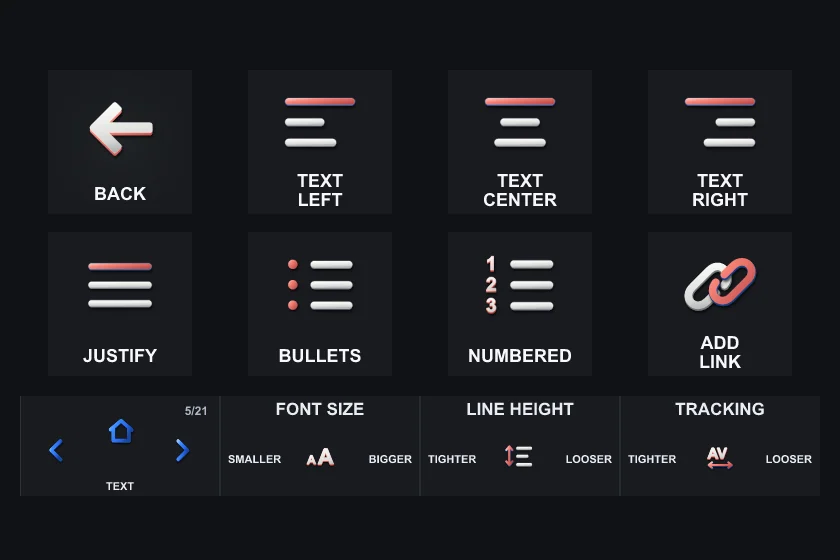
 Text LeftTop row, 2nd key
Aligns the selected text to the left.
SendsCtrl+Alt+L Text CenterTop row, 3rd key
Centres the selected text.
SendsCtrl+Alt+T Text RightTop row, 4th key
Aligns the selected text to the right.
SendsCtrl+Alt+R JustifyBottom row, 1st key
Justifies the selected text.
SendsCtrl+Alt+J BulletsBottom row, 2nd key
Turns the selected lines into a bulleted list.
SendsCtrl+Shift+8 NumberedBottom row, 3rd key
Turns the selected lines into a numbered list.
SendsCtrl+Shift+7 Add LinkBottom row, 4th key
Adds a link to the selected text.
SendsCtrl+Shift+U
Also on this page: Back (see Keys on several pages).
Dials on this page
- 1PagesPrevious / next page · press Menu
- 2Font SizeCtrl+Shift+, left · Ctrl+Shift+. right · press Nothing
- 3Line HeightAlt+Shift+, left · Alt+Shift+. right · press Nothing
- 4TrackingCtrl+, left · Ctrl+. right · press Nothing
Page 6 of 21
View
Prototype, outlines, grids, guides and rulers.
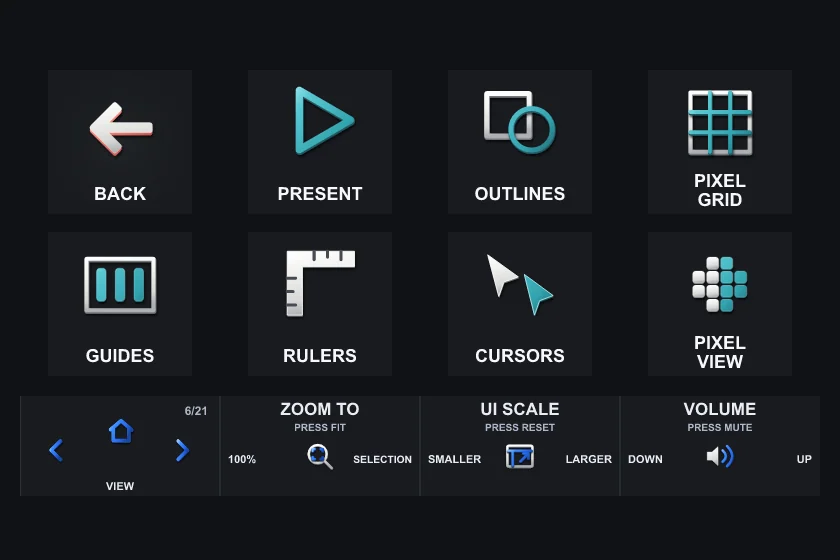
 PresentTop row, 2nd key
Opens the prototype in presentation view.
SendsCtrl+Alt+Enter OutlinesTop row, 3rd key
Shows only the outlines of every layer. Press again to go back.
SendsCtrl+Shift+O Pixel GridTop row, 4th key
Shows or hides the pixel grid.
SendsShift+' GuidesBottom row, 1st key
Shows or hides the layout guides.
SendsShift+G RulersBottom row, 2nd key
Shows or hides the rulers.
SendsShift+R CursorsBottom row, 3rd key
Shows or hides the cursors of the other people in the file.
SendsCtrl+Alt+\ Pixel ViewBottom row, 4th key
Shows the canvas as it will look in pixels. Press again to go back.
SendsCtrl+Alt+P
Also on this page: Back (see Keys on several pages).
Dials on this page
- 1PagesPrevious / next page · press Menu
- 2Zoom ToCtrl+0 left · Shift+2 right · press Shift+1
- 3UI ScaleCtrl+Shift+Alt+- left · Ctrl+Shift+Alt+= right · press Ctrl+Shift+Alt+0
- 4VolumeVolume down left · Volume up right · press Mute
Page 7 of 21
Essentials
Hide UI, save a version, export, undo and redo, rename, duplicate.
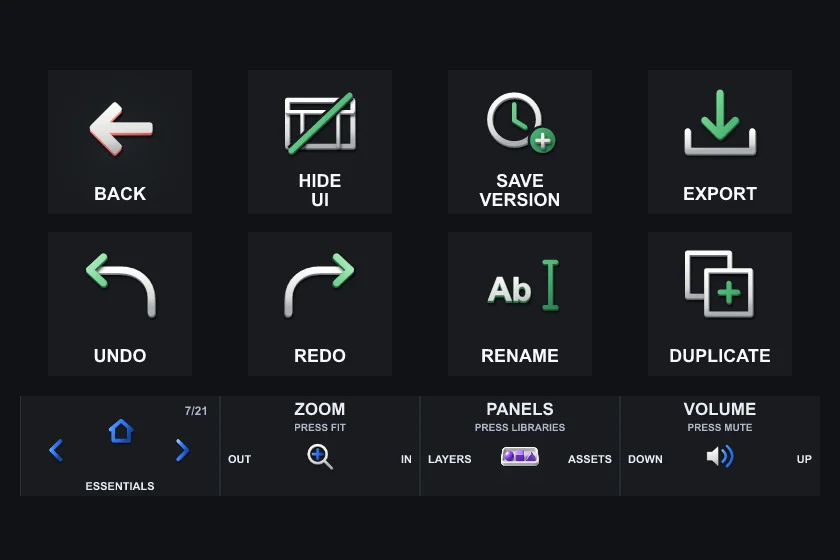
 Hide UITop row, 2nd key
Hides Figma’s panels so you see only the canvas. Press again to bring them back.
SendsCtrl+\ Save VersionTop row, 3rd key
Saves a version to the file’s version history.
SendsCtrl+Alt+S ExportTop row, 4th key
Exports the selection with its export settings.
SendsCtrl+Shift+E RenameBottom row, 3rd key
Renames the selected layer.
SendsCtrl+R
Also on this page: Back, Undo, Redo, Duplicate (see Keys on several pages).
Dials on this page
- 1PagesPrevious / next page · press Menu
- 2ZoomCtrl+- left · Ctrl+= right · press Shift+1
- 3PanelsAlt+1 left · Alt+2 right · press Alt+3
- 4VolumeVolume down left · Volume up right · press Mute
Page 8 of 21
Toolbar
The drawing tools, one key each.
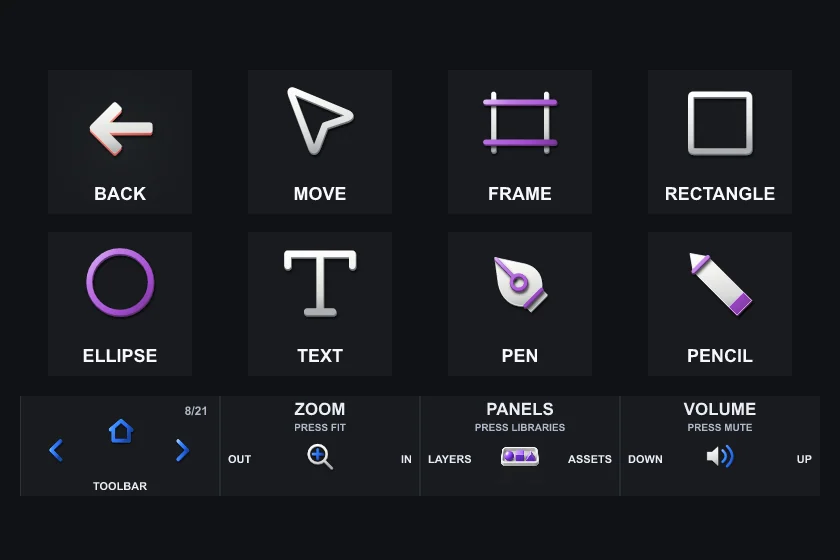
 MoveTop row, 2nd key
Picks the Move tool.
SendsV FrameTop row, 3rd key
Picks the Frame tool.
SendsF RectangleTop row, 4th key
Picks the Rectangle tool.
SendsR EllipseBottom row, 1st key
Picks the Ellipse tool.
SendsO TextBottom row, 2nd key
Picks the Text tool.
SendsT
Also on this page: Back, Pen, Pencil (see Keys on several pages).
Dials on this page
- 1PagesPrevious / next page · press Menu
- 2ZoomCtrl+- left · Ctrl+= right · press Shift+1
- 3PanelsAlt+1 left · Alt+2 right · press Alt+3
- 4VolumeVolume down left · Volume up right · press Mute
Page 9 of 21
Studio
A menu page: Vectors, Typography, Effects, Variables, Prototype, Workflow and Select Similar.
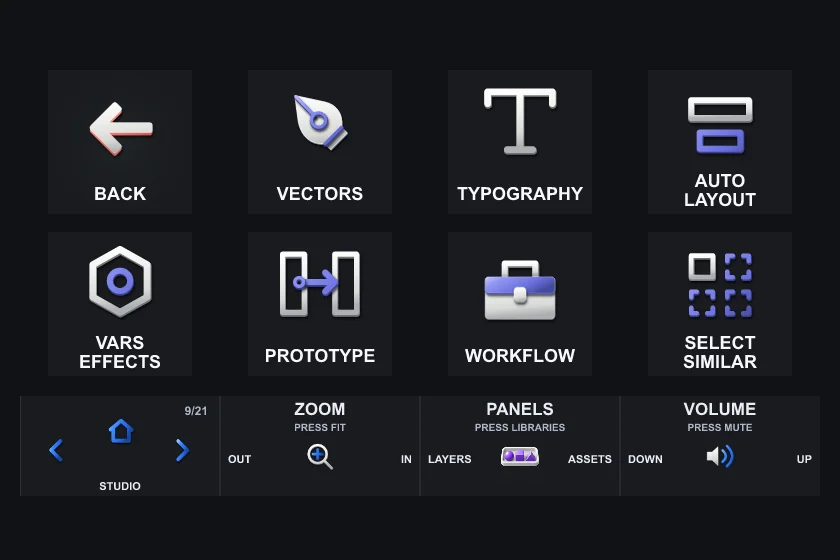
 VectorsTop row, 2nd key
Opens the Vectors page.
SendsOpens a page TypographyTop row, 3rd key
Opens the Typography page.
SendsOpens a page Auto LayoutTop row, 4th key
Opens the Auto Layout page.
SendsOpens a page Vars EffectsBottom row, 1st key
Opens the Variables & Effects page.
SendsOpens a page PrototypeBottom row, 2nd key
Opens the Prototype page.
SendsOpens a page WorkflowBottom row, 3rd key
Opens the Workflow page.
SendsOpens a page Select SimilarBottom row, 4th key
Opens the Select Similar page.
SendsOpens a page
Also on this page: Back (see Keys on several pages).
Dials on this page
- 1PagesPrevious / next page · press Menu
- 2ZoomCtrl+- left · Ctrl+= right · press Shift+1
- 3PanelsAlt+1 left · Alt+2 right · press Alt+3
- 4VolumeVolume down left · Volume up right · press Mute
Page 10 of 21
Workflow
A menu page: Pages & Layers, Motion, Comments, Draw, Dev Mode, Essentials and Toolbar.
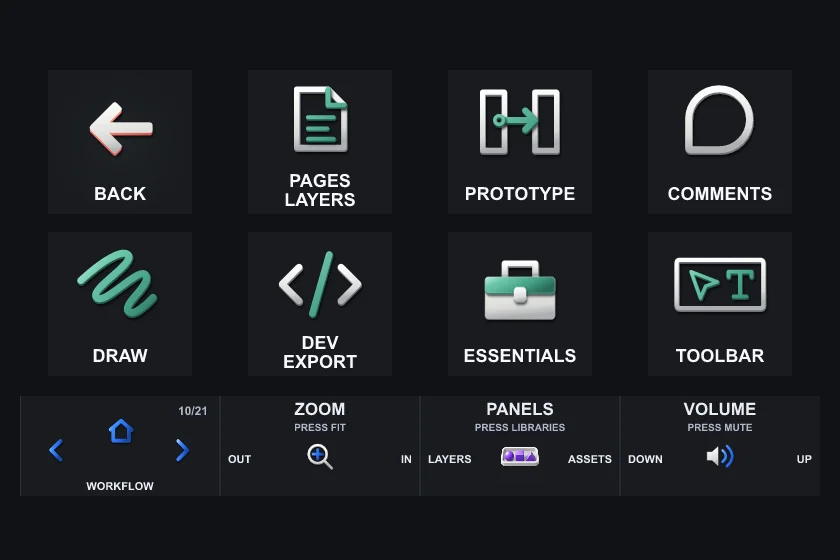
 Pages LayersTop row, 2nd key
Opens the Pages & Layers page.
SendsOpens a page PrototypeTop row, 3rd key
Opens the Prototype page.
SendsOpens a page CommentsTop row, 4th key
Opens the Comments page.
SendsOpens a page DrawBottom row, 1st key
Opens the Draw page.
SendsOpens a page Dev ExportBottom row, 2nd key
Opens the Dev & Export page.
SendsOpens a page EssentialsBottom row, 3rd key
Opens the Essentials page.
SendsOpens a page ToolbarBottom row, 4th key
Opens the Toolbar page.
SendsOpens a page
Also on this page: Back (see Keys on several pages).
Dials on this page
- 1PagesPrevious / next page · press Menu
- 2ZoomCtrl+- left · Ctrl+= right · press Shift+1
- 3PanelsAlt+1 left · Alt+2 right · press Alt+3
- 4VolumeVolume down left · Volume up right · press Mute
Page 11 of 21
Auto Layout
Add, remove or suggest auto layout; the dials step gap, padding and other fields.
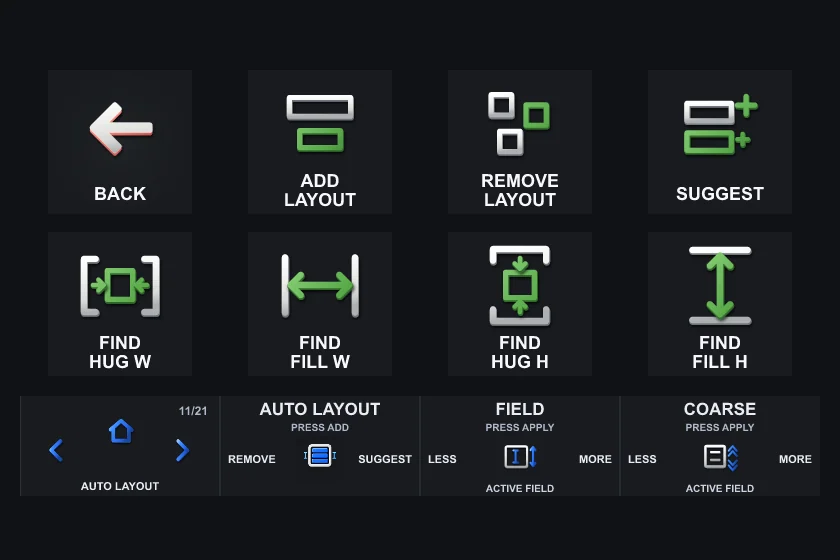
 Add LayoutTop row, 2nd key
Adds auto layout to the selection.
SendsShift+A Remove LayoutTop row, 3rd key
Removes auto layout from the selection.
SendsAlt+Shift+A SuggestTop row, 4th key
Lets Figma suggest an auto layout for the selection.
SendsCtrl+Alt+Shift+A Find Hug WBottom row, 1st key
Opens Figma’s actions search with “set width to hug contents” typed in. You choose the result.
SendsMulti Action: Ctrl+Slash > 800 ms > Text: com.elgato.streamdeck.system.text {"isSendingEnter":false "pastedText":"set width to hug contents"} Find Fill WBottom row, 2nd key
Opens Figma’s actions search with “set width to fill container” typed in. You choose the result.
SendsMulti Action: Ctrl+Slash > 800 ms > Text: com.elgato.streamdeck.system.text {"isSendingEnter":false "pastedText":"set width to fill container"} Find Hug HBottom row, 3rd key
Opens Figma’s actions search with “set height to hug contents” typed in. You choose the result.
SendsMulti Action: Ctrl+Slash > 800 ms > Text: com.elgato.streamdeck.system.text {"isSendingEnter":false "pastedText":"set height to hug contents"} Find Fill HBottom row, 4th key
Opens Figma’s actions search with “set height to fill container” typed in. You choose the result.
SendsMulti Action: Ctrl+Slash > 800 ms > Text: com.elgato.streamdeck.system.text {"isSendingEnter":false "pastedText":"set height to fill container"}
Also on this page: Back (see Keys on several pages).
Dials on this page
- 1PagesPrevious / next page · press Menu
- 2Auto LayoutAlt+Shift+A left · Ctrl+Alt+Shift+A right · press Shift+A
- 3Field↓ left · ↑ right · press Enter
- 4CoarseShift+↓ left · Shift+↑ right · press Enter
Page 12 of 21
Color & Stroke
Colour picker, fill and stroke, copy and paste the look.
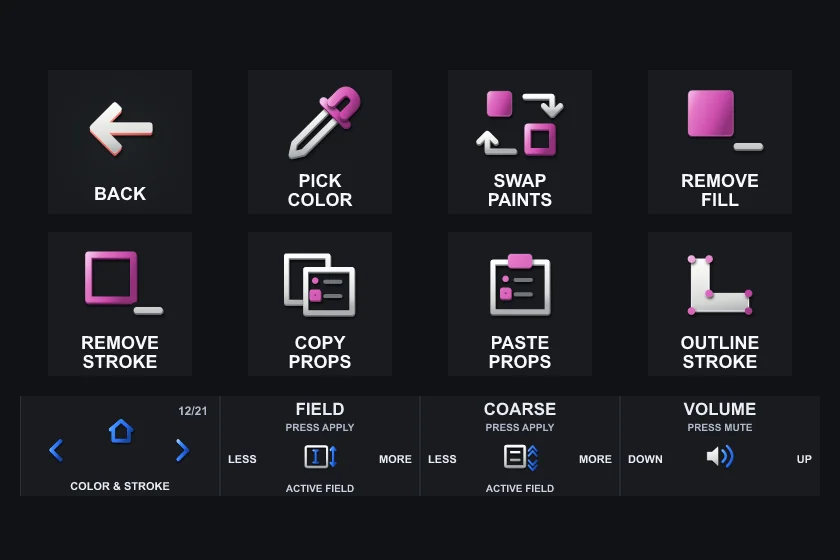
 Pick ColorTop row, 2nd key
Picks the colour picker: click anywhere to take its colour.
SendsI Swap PaintsTop row, 3rd key
Swaps the fill and stroke colours of the selection.
SendsShift+X Remove FillTop row, 4th key
Removes the fill of the selection.
SendsAlt+, Remove StrokeBottom row, 1st key
Removes the stroke of the selection.
SendsShift+, Outline StrokeBottom row, 4th key
Turns the stroke of the selection into a shape.
SendsCtrl+Alt+O
Also on this page: Back, Copy Props, Paste Props (see Keys on several pages).
Dials on this page
- 1PagesPrevious / next page · press Menu
- 2Field↓ left · ↑ right · press Enter
- 3CoarseShift+↓ left · Shift+↑ right · press Enter
- 4VolumeVolume down left · Volume up right · press Mute
Page 13 of 21
Vectors
Flatten, outline, mask, flip, pen and pencil.
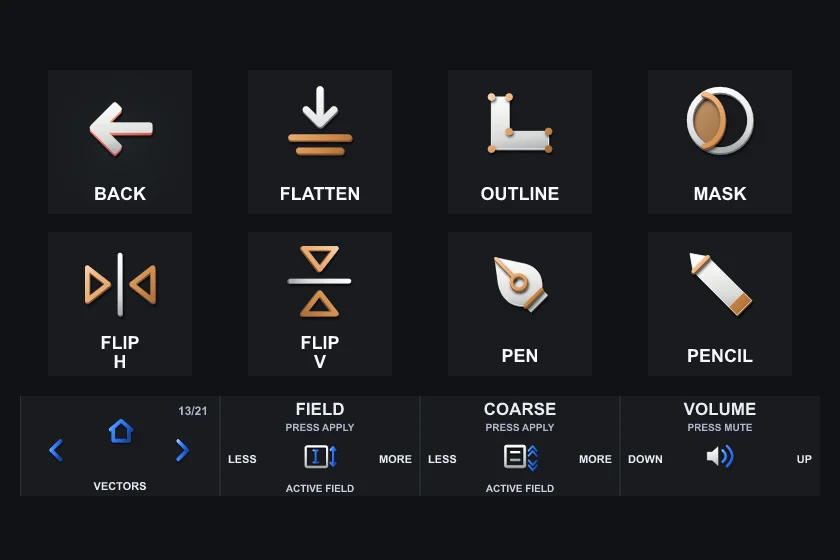
 FlattenTop row, 2nd key
Flattens the selection into one vector shape.
SendsAlt+Shift+F OutlineTop row, 3rd key
Turns the stroke of the selection into a shape.
SendsCtrl+Alt+O MaskTop row, 4th key
Uses the bottom layer of the selection as a mask.
SendsCtrl+Alt+M Flip HBottom row, 1st key
Flips the selection across.
SendsShift+H Flip VBottom row, 2nd key
Flips the selection upside down.
SendsShift+V
Also on this page: Back, Pen, Pencil (see Keys on several pages).
Dials on this page
- 1PagesPrevious / next page · press Menu
- 2Field↓ left · ↑ right · press Enter
- 3CoarseShift+↓ left · Shift+↑ right · press Enter
- 4VolumeVolume down left · Volume up right · press Mute
Page 14 of 21
Typography
Bold, italic, underline, styles, placeholder text; dials for size, line height and tracking.
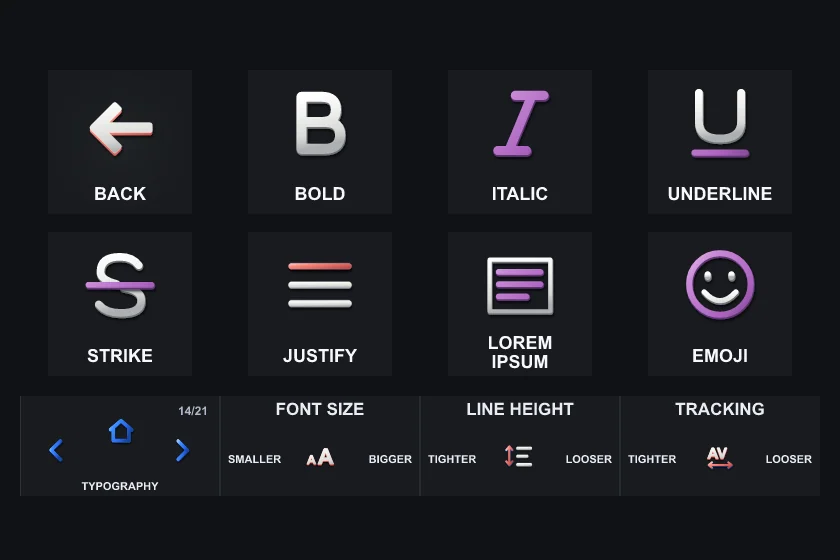
 BoldTop row, 2nd key
Makes the selected text bold.
SendsCtrl+B ItalicTop row, 3rd key
Makes the selected text italic.
SendsCtrl+I UnderlineTop row, 4th key
Underlines the selected text.
SendsCtrl+U StrikeBottom row, 1st key
Strikes through the selected text.
SendsCtrl+Shift+X JustifyBottom row, 2nd key
Justifies the selected text.
SendsCtrl+Alt+J Lorem IpsumBottom row, 3rd key
Types placeholder text where your cursor is. It never presses Enter.
SendsText action EmojiBottom row, 4th key
Opens the Windows emoji panel, to add an emoji where you are typing.
SendsWin+.
Also on this page: Back (see Keys on several pages).
Dials on this page
- 1PagesPrevious / next page · press Menu
- 2Font SizeCtrl+Shift+, left · Ctrl+Shift+. right · press Nothing
- 3Line HeightAlt+Shift+, left · Alt+Shift+. right · press Nothing
- 4TrackingCtrl+, left · Ctrl+. right · press Nothing
Page 15 of 21
Variables & Effects
Variables, modes, libraries and effects; some keys through the actions search.
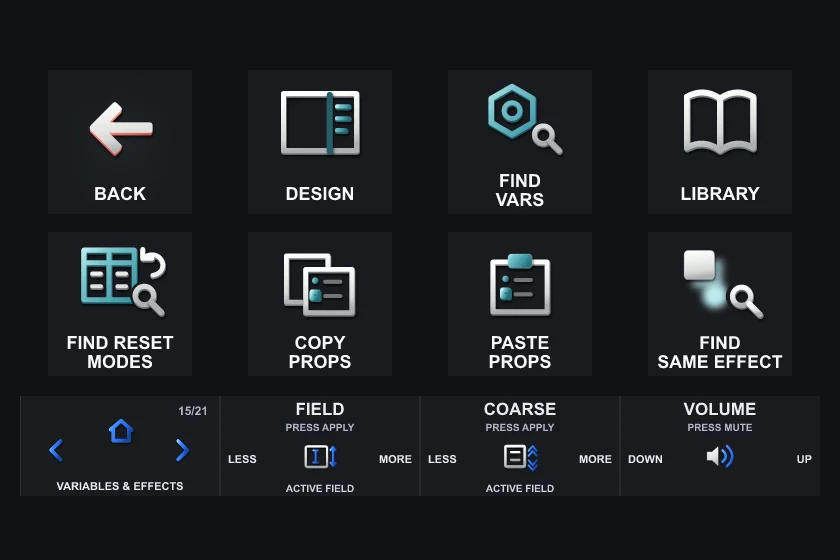
 Find VarsTop row, 3rd key
Opens Figma’s actions search with “toggle variables” typed in. You choose the result.
SendsMulti Action: Ctrl+Slash > 800 ms > Text: com.elgato.streamdeck.system.text {"isSendingEnter":false "pastedText":"toggle variables"} LibraryTop row, 4th key
Opens the libraries.
SendsAlt+3 Find Reset ModesBottom row, 1st key
Opens Figma’s actions search with “reset variable modes in selection” typed in. You choose the result.
SendsMulti Action: Ctrl+Slash > 800 ms > Text: com.elgato.streamdeck.system.text {"isSendingEnter":false "pastedText":"reset variable modes in selection"} Find Same EffectBottom row, 4th key
Opens Figma’s actions search with “select all with same effect” typed in. You choose the result.
SendsMulti Action: Ctrl+Slash > 800 ms > Text: com.elgato.streamdeck.system.text {"isSendingEnter":false "pastedText":"select all with same effect"}
Also on this page: Back, Design, Copy Props, Paste Props (see Keys on several pages).
Dials on this page
- 1PagesPrevious / next page · press Menu
- 2Field↓ left · ↑ right · press Enter
- 3CoarseShift+↓ left · Shift+↑ right · press Enter
- 4VolumeVolume down left · Volume up right · press Mute
Page 16 of 21
Prototype
The Prototype panel, interactions, flows and transitions.
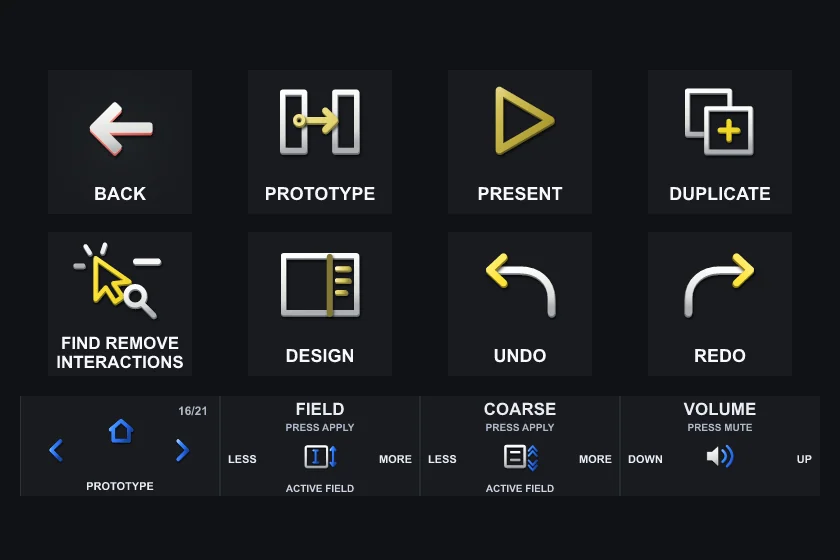
 PrototypeTop row, 2nd key
Opens the Prototype panel.
SendsAlt+9 PresentTop row, 3rd key
Opens the prototype in presentation view.
SendsCtrl+Alt+Enter Find Remove InteractionsBottom row, 1st key
Opens Figma’s actions search with “remove interactions” typed in. You choose the result.
SendsMulti Action: Ctrl+Slash > 800 ms > Text: com.elgato.streamdeck.system.text {"isSendingEnter":false "pastedText":"remove interactions"}
Also on this page: Back, Duplicate, Design, Undo, Redo (see Keys on several pages).
Dials on this page
- 1PagesPrevious / next page · press Menu
- 2Field↓ left · ↑ right · press Enter
- 3CoarseShift+↓ left · Shift+↑ right · press Enter
- 4VolumeVolume down left · Volume up right · press Mute
Page 17 of 21
Pages & Layers
The Layers panel, rename, duplicate; a dial for the pages of your Figma file.
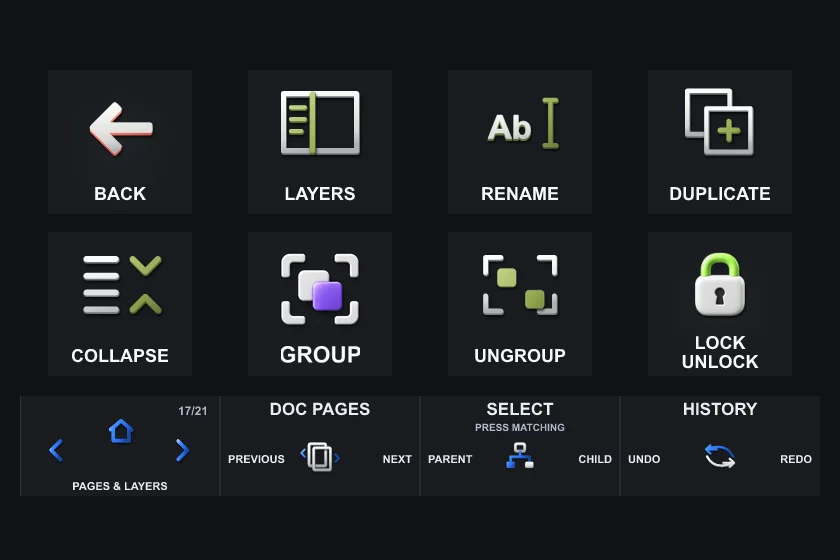
 LayersTop row, 2nd key
Opens the Layers panel.
SendsAlt+1 RenameTop row, 3rd key
Renames the selected layer.
SendsCtrl+R CollapseBottom row, 1st key
Opens Figma’s actions search with “collapse layers” typed in. You choose the result.
SendsMulti Action: Ctrl+Slash > 800 ms > Text: com.elgato.streamdeck.system.text {"isSendingEnter":false "pastedText":"collapse layers"} GroupBottom row, 2nd key
Groups the selected layers.
SendsCtrl+G UngroupBottom row, 3rd key
Ungroups the selected group.
SendsCtrl+Shift+G Lock UnlockBottom row, 4th key
Locks or unlocks the selected layers.
SendsCtrl+Shift+L
Also on this page: Back, Duplicate (see Keys on several pages).
Dials on this page
- 1PagesPrevious / next page · press Menu
- 2Doc PagesPage Up left · Page Down right · press Nothing
- 3Select\ left · Enter right · press Ctrl+Alt+A
- 4HistoryCtrl+Z left · Ctrl+Shift+Z right · press Nothing
Page 18 of 21
Select Similar
Select every layer with the same fill, stroke, effect, font or instance.
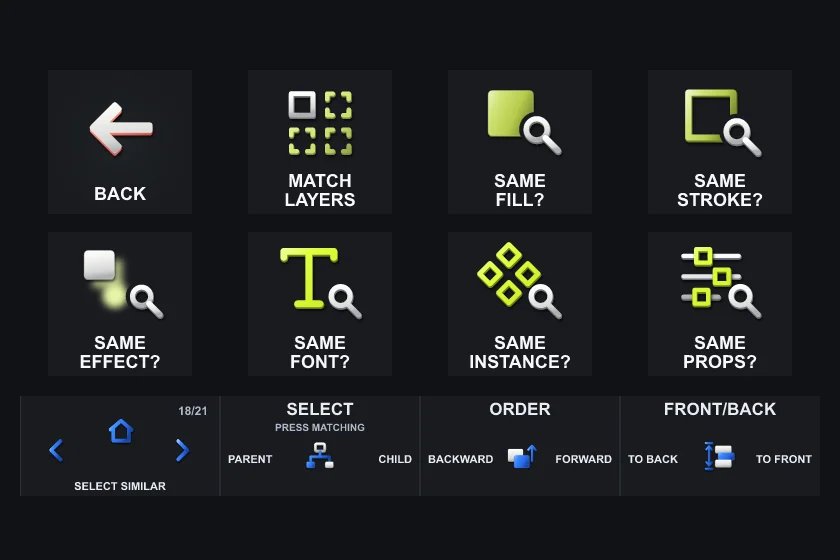
 Match LayersTop row, 2nd key
Selects every layer that matches the selected one.
SendsCtrl+Alt+A Same Fill?Top row, 3rd key
Opens Figma’s actions search with “select all with same fill” typed in. You choose the result.
SendsMulti Action: Ctrl+Slash > 800 ms > Text: com.elgato.streamdeck.system.text {"isSendingEnter":false "pastedText":"select all with same fill"} Same Stroke?Top row, 4th key
Opens Figma’s actions search with “select all with same stroke” typed in. You choose the result.
SendsMulti Action: Ctrl+Slash > 800 ms > Text: com.elgato.streamdeck.system.text {"isSendingEnter":false "pastedText":"select all with same stroke"} Same Effect?Bottom row, 1st key
Opens Figma’s actions search with “select all with same effect” typed in. You choose the result.
SendsMulti Action: Ctrl+Slash > 800 ms > Text: com.elgato.streamdeck.system.text {"isSendingEnter":false "pastedText":"select all with same effect"} Same Font?Bottom row, 2nd key
Opens Figma’s actions search with “select all with same font” typed in. You choose the result.
SendsMulti Action: Ctrl+Slash > 800 ms > Text: com.elgato.streamdeck.system.text {"isSendingEnter":false "pastedText":"select all with same font"} Same Instance?Bottom row, 3rd key
Opens Figma’s actions search with “select all with same instance” typed in. You choose the result.
SendsMulti Action: Ctrl+Slash > 800 ms > Text: com.elgato.streamdeck.system.text {"isSendingEnter":false "pastedText":"select all with same instance"} Same Props?Bottom row, 4th key
Opens Figma’s actions search with “select all with same properties” typed in. You choose the result.
SendsMulti Action: Ctrl+Slash > 800 ms > Text: com.elgato.streamdeck.system.text {"isSendingEnter":false "pastedText":"select all with same properties"}
Also on this page: Back (see Keys on several pages).
Dials on this page
- 1PagesPrevious / next page · press Menu
- 2Select\ left · Enter right · press Ctrl+Alt+A
- 3OrderCtrl+[ left · Ctrl+] right · press Nothing
- 4Front/Back[ left · ] right · press Nothing
Page 19 of 21
Comments
Comment, show the comments, resolve, emoji.
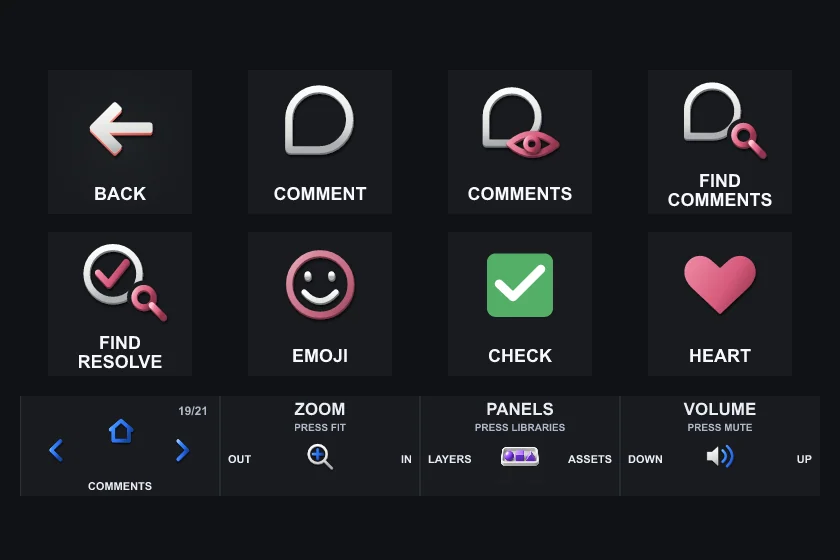
 CommentTop row, 2nd key
Picks the Comment tool: click where you want to leave a comment.
SendsC CommentsTop row, 3rd key
Shows or hides the comments.
SendsShift+C Find CommentsTop row, 4th key
Opens Figma’s actions search with “view comments” typed in. You choose the result.
SendsMulti Action: Ctrl+Slash > 800 ms > Text: com.elgato.streamdeck.system.text {"isSendingEnter":false "pastedText":"view comments"} Find ResolveBottom row, 1st key
Opens Figma’s actions search with “resolve comment” typed in. You choose the result. Resolve comment may not work in every context.
SendsMulti Action: Ctrl+Slash > 800 ms > Text: com.elgato.streamdeck.system.text {"isSendingEnter":false "pastedText":"resolve comment"} EmojiBottom row, 2nd key
Opens the Windows emoji panel, to add an emoji where you are typing.
SendsWin+. CheckBottom row, 3rd key
Types ✅ in the text you are editing, such as a comment. Nothing is posted for you.
SendsText action HeartBottom row, 4th key
Types ❤️ in the text you are editing, such as a comment. Nothing is posted for you.
SendsText action
Also on this page: Back (see Keys on several pages).
Dials on this page
- 1PagesPrevious / next page · press Menu
- 2ZoomCtrl+- left · Ctrl+= right · press Shift+1
- 3PanelsAlt+1 left · Alt+2 right · press Alt+3
- 4VolumeVolume down left · Volume up right · press Mute
Page 20 of 21
Draw
Draw mode, pencil, pen and colour.
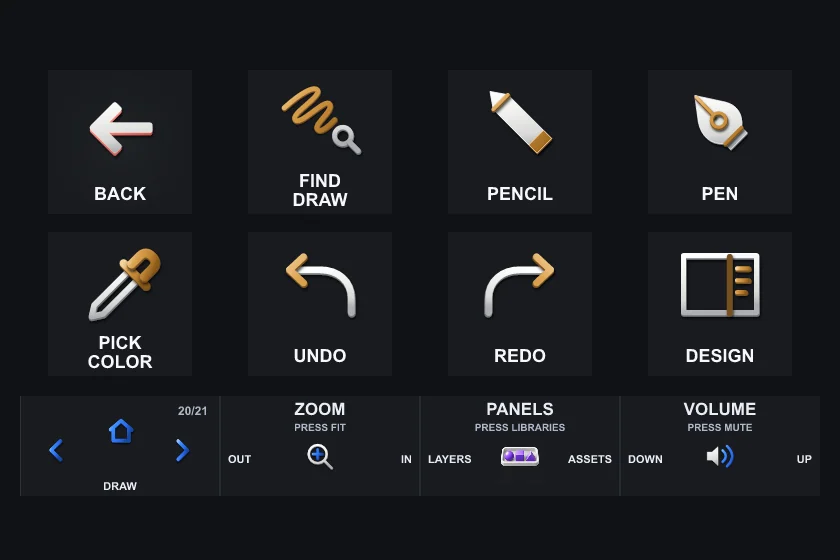
 Find DrawTop row, 2nd key
Opens Figma’s actions search with “switch to draw” typed in. You choose the result.
SendsMulti Action: Ctrl+Slash > 800 ms > Text: com.elgato.streamdeck.system.text {"isSendingEnter":false "pastedText":"switch to draw"} Pick ColorBottom row, 1st key
Picks the colour picker: click anywhere to take its colour.
SendsI
Also on this page: Back, Pencil, Pen, Undo, Redo, Design (see Keys on several pages).
Dials on this page
- 1PagesPrevious / next page · press Menu
- 2ZoomCtrl+- left · Ctrl+= right · press Shift+1
- 3PanelsAlt+1 left · Alt+2 right · press Alt+3
- 4VolumeVolume down left · Volume up right · press Mute
Page 21 of 21
Dev & Export
Dev Mode, Ready for dev, copy as PNG or SVG.
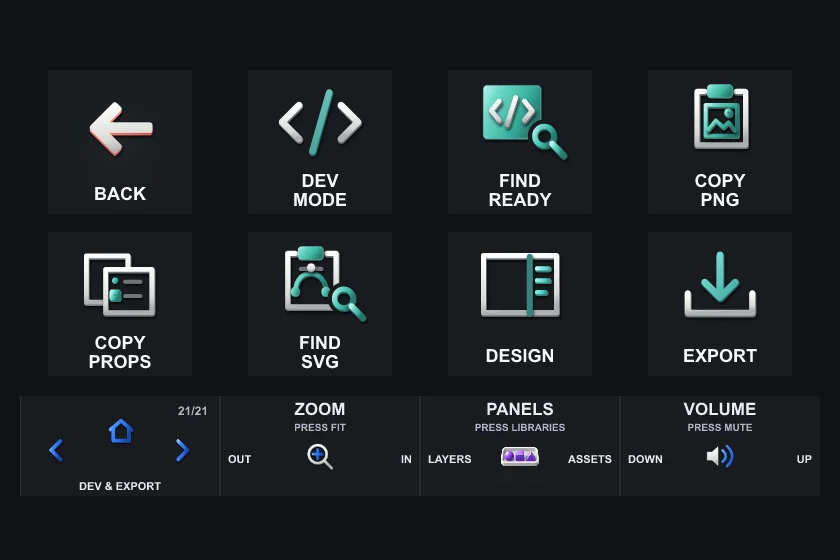
 Dev ModeTop row, 2nd key
Turns Dev Mode on or off. Dev Mode depends on your Figma plan, permissions and context.
SendsShift+D Find ReadyTop row, 3rd key
Opens Figma’s actions search with “ready for dev” typed in. You choose the result. Ready depends on your Figma plan, permissions and context.
SendsMulti Action: Ctrl+Slash > 800 ms > Text: com.elgato.streamdeck.system.text {"isSendingEnter":false "pastedText":"ready for dev"} Copy PNGTop row, 4th key
Copies the selection as a PNG image.
SendsCtrl+Shift+C Find SVGBottom row, 2nd key
Opens Figma’s actions search with “copy as svg” typed in. You choose the result.
SendsMulti Action: Ctrl+Slash > 800 ms > Text: com.elgato.streamdeck.system.text {"isSendingEnter":false "pastedText":"copy as svg"} ExportBottom row, 4th key
Exports the selection with its export settings.
SendsCtrl+Shift+E
Also on this page: Back, Copy Props, Design (see Keys on several pages).
Dials on this page
- 1PagesPrevious / next page · press Menu
- 2ZoomCtrl+- left · Ctrl+= right · press Shift+1
- 3PanelsAlt+1 left · Alt+2 right · press Alt+3
- 4VolumeVolume down left · Volume up right · press Mute
The pack holds eight files: Minimal (4 pages: Essentials, Arrange, Layers, Text) and Advanced (the 21 pages below), each in two styles, Sculpt and Signal, and for two keyboards, EN-US and EN-IT. The keys do the same in every file; only the look and the shortcuts they send change. CONTROLS.csv in each folder of the download lists every key and dial of that file. Windows only; no Mac edition yet.
dials.
Dials are numbered 1 to 4 from the left. Each one says its name on the touch strip above it. Here are the dials that are the same on every page; the others change with the page and are listed with each page above.
- 1PagesEvery page
Turn to go to the previous or next page. Press to go back to the Menu.
- Turn
- Previous / next page
- Press
- Menu
customize your profile.
Everything happens in the Stream Deck app on your PC. Click a key or a dial on the picture of your Stream Deck, and its settings open at the bottom.
First, save a copy
- In the Stream Deck app, open the profile menu above the keys and choose Edit Profiles.
- Click the three lines next to the profile and choose Export.
- Save the file somewhere safe. Double-click it any time to get your version back.
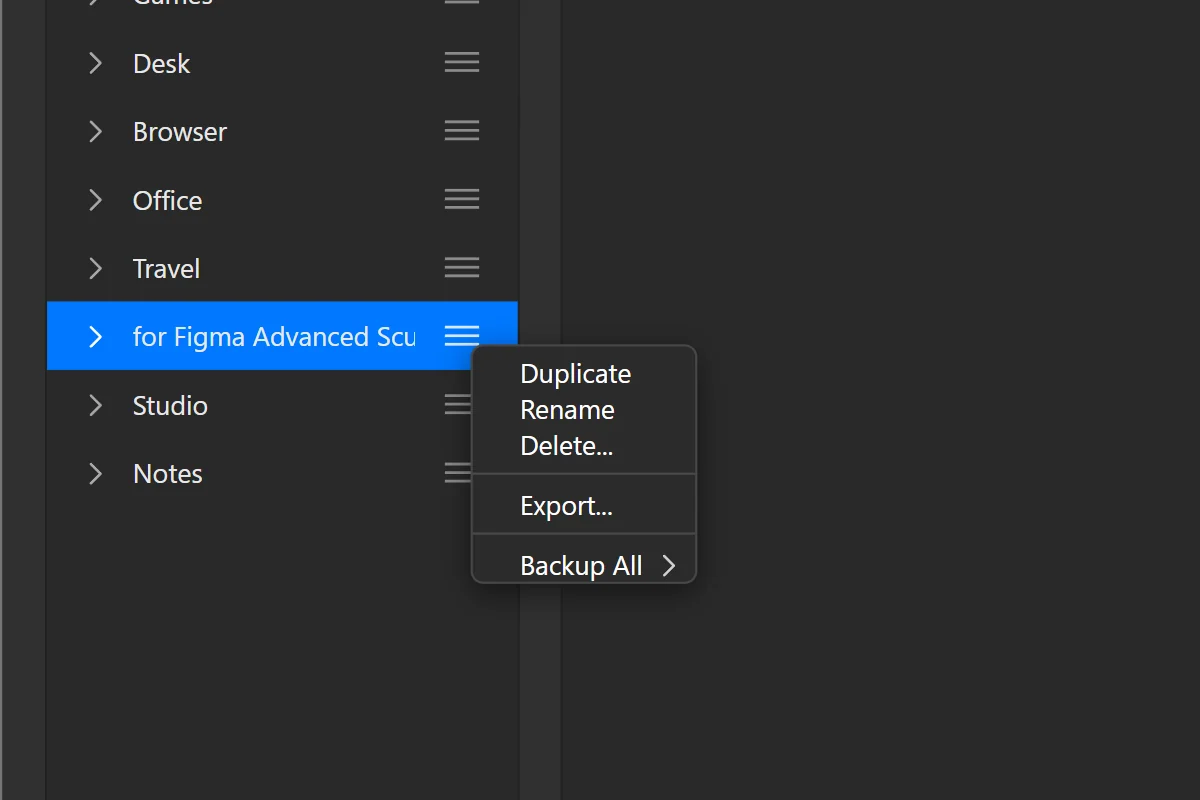
- 1The profile’s menu (three lines)
- 2Export…
Change the key a button sends
- Did you change a key in Figma’s settings? Do the same here.
- In the Stream Deck app, click the button on the picture of your Stream Deck.
- At the bottom, click the Hotkey field.
- Press the new key on your keyboard. That’s it: it saves by itself.
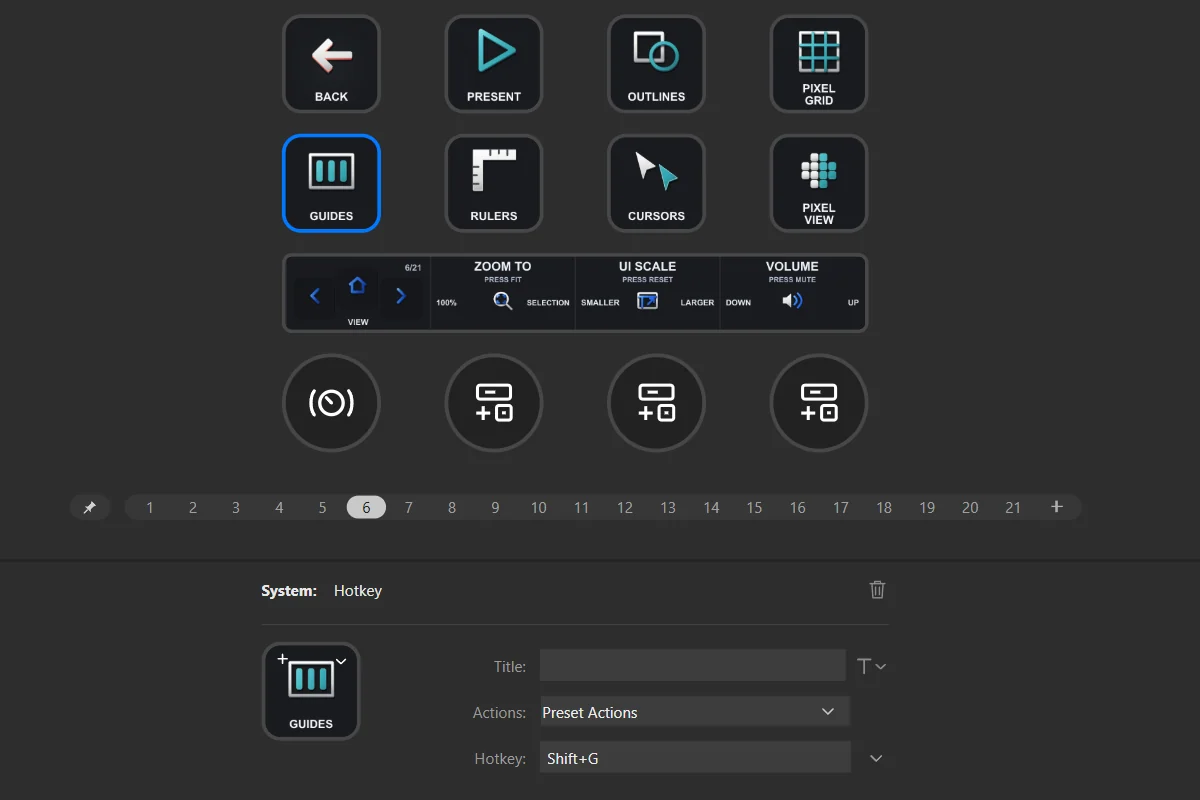
- 1The key you clicked
- 2Hotkey: the key it sends
Move a button, or swap two
- In the Stream Deck app, drag a button to an empty place.
- Drop it on another button and the two swap places.
- To put it on another page: right-click it and choose Copy, go to the other page, right-click an empty place and choose Paste.
Change the name or the icon
- Click the button in the Stream Deck app.
- Type a new name in Title. Our names are drawn in the picture, so you may want a new picture too.
- To change the picture, open the menu next to the button’s image and choose Set from File.
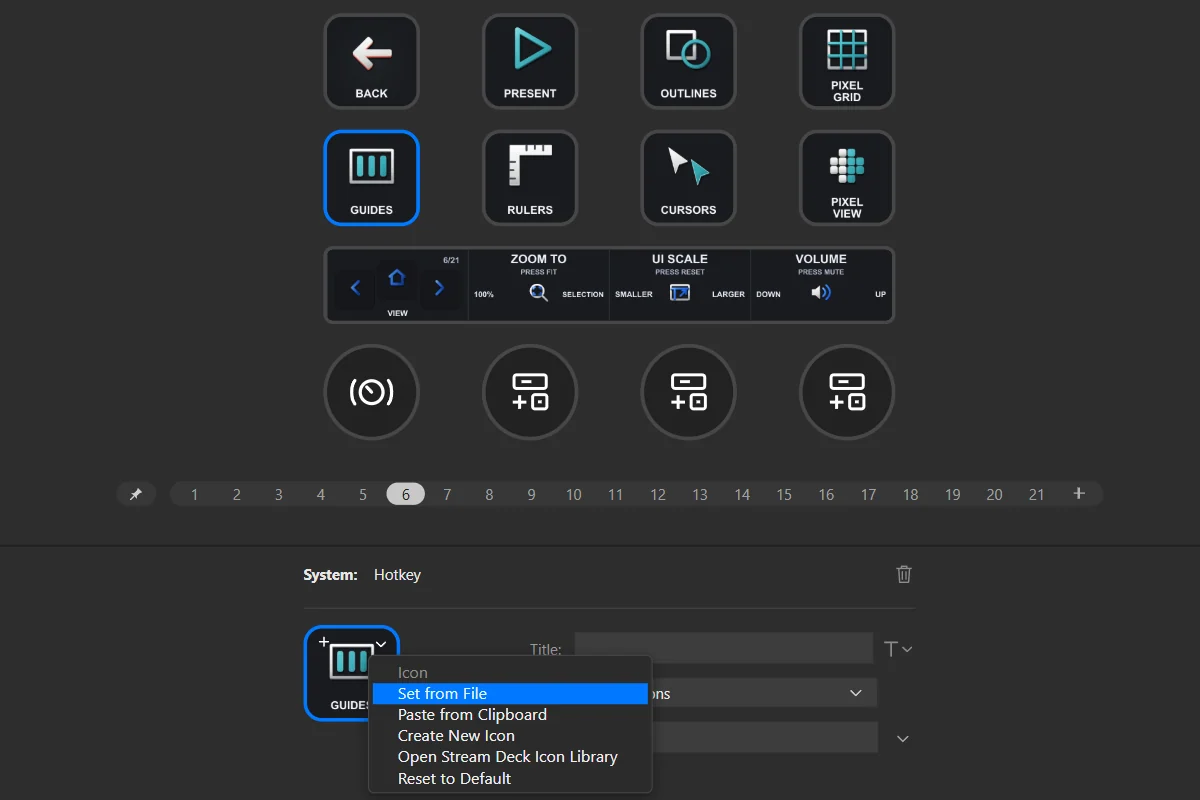
- 1Title
- 2Set from File: a new picture
Add a key
- Every place is taken: pick a key you don’t use, right-click it and choose Delete.
- On the right of the Stream Deck app, open System and find Hotkey.
- Drag Hotkey onto the empty place.
- Click its Hotkey field and press the key the app uses.
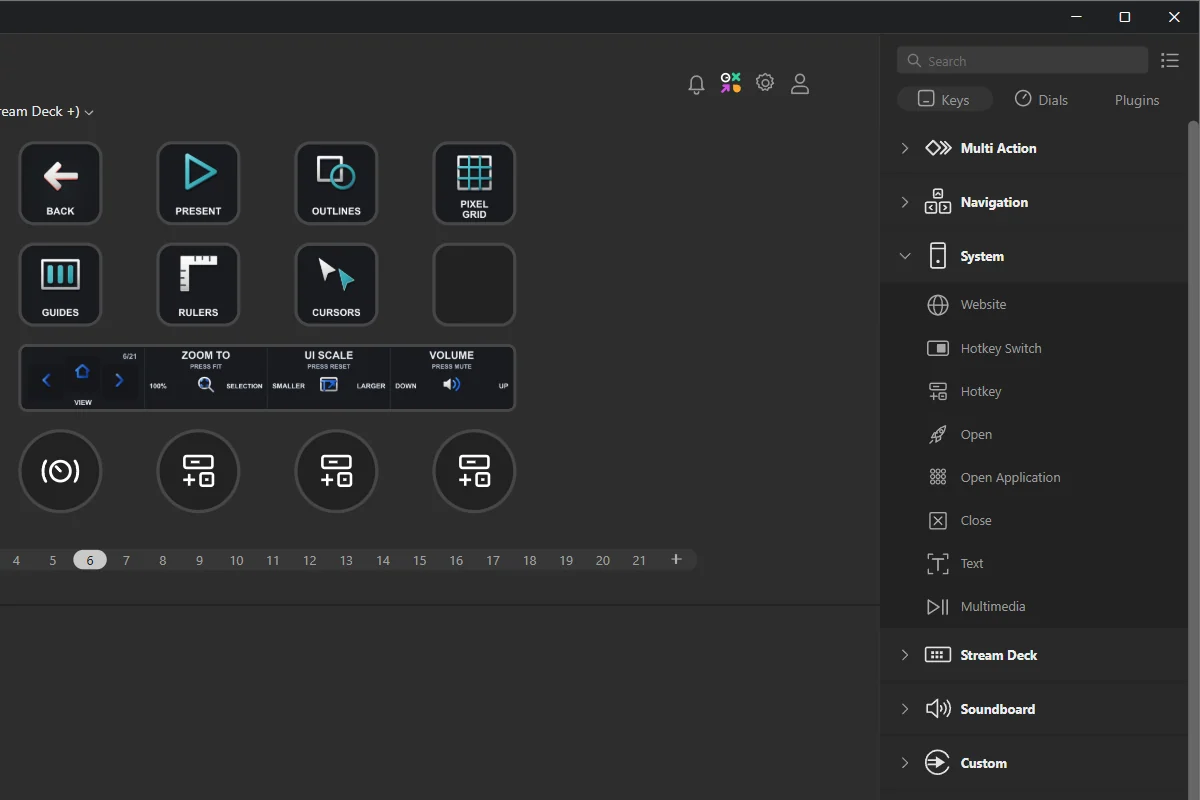
- 1Hotkey, under System
- 2An empty place: drop it here
Change what a dial does
- Click the dial under the keys in the Stream Deck app.
- At the bottom you see three fields: Rotate CCW (turning left), Rotate CW (turning right) and Press / Tap.
- Click a field and press the new key on your keyboard.
- Want something else on the dial? Drag another action onto it from the list on the right.
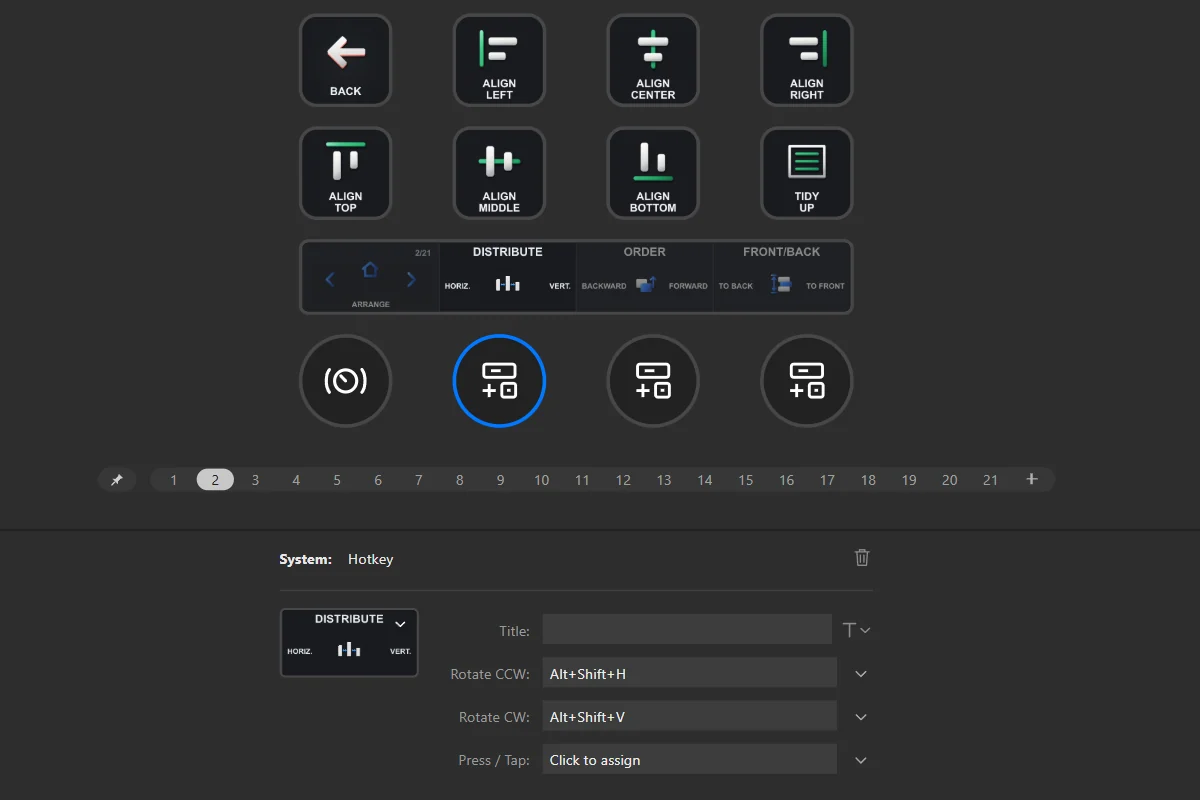
- 1The dial you clicked
- 2Rotate CCW: turning left
- 3Rotate CW: turning right
- 4Press / Tap: pressing it
Go back to the original
- Delete the profile: open the profile menu above the keys and choose Edit Profiles, select it, click −.
- Double-click the original file from the download again.
- Your changes are gone. Saved a copy first? Double-click that file instead.
- 1The old profile
- 2The minus button: deletes it
if something doesn’t work.
A key does nothing in Figma
- Click once inside the Figma Desktop window. Stream Deck types into the window in front, like a keyboard.
- Most keys need something selected first: a layer for Arrange and Layers, text for Text and Typography.
Some keys do the wrong thing
- Check your keyboard: use an EN-US file with a US keyboard, an EN-IT file with an Italian one.
- With an EN-IT file, set Figma’s layout to Italian: Keyboard shortcuts › Layout › Italian.
A Find key opened a search but did nothing else
- That is how it works: it opens Figma’s actions search with the words typed in, and you pick the result. Some searches show no result in the current context.
The dial changed the wrong value
- The Field and Coarse dials step the number field you selected first. Click the field you want (for example gap or padding), then turn. Enter can leave the field, so click it again before the next turn.
I have the profile twice, or a profile called “copy”
- You imported the file twice. Stream Deck never replaces a profile: it adds a new one.
- Delete the extra one (see “Have an older version? Delete it first” in Install) and keep one.
Dev Mode or Ready does not work
- Dev Mode and Ready depend on your Figma plan, permissions and context.
Resolve comment does nothing
- Resolve comment may not work in every context. Open the comment and resolve it in Figma.
Is there a Mac version?
- Not yet: the pack is for Windows only.
Still stuck? Contact support and tell us your Stream Deck model and what happens.
version notes.
- Version 1.0.0this version
- First release: Minimal (4 pages) and Advanced (21 pages), Sculpt and Signal, EN-US and EN-IT. Windows only.
The profile sets up your Stream Deck; it doesn’t include the app. Independent product by Frenetiq Design, not affiliated with or endorsed by the makers of Figma or by Elgato.