what you need.
- Stream Deck +
- The Stream Deck app, version 7.5 or laterFree, from Elgato’s website.
- A Windows 10 or 11 PCWith Cyberpunk 2077 installed.
- Nothing elseNo plugins, no extra software.
install in 6 steps.
Set Use Combat Gadget to L in the game
In the game, your grenades and arm cyberware are on the middle mouse button, which Stream Deck can’t press. Open Settings › Key Bindings, find Use Combat Gadget and set L. The Gadget key on the Combat page sends L.
Use Combat GadgetLUnzip the download
Right-click the zip file you downloaded. Choose Extract All, then Extract. A folder opens with the files.
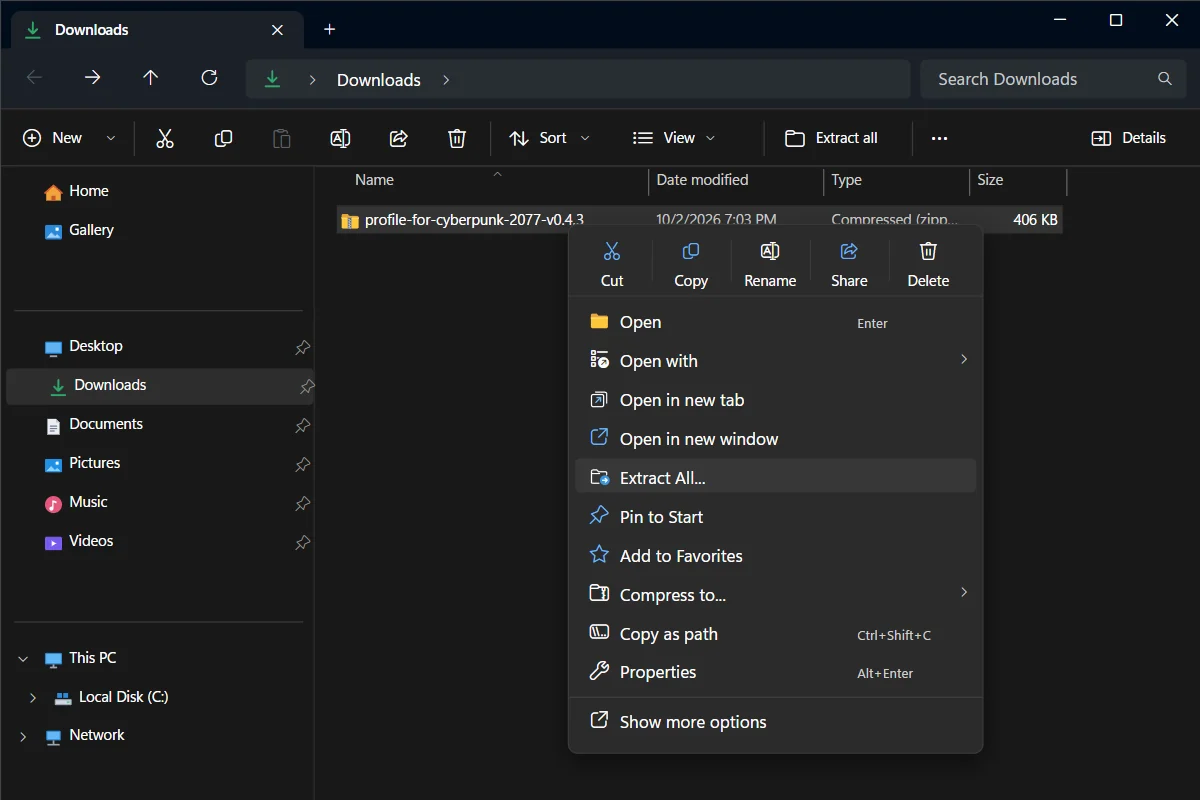
Right-click the zip file and choose Extract All. - 1The zip file you downloaded
- 2Extract All
Have an older version? Delete it first
New here? Skip this step. Otherwise, in the Stream Deck app open the profile menu above the keys and choose Edit Profiles. Select the old profile and click − at the bottom left. Stream Deck never updates a profile: it would add a second one.
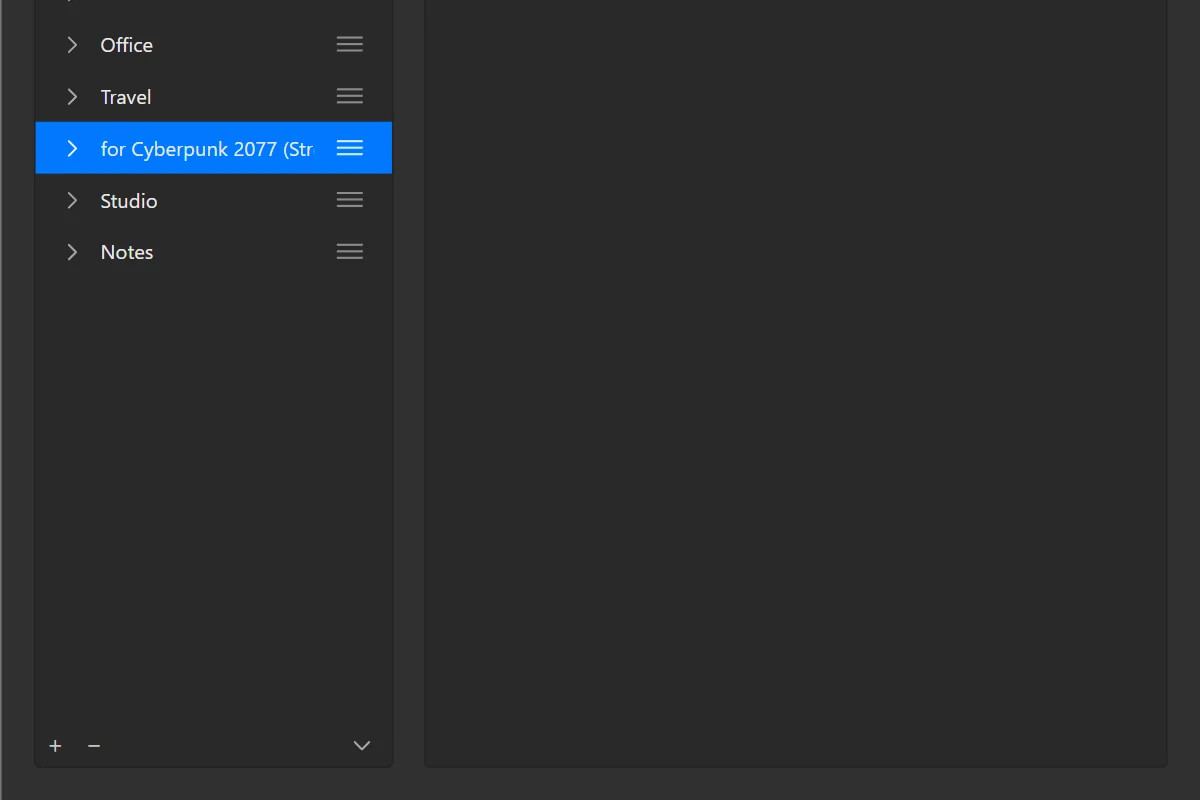
Edit Profiles: select the old profile, then click the minus button at the bottom left. - 1The old profile
- 2The minus button: deletes it
Double-click the file for your Stream Deck
Each file ends with a Stream Deck model. Double-click “for Cyberpunk 2077 (Stream Deck +)”. The Stream Deck app opens and adds the profile.
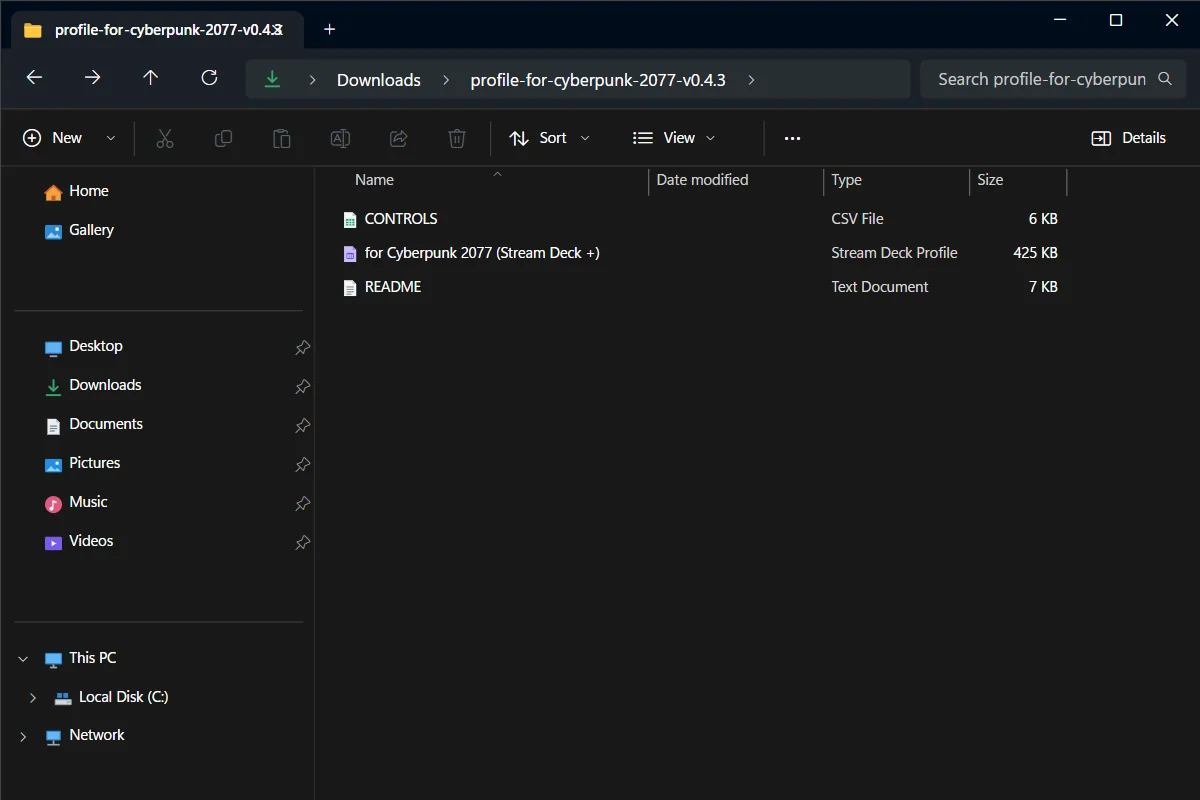
The unzipped folder: the profile file for each Stream Deck model. - 1The file for Stream Deck +
Pick the profile
In the Stream Deck app, click the profile menu above the keys. Choose “for Cyberpunk 2077 (Stream Deck +)”. The keys appear on your Stream Deck.
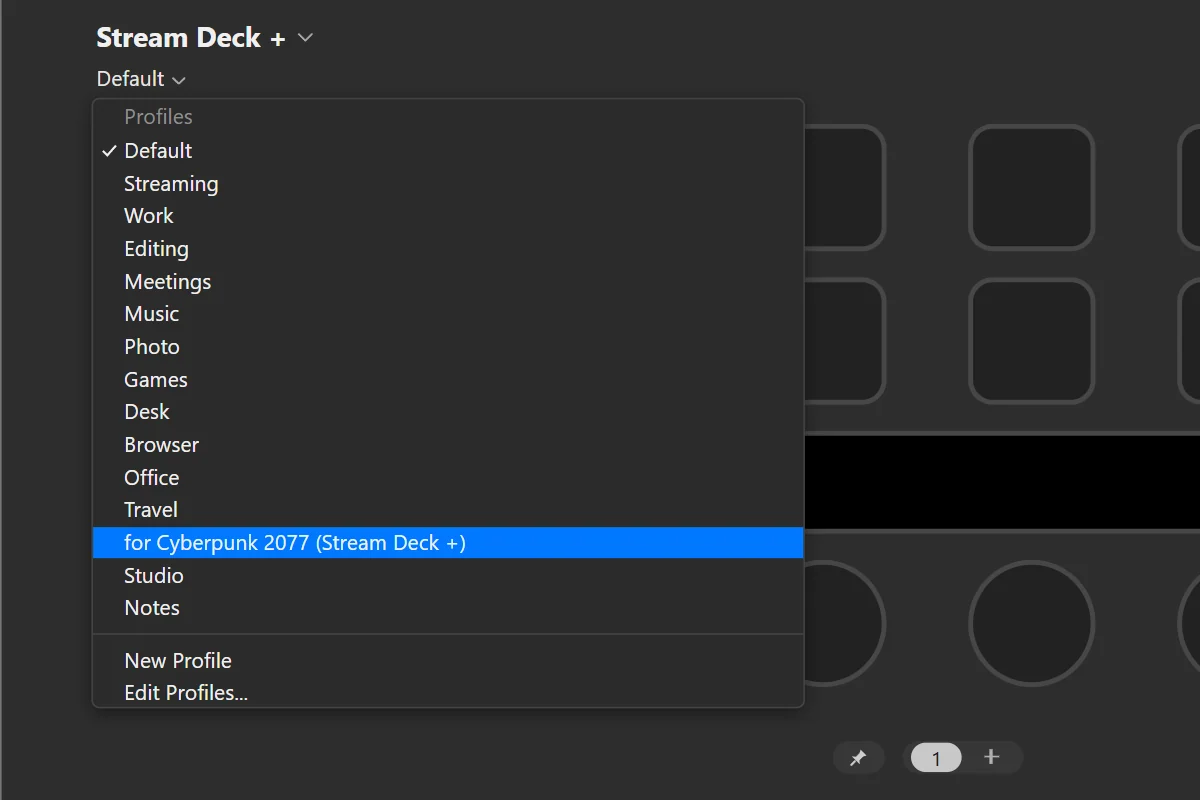
In the Stream Deck app, open the profile menu above the keys and pick the profile. - 1The profile menu, above the keys
- 2The new profile
Optional: let it switch by itself
In the Stream Deck app, open the profile menu above the keys and choose Edit Profiles. Select the profile. Under Application, pick Cyberpunk 2077: Stream Deck switches to the profile when the game is in front.
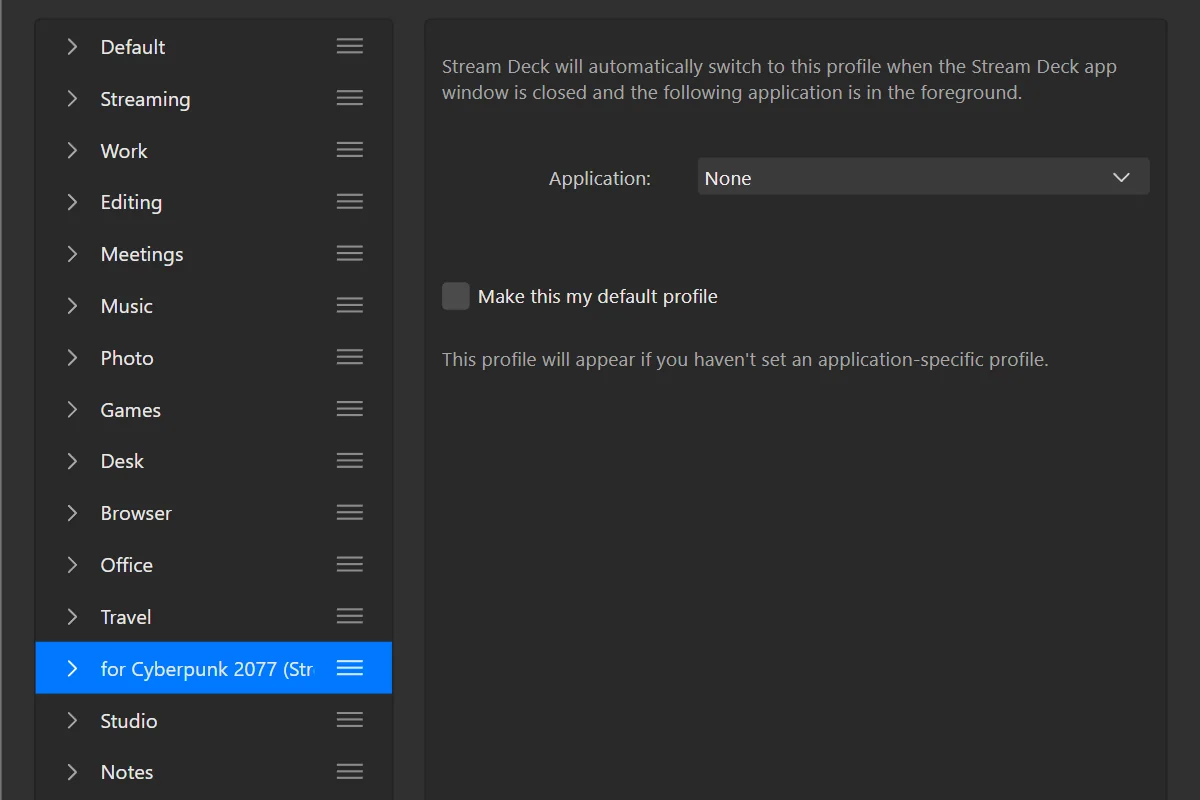
Edit Profiles: select the profile and choose the game under Application. - 1Your profile
- 2Application: pick the game
Done. Start Cyberpunk 2077 and play.
your keys.
5 pages. The first dial and the BACK key take you around.
- 1BACK, top left on every page: goes back to the Menu page.
- 2First dial: turn to change page, press for the Menu page.
- 3Middle dials: change with the page (Weapons, Camera, Items, Timeline, Heal).
- 4Last dial: Windows volume. Press to mute.
- 5Touch strip: shows what each dial does on this page.
Explained once
Keys on several pages
Explained once here; each page below names them in one line.
 Map3 of 5 pages
Opens the world map.
SendsM BackTop row, 1st key · 4 of 5 pages
Goes back to the Menu page.
SendsOpens a page
Page 1 of 5
Menu
The start page: the other pages, plus map, radio, photos and dialogue.
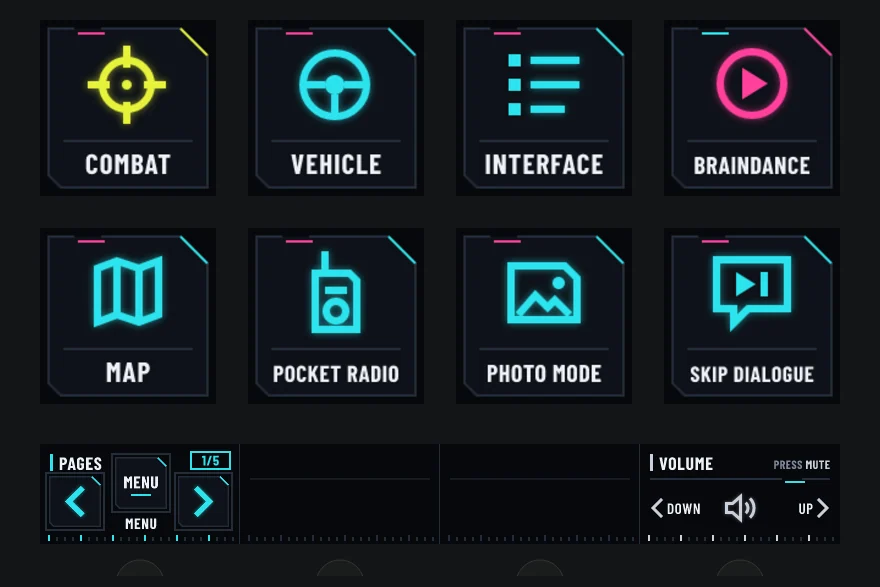
 CombatTop row, 1st key
Opens the Combat page.
SendsOpens a page VehicleTop row, 2nd key
Opens the Vehicle page.
SendsOpens a page InterfaceTop row, 3rd key
Opens the Interface page.
SendsOpens a page BraindanceTop row, 4th key
Opens the Braindance page.
SendsOpens a page Pocket RadioBottom row, 2nd key
Turns your radio on or off while you’re on foot.
SendsZHold Photo ModeBottom row, 3rd key
Opens Photo Mode, to take pictures.
SendsN Skip DialogueBottom row, 4th key
Skips the line being spoken in a scene.
SendsYHold
Also on this page: Map (see Keys on several pages).
Page 2 of 5
Combat
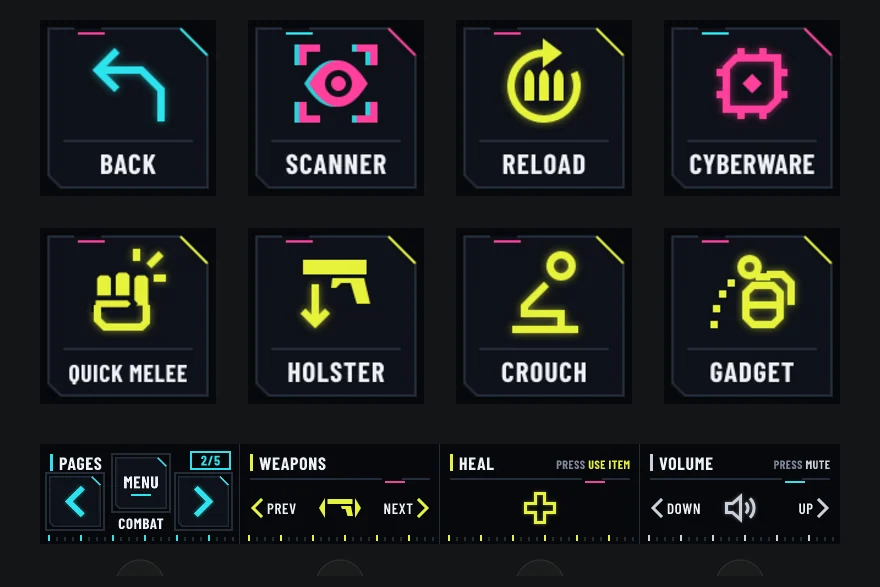
Fighting: scanner, cyberware, weapons, healing.
 ScannerTop row, 2nd key
Turns the scanner on. Press again to turn it off.
SendsCaps Lock ReloadTop row, 3rd key
Reloads your weapon.
SendsR CyberwareTop row, 4th key
Activates your Sandevistan, Berserk or Overclock when it’s charged. Without one, nothing happens. (Grenades and arm launchers are on Gadget.)
SendsEHold Quick MeleeBottom row, 1st key
A quick hit with the weapon in your hands.
SendsQ HolsterBottom row, 2nd key
Puts your weapon away, or takes it out again.
SendsBHold CrouchBottom row, 3rd key
Crouches. Press again to stand up.
SendsC GadgetBottom row, 4th key
Throws a grenade or fires your arm cyberware. A tap throws; hold to aim first. Works after you set it to L in the game.
SendsLTap or hold
Also on this page: Back (see Keys on several pages).
Page 3 of 5
Vehicle
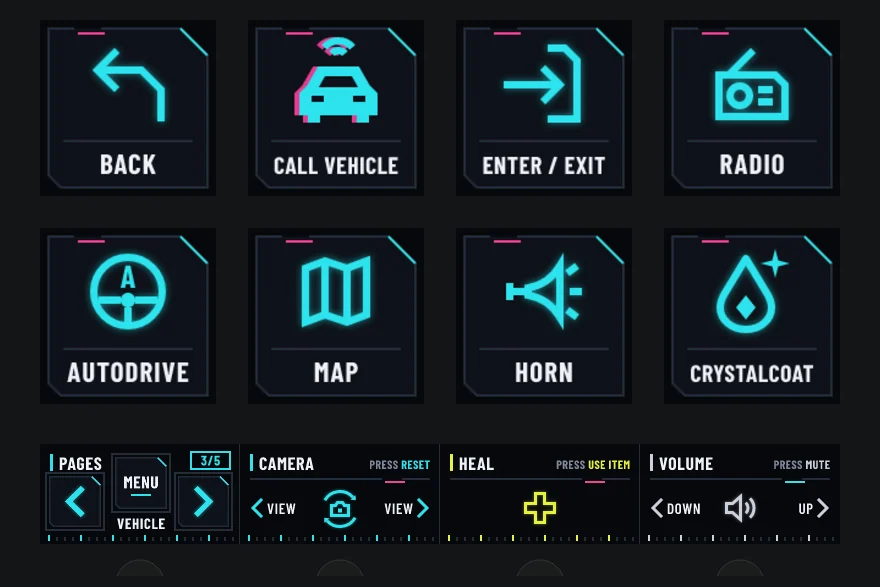
Driving: call your car, radio, camera.
 Call VehicleTop row, 2nd key
Calls your car to you. Inside a car, the same key switches the lights.
SendsVHold Enter / ExitTop row, 3rd key
Gets you into the car in front of you. To get out, hold the key for a second.
SendsFHold 1 s RadioTop row, 4th key
Opens the car radio.
SendsRHold AutoDriveBottom row, 1st key
Turns automatic driving on or off.
SendsG HornBottom row, 3rd key
Sounds the horn.
SendsZ CrystalCoatBottom row, 4th key
Changes your car’s paint, on cars with CrystalCoat. Hold for a second.
SendsYHold 1 s
Page 4 of 5
Interface
Menus: map, phone, inventory, journal, saving.
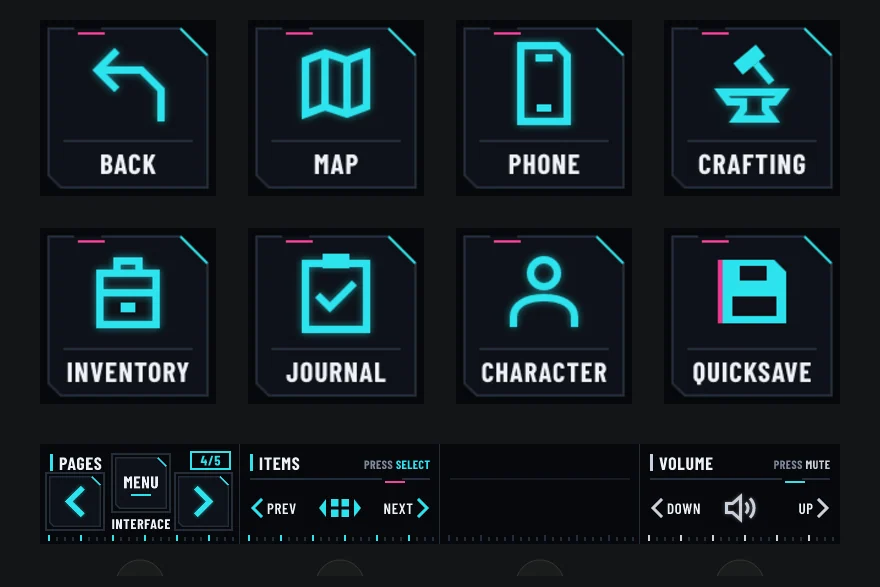
 PhoneTop row, 3rd key
Opens your phone.
SendsTHold CraftingTop row, 4th key
Opens the Crafting screen.
SendsK InventoryBottom row, 1st key
Opens your inventory.
SendsI JournalBottom row, 2nd key
Opens your Journal: jobs and messages.
SendsJ CharacterBottom row, 3rd key
Opens the Character screen: attributes and perks.
SendsP QuicksaveBottom row, 4th key
Saves the game right away.
SendsF5
Page 5 of 5
Braindance
Braindance playback and editing.
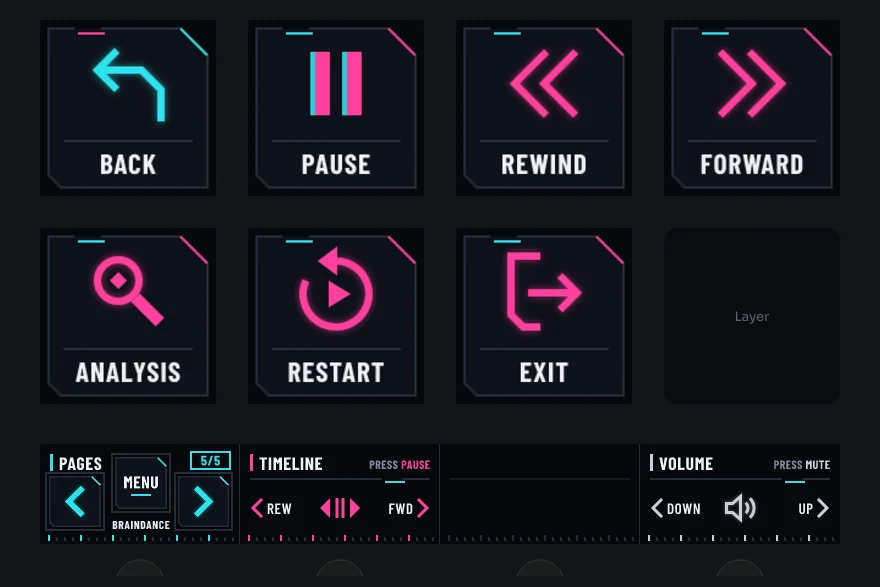
 PauseTop row, 2nd key
Pauses the braindance, or plays it again.
SendsSpace RewindTop row, 3rd key
Plays the braindance backwards.
SendsQ ForwardTop row, 4th key
Plays the braindance forwards.
SendsE AnalysisBottom row, 1st key
Switches to analysis (editing) mode, to scan the scene.
SendsTab RestartBottom row, 2nd key
Starts the braindance again from the beginning.
SendsRHold ExitBottom row, 3rd key
Leaves the braindance.
SendsX- EmptyBottom row, 4th key
Free for a key of your own: see Add a key.
Also on this page: Back (see Keys on several pages).
dials.
Dials are numbered 1 to 4 from the left. Each one says its name on the touch strip above it.
- 1PagesEvery page
Turn to go to the previous or next page. Press to go back to the Menu.
- Turn
- Previous / next page
- Press
- Menu
- 2WeaponsCombat
Turn to switch to the next or previous weapon. It works like your mouse wheel, so pressing it does nothing.
- Turn
- Mouse wheel
- Press
- Nothing
- 2CameraVehicle
Turn to switch the driving camera, one view per click. Press to reset the camera.
- Turn
- Q left · Q right
- Press
- C
- 2ItemsInterface
In menus, turn to go to the previous or next item. Press to select it.
- Turn
- 1 left · 3 right
- Press
- F
- 2TimelineBraindance
Turn left to play back, right to play forward. Press to pause.
- Turn
- Q left · E right
- Press
- Space
- 3HealCombat, Vehicle
Press to use your healing item. Turning does nothing.
- Turn
- —
- Press
- X
- 4VolumeEvery page
Turn to change the Windows volume. Press to mute; press again to unmute.
- Turn
- Volume down left · Volume up right
- Press
- Mute
customize your profile.
Everything happens in the Stream Deck app on your PC. Click a key or a dial on the picture of your Stream Deck, and its settings open at the bottom.
First, save a copy
- In the Stream Deck app, open the profile menu above the keys and choose Edit Profiles.
- Click the three lines next to the profile and choose Export.
- Save the file somewhere safe. Double-click it any time to get your version back.
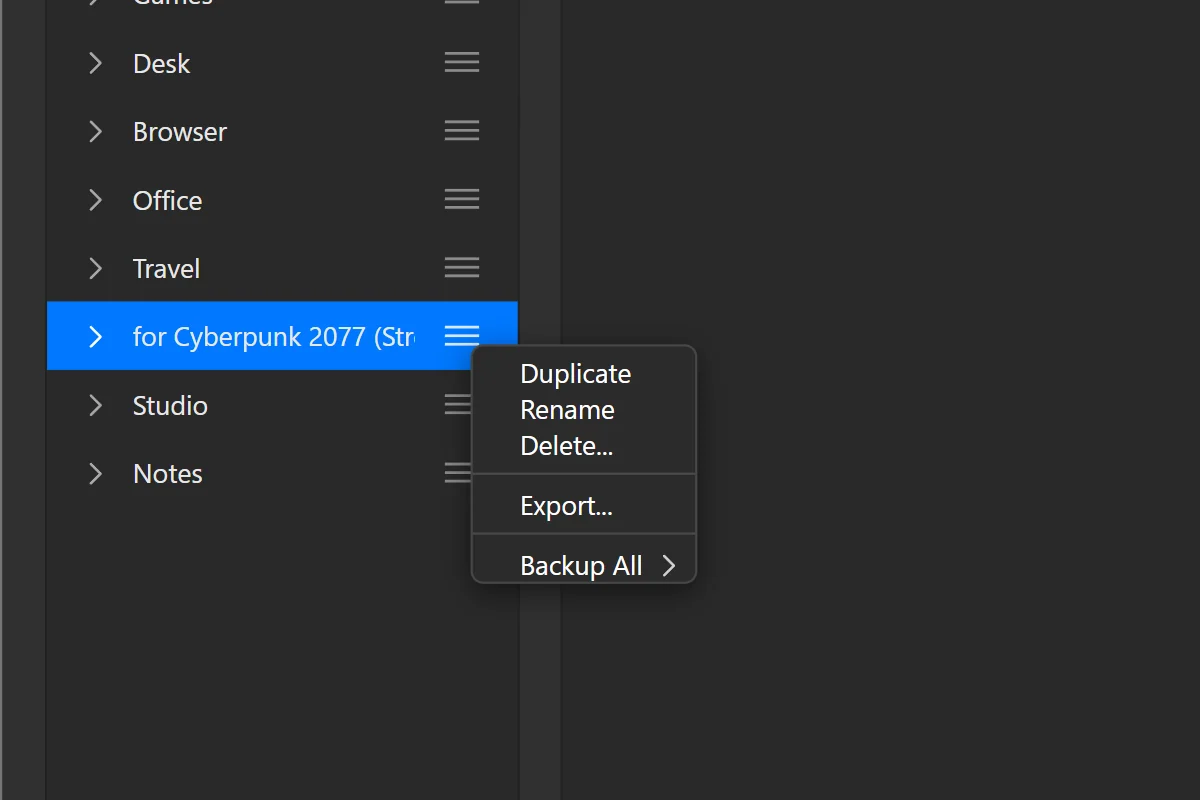
- 1The profile’s menu (three lines)
- 2Export…
Change the key a button sends
- Did you change a key in Cyberpunk 2077’s settings? Do the same here.
- In the Stream Deck app, click the button on the picture of your Stream Deck.
- At the bottom, click the Hotkey field.
- Press the new key on your keyboard. That’s it: it saves by itself.
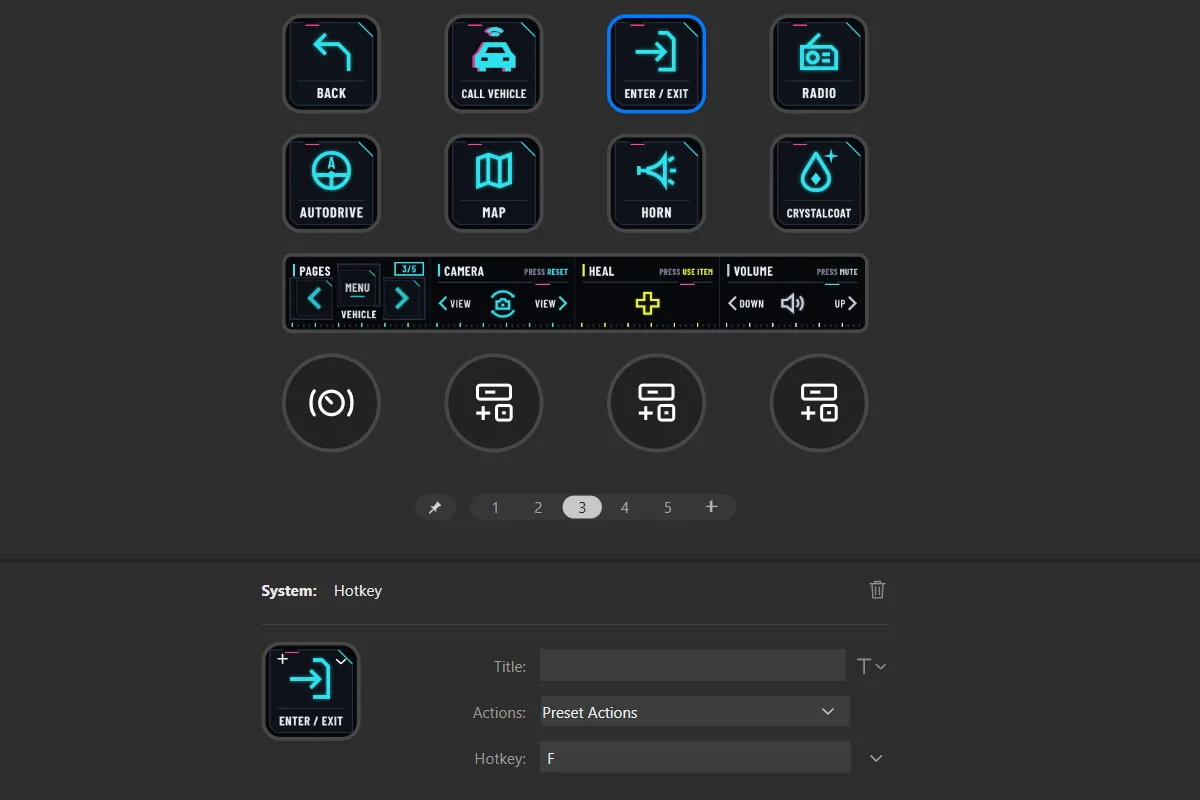
- 1The key you clicked
- 2Hotkey: the key it sends
Move a button, or swap two
- In the Stream Deck app, drag a button to an empty place.
- Drop it on another button and the two swap places.
- To put it on another page: right-click it and choose Copy, go to the other page, right-click an empty place and choose Paste.
Change the name or the icon
- Click the button in the Stream Deck app.
- Type a new name in Title. Our names are drawn in the picture, so you may want a new picture too.
- To change the picture, open the menu next to the button’s image and choose Set from File.
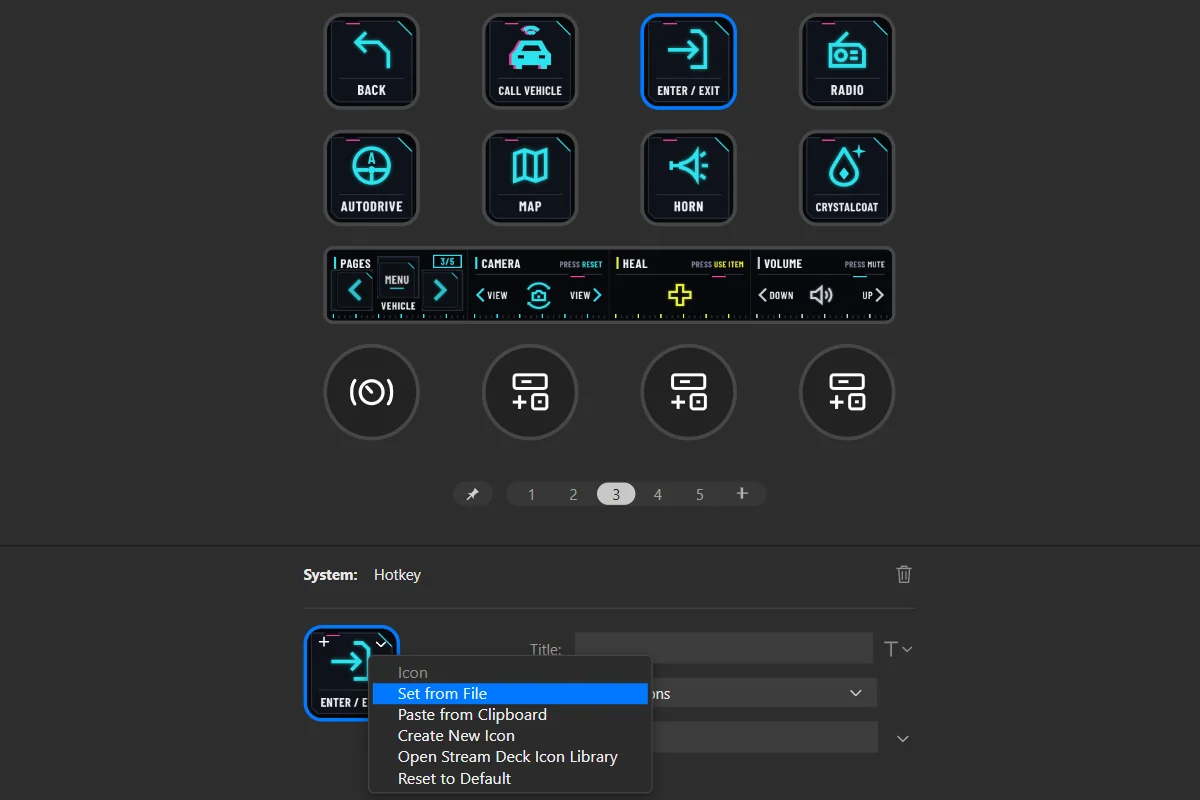
- 1Title
- 2Set from File: a new picture
Add a key
- Find an empty place on the page (marked “Empty” in the tables above).
- On the right of the Stream Deck app, open System and find Hotkey.
- Drag Hotkey onto the empty place.
- Click its Hotkey field and press the key the game uses.
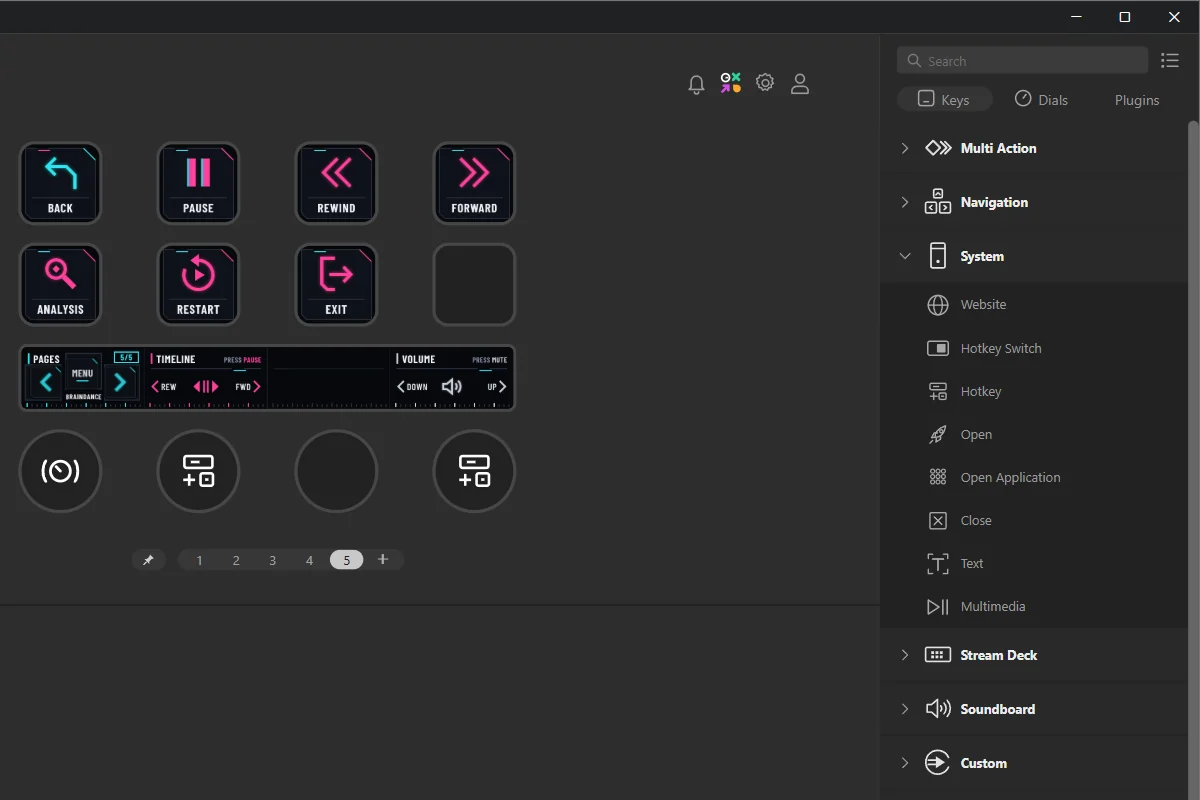
- 1Hotkey, under System
- 2An empty place: drop it here
Keys you hold down
- Nothing to set: a Stream Deck key stays pressed as long as your finger is on it, like a keyboard key.
- Keys marked Hold in the tables need it: keep your finger on them until the game reacts.
Change what a dial does
- Click the dial under the keys in the Stream Deck app.
- At the bottom you see three fields: Rotate CCW (turning left), Rotate CW (turning right) and Press / Tap.
- Click a field and press the new key on your keyboard.
- Want something else on the dial? Drag another action onto it from the list on the right.
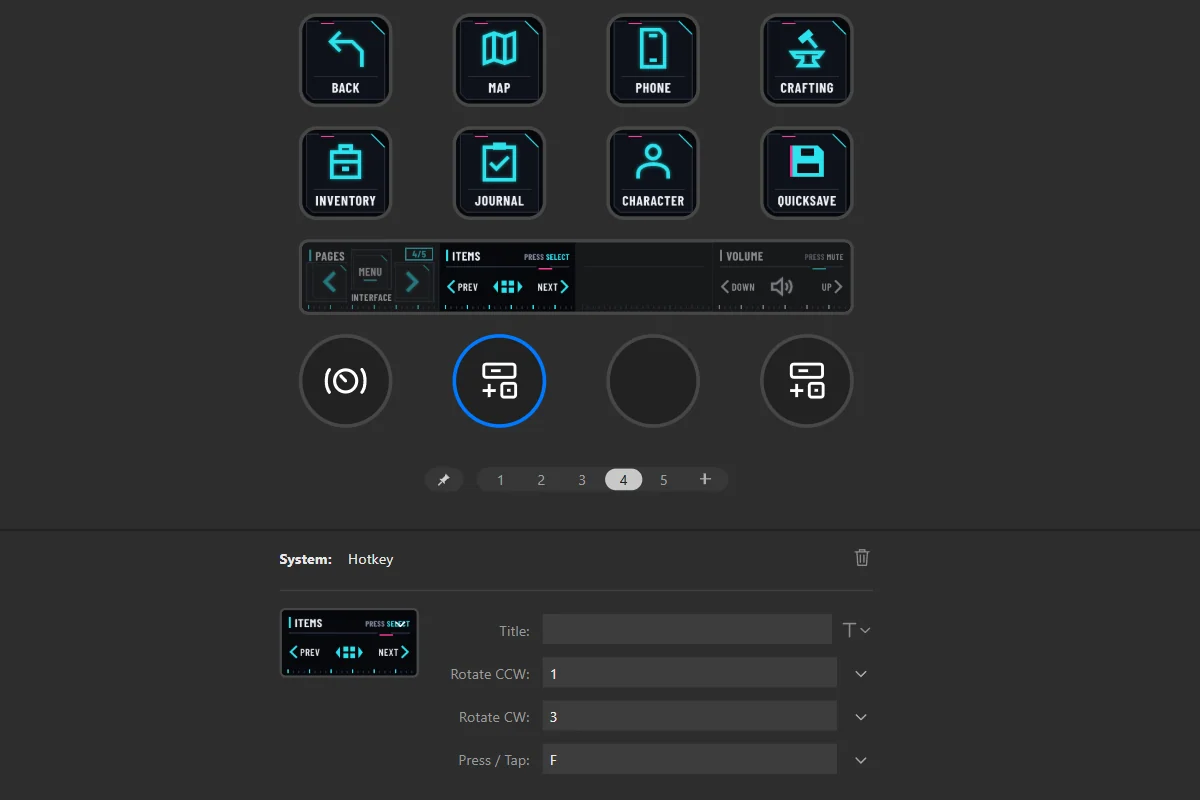
- 1The dial you clicked
- 2Rotate CCW: turning left
- 3Rotate CW: turning right
- 4Press / Tap: pressing it
Go back to the original
- Delete the profile: open the profile menu above the keys and choose Edit Profiles, select it, click −.
- Double-click the original file from the download again.
- Your changes are gone. Saved a copy first? Double-click that file instead.
- 1The old profile
- 2The minus button: deletes it
if something doesn’t work.
A key does nothing in the game
- Click once inside the game window. Stream Deck types into the window in front, like a keyboard.
- Some actions need you to hold the key: look for “Hold” in the tables above.
- Check the key in the game: Settings › Controls › Key Bindings. The profile uses the game’s default keys. If you changed one, change it back, or change the Stream Deck key (see “Customize your profile”).
The Gadget key does nothing
- Set Use Combat Gadget to L in the game: Settings › Key Bindings (Install, step 1).
- You need a grenade or arm cyberware equipped.
Healing doesn’t work
- The Heal dial presses X, the game’s default for using a healing item.
- If you moved it to a mouse button, set it back to X in Settings › Controls. Stream Deck can’t press mouse buttons.
Phone, Radio or Skip Dialogue do nothing
- Hold the key for a moment. The game only reacts to a long press on these. Keys marked “Hold” in the tables need it.
I changed my keys in the game
- Find the key in the tables above: the “Sends” column shows what Stream Deck presses.
- Either set that key back in the game, or follow “Change the key a button sends” in Customize.
How do I get back to the start?
- Press BACK, top left of every page. Or press the first dial: it always goes to the Menu.
The Weapons dial goes the wrong way
- It turns like a mouse wheel. If next and previous feel swapped, simply turn the other way.
I have the profile twice, or a profile called “copy”
- You imported the file twice. Stream Deck never replaces a profile: it adds a new one.
- Delete the extra one (see “Have an older version? Delete it first” in Install) and keep one.
Still stuck? Contact support and tell us your Stream Deck model and what happens.
version notes.
- Version 0.4.3this version
- Five pages for Stream Deck +: Menu, Combat, Vehicle, Interface, Braindance.
- Combat: Quick Melee, Crouch and a new Gadget key for grenades and arm cyberware (set Use Combat Gadget to L in the game).
- Crafting moves to the Interface page.
- Every key checked against the game’s own default keys.
The profile sets up your Stream Deck; it doesn’t include the game. Independent product by Frenetiq Design, not affiliated with or endorsed by the makers of Cyberpunk 2077 or by Elgato.